Webhooks
A webhook lets Next Inventory tell another system that something happened: stock moved, an item ran low, an item was created. It does this by POSTing a signed JSON message to a URL you choose. Your system no longer has to poll the API.
Events
| Event | When |
|---|---|
stock_movement.finalized |
A check-in, check-out, stock addition or removal was finalized |
transfer.finalized |
A warehouse transfer was finalized |
adjustment.finalized |
A stock adjustment (addition, damage, subtraction) was finalized |
stock.changed |
An item's stock quantity changed, whatever changed it: a movement, transfer or adjustment, the Check In / Check Out / Add / Remove dialog on the Items page, or a direct edit of the quantity. One message per item |
stock.low |
A stock change took an item from above its low-stock threshold to at or below it |
item.created / item.updated / item.deleted |
An item record changed (including its image) |
warehouse.created / warehouse.updated / warehouse.deleted |
A warehouse changed |
recipient.created / recipient.updated / recipient.deleted |
A recipient (a person items are checked out to) changed |
Events fire for changes made on screen and through the API alike. To keep another system's
stock levels in step, subscribe to stock.changed: it is the one event that covers every way
stock can change. The *.finalized events describe the whole document (all its lines) and suit
systems that mirror movements, transfers or adjustments themselves.
Set one up
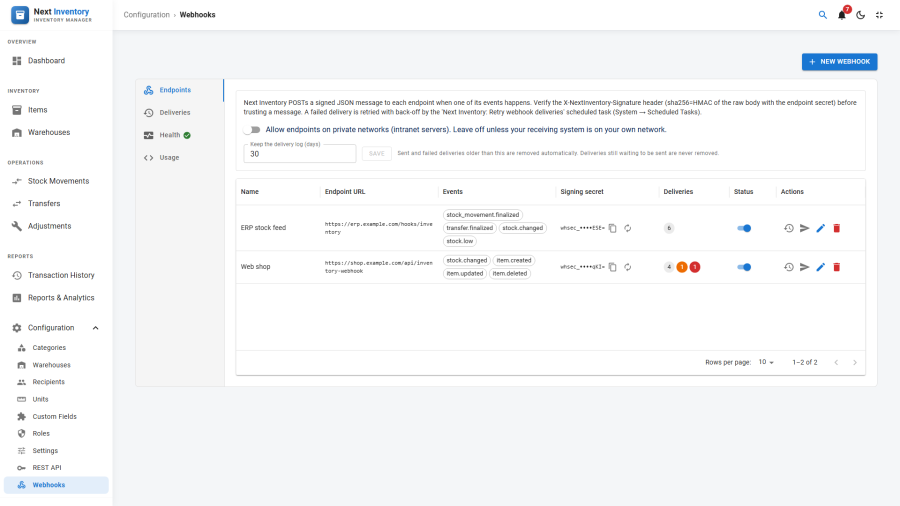
The page Configuration → Webhooks has four tabs: Endpoints, Deliveries, Health and Usage. The Health tab lists the setup steps in order, ticks the ones that are done, and highlights the next one with the button that does it. Following it is the quickest way to start.
- In App Manager → Integrations, check that Webhooks is on (the default).
- On the Endpoints tab, click New webhook.
- Enter a name, the endpoint URL (it must be
https://orhttp://), and tick the events. - Leave Signing secret empty to generate one. Save: Next Inventory shows the new secret at once, with a Copy button. Paste it into your receiving system.
- Click Send a test ping (the paper-plane icon). The result appears at once, and a successful test completes the last step on the Health tab.
Each webhook has its own secret, so a leak at one receiver never lets anyone fake messages to another. The Signing secret column shows the end of each secret, with a button to show and copy it and one to make a new secret. A new secret applies to every message from then on, retries included, so update the receiver at the same moment. Making one is recorded in Joomla's User Actions Log. The Health tab lists any enabled webhook whose secret has not yet been shown or copied, as a reminder that its receiver may not have it.
The Usage tab shows what a message looks like and how your receiver checks its signature, in PHP and Node.js, or with a Standard Webhooks library.
Delivery and retries
Each event is sent once, right after the change that caused it. A delivery counts as successful
when your endpoint answers any 2xx status within 8 seconds.
A delivery that fails is retried after 1 minute, 5 minutes, 30 minutes, 2 hours, 6 hours, 12 hours
and 24 hours (eight attempts over about a day and a half), then marked failed. If your
endpoint answers 410 Gone, it is marked failed at once and not retried. Retries are sent by the
scheduled task Next Inventory: Retry webhook deliveries, which also deletes delivery records
older than the Keep the delivery log setting on the Endpoints tab (30 days by default,
1 to 365). Deliveries still waiting to be sent are never deleted; old ones are also removed now and
then after a send, so the log stays small even when the task is not running. Next Inventory creates it for you, set to every 10 minutes,
when the first webhook is saved (or the Webhooks app is switched on) by a user who may manage
System → Scheduled Tasks. It is created only once: if you delete it, it is not brought back.
Joomla runs scheduled tasks on ordinary page visits, so no server cron job is needed. On a site
with few visits the task may run late: when deliveries are more than 15 minutes overdue, the
Health tab says so and offers Retry due now.
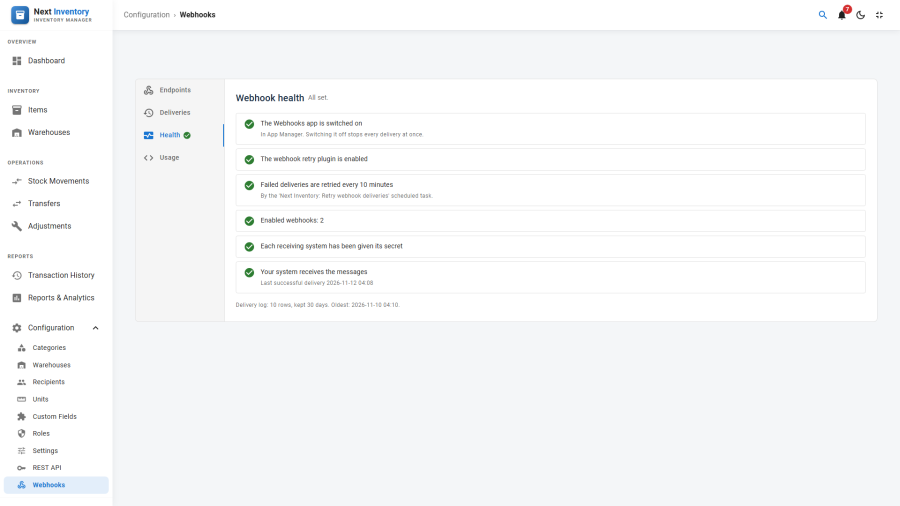
If the task is missing or disabled, or its Task - Next Inventory Webhooks plugin is off, the Health tab shows that step with a link to create the task (and an Enable button for the plugin). The Health tab's label always shows where things stand, without opening it: a red exclamation mark when something is broken, an amber one while steps are left, a green tick when everything is done. Hover it for the reason. When a webhook exists and something is broken, the page opens on that tab.
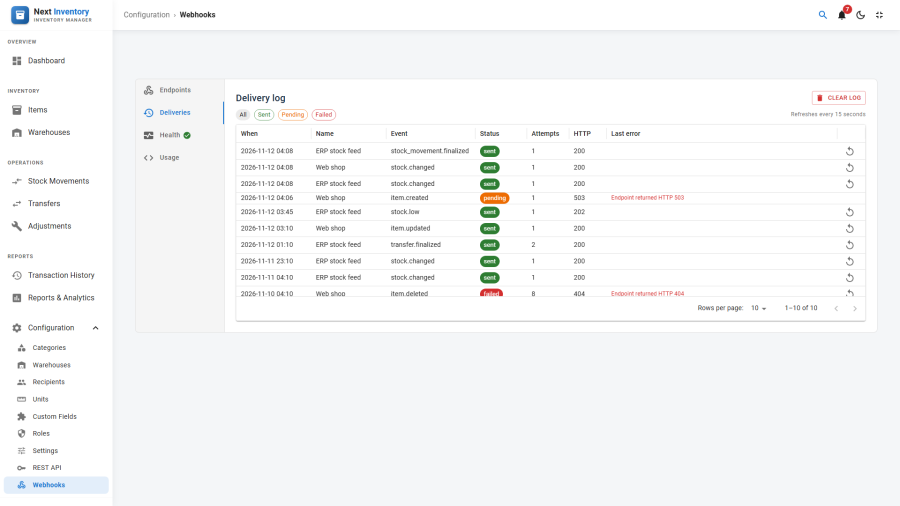
The Deliveries tab shows every delivery with its status, attempts, HTTP code and last error, and refreshes itself every 15 seconds while open. Filter it by status (sent, pending, failed); the history icon next to a webhook on the Endpoints tab opens it filtered to that webhook. Click the retry icon on any delivery that is not pending to send it again now (with the same delivery id, so your receiver can recognise a repeat). Clear log removes every sent and failed delivery and keeps the pending ones; it is recorded in the User Actions Log.
Private networks
By default an endpoint must resolve to a public internet address. Endpoints on localhost, a
private network (10.x, 192.168.x, …), or a cloud metadata address are refused, so a webhook
cannot be used to reach machines behind your firewall.
If your receiving system really is on your own network, a Super User can tick Allow endpoints on private networks on the Webhooks screen.
Next
- Payload: what each message contains
- Signatures: how to check a message really came from your site