Basic Setup
Smart Local Google Maps needs no tracking ID or API key to start: once the plugin is enabled it detects Google Maps embeds automatically. (An API key is optional, and only for the {smartmap} shortcode.) This page explains what happens after you enable it and which settings to review first.
Enable & Go
- Install the plugin (see Installation)
- Enable it under System > Manage > Plugins (search for Smart Local Google Maps)
- Open any frontend page with a Google Map: the consent box appears and the map is held back
No template editing is required. The plugin checks the rendered HTML of every front-end page for map code and blocks it until the visitor consents. Administrator pages and non-HTML output (JSON, feeds) are not touched.
How Detection Works
The plugin runs during Joomla's onAfterRender event, after the full page HTML is built. It applies 21 built-in regex patterns (plus an optional custom pattern) to find Google Maps iframes, API scripts and extension-specific markup. Each match is removed from the output and replaced with a consent box or inline placeholder.
See Map Detection for the full pattern list.
Two Ways the Plugin Helps
| Mode | What it does |
|---|---|
| Block (default) | Detects and removes existing Google Maps from your pages until consent is given |
| Create | The {smartmap} shortcode builds a map from an address, already wrapped in the consent placeholder |
See Shortcode for the {smartmap} settings.
Settings to Review First
The plugin works with sensible defaults, but these are the settings most sites change:
| Tab | Setting | Why review it |
|---|---|---|
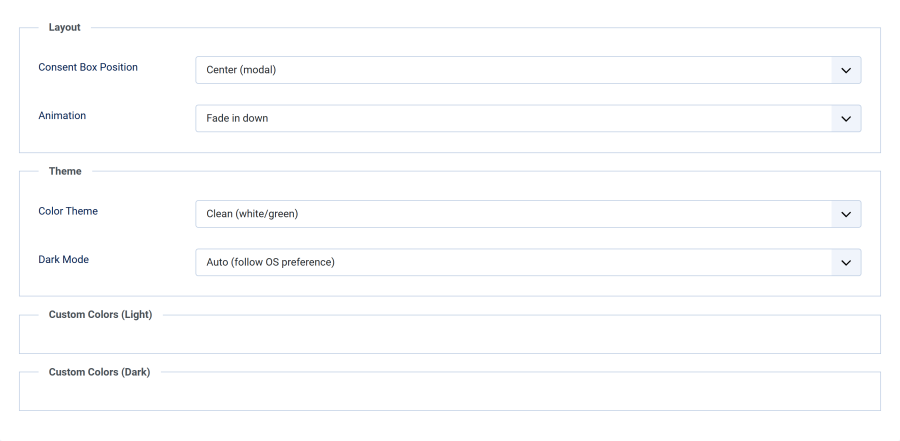
| Appearance | Consent Box Position | Floating box (1–4) or inline placeholder (5) — pick what fits your layout |
| Appearance | Color Theme | Match the consent box to your site's look |
| Content | Privacy Policy Page | Link your privacy policy from the consent box |
| Cookie Settings | Cookie Lifetime | How long a consent decision is remembered |
| Geo-Detection | Browser Language Detection | Show consent only to EU/EEA/UK visitors |
| Shortcode | Enable {smartmap} Shortcode | Turn the {smartmap} map builder on or off (on by default) |
Recommended First Configuration
- Open the Appearance tab and choose a Consent Box Position and Color Theme
- Open the Content tab and select your Privacy Policy Page
- Open the Cookie Settings tab and decide between Session or a number of days
- Save and test on a page that contains a Google Map, in a private browser window