Basic Setup
Smart Local Youtube has no tracking ID or API key to configure — once the plugin is enabled it detects YouTube embeds automatically. This page explains what happens after you enable it and which settings to review first.
Enable & Go
- Install the plugin (see Installation)
- Enable it under System > Manage > Plugins (search for Smart Local Youtube)
- Open any frontend page with a YouTube video — the consent box appears in its place
No template editing is required. The plugin scans the rendered HTML for YouTube code on every front-end HTML page and blocks it until the visitor consents. It does nothing in the administrator, on API requests, or on non-HTML output such as feeds.
How Detection Works
The plugin runs during Joomla's onAfterRender event, after the full page HTML is built. It applies 7 built-in regex patterns (plus an optional Custom Regex Pattern) to find YouTube iframes, the IFrame API script, page-builder markup, and component embeds. Matches are removed from the output; the consent box is shown as an overlay, or each video gets an inline placeholder.
See YouTube Detection for the full pattern list and How Consent Works for what happens after the visitor decides.
Settings to Review First
The plugin works with sensible defaults, but these are the settings most sites change:
| Tab | Setting | Why review it |
|---|---|---|
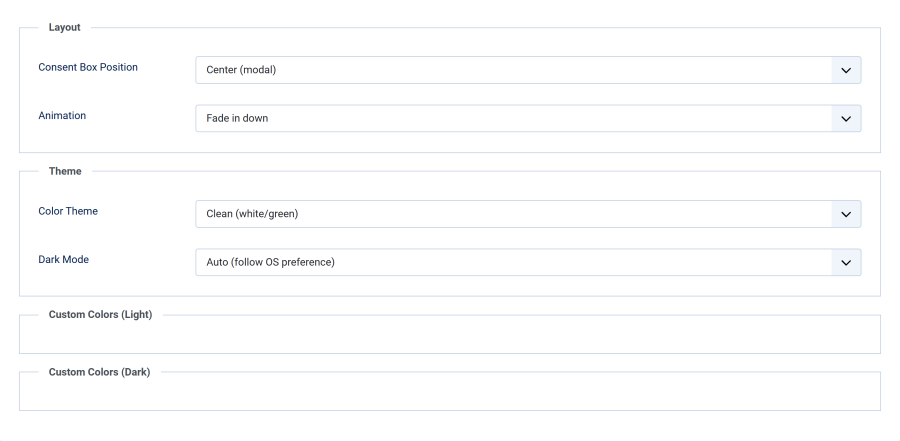
| Appearance | Consent Box Position | An overlay, or Inline (replace video) — pick what fits your layout |
| Appearance | Color Theme | Match the consent box to your site's look |
| Content | Privacy Policy Page | Link your privacy page for GDPR compliance |
| Content | Custom Title / Custom Consent Text | Personalize the consent wording |
| Cookie | Cookie Lifetime | How long a consent decision is remembered |
| Geo-Detection | Browser Language Detection | Show consent only to EU/EEA/UK visitors |
Recommended First Configuration
- Open the Appearance tab and choose a Consent Box Position and Color Theme
- If you picked Inline (replace video), set the Placeholder Image and Play Button Style
- Open the Content tab and select your Privacy Policy Page
- Open the Cookie Settings tab and decide between session-only or a fixed number of days
- Save and test on a page that contains a YouTube video