Placeholder Images
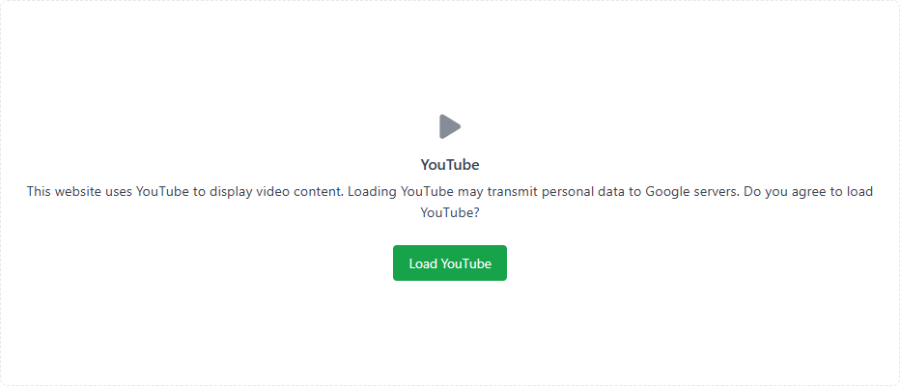
When Consent Box Position is set to Inline (replace video) (position 5), each blocked video is replaced in place with a click-to-load card. This page covers the four Placeholder Image choices and the Play Button Style options.
Placeholder images apply only to the Inline (replace video) position. Overlay positions (1–4) show a single consent dialog and don't use poster images.
The Four Image Choices
| Placeholder Image | Source of the poster | Privacy |
|---|---|---|
| Icon only (privacy-safe) (default) | A generic icon on the themed card | Fully local — nothing is requested from Google |
| Single custom image | One image you choose, used for every detected video | Served from your site |
| Per-video custom images | A list mapping YouTube videos to individual images | Served from your site (unless you enter an external URL) |
| YouTube thumbnail (leaks IP before consent) | Auto-fetched from img.youtube.com/vi/{id}/hqdefault.jpg |
Contacts Google before consent — see warning |
Icon only (privacy-safe)
The default. Each placeholder shows the title icon over the themed card background. No external requests, no per-video setup — the safest option and the recommended default.
Single custom image
Choose one image in the Custom Image media field. Every detected video uses that same poster. Good when you want one branded "watch our video" image across the site.
Per-video custom images
Choose Per-video custom images and add rows to Per-video Placeholders, mapping each YouTube video to its own poster image:
| Row field | Notes |
|---|---|
| YouTube Video ID | The 11-character ID, or simply paste the video's URL: watch?v=, youtu.be/, /embed/, /shorts/ and /live/ links are recognised |
| Placeholder Image | The poster image to show for that video |
The plugin extracts the video ID from each matched embed and looks it up in the list. Videos without a row fall back to the generic icon, and rows whose ID cannot be recognised are ignored. No row is required — you can save the plugin with an empty list. You can add up to 100 rows.
YouTube Thumbnail
Fetches the official poster from img.youtube.com/vi/{id}/hqdefault.jpg based on the extracted video ID.
Privacy warning: This mode requests the thumbnail from Google's servers before the visitor consents, which sends the visitor's IP address to Google. That partly defeats the purpose of a consent manager. Only enable it if your privacy policy explicitly permits pre-consent contact with Google. For a privacy-safe poster, use Single custom image or Per-video custom images with self-hosted images instead.
Play-Button Overlays
A play button is layered over the poster image so the placeholder reads as a video. Choose the style in the Play Button Style field:
| Option | Appearance |
|---|---|
| None | No play button — just the poster |
| Light (white) | White play button |
| Dark | Dark play button |
| Red (YouTube-style) (default) | The red YouTube-style play button |
The play button is shown only when the placeholder has an image; in Icon only mode it is not used. The button images ship with the plugin and scale with the placeholder.
How a Click Restores the Video
Each placeholder has a Load YouTube button. When the visitor clicks it, the sly-consent cookie is set and the page reloads at the same scroll position with the original YouTube embeds in place. The placeholder is only shown while no decision has been made; after a decline the videos are simply removed.
For styling, the placeholder carries data-video-id and the sly-mode-{mode} and sly-playbtn-{style} CSS classes.
Player scripts that show nothing by themselves (the IFrame API script and the YouTube Gallery script) are removed without a placeholder, so no empty box appears in the page or the <head>.