Settings
The global switches, at Configuration → Settings. There are six, and they split into two groups by who may change them.
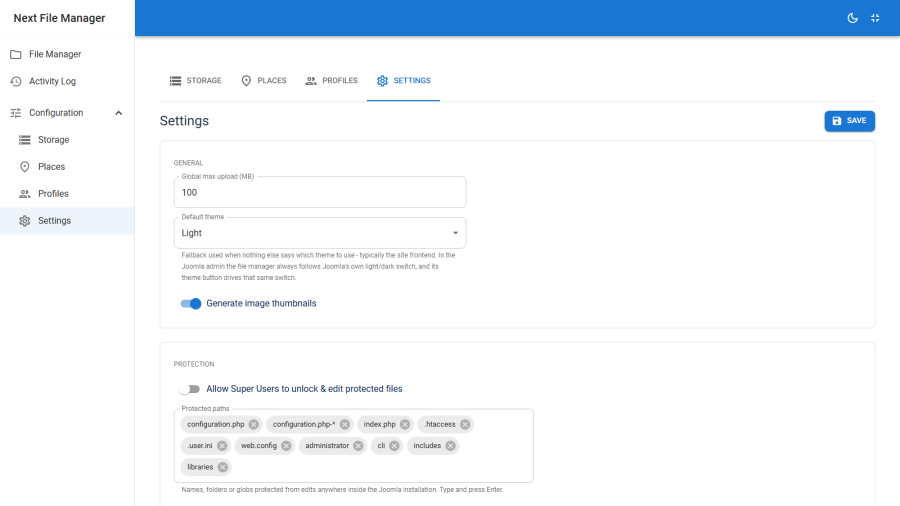
General settings
Reachable by Super Users, and by any profile granted the Manage settings feature.
Global max upload (MB)
The site-wide ceiling on upload size, entered in megabytes.
It caps every profile. A profile whose own limit is higher gets this value; a profile whose limit is lower keeps its own. Setting a profile's limit to 0 means "unlimited for this profile" — it does not mean unlimited overall, because this ceiling still applies.
PHP's upload_max_filesize and post_max_size sit above both and cannot be raised from here. If uploads fail below your configured ceiling, PHP's limits are the reason — see Troubleshooting.
Generate image thumbnails
A switch governing thumbnail generation for image previews.
Note that grid view does not currently render thumbnails — it shows large type icons — so toggling this does not change the browser's appearance. Use the lightbox to see what an image looks like. See Editing & preview.
Default theme
The interface colour scheme: light or dark.
By default the app follows Joomla's own colour scheme, so it changes with the admin template rather than fighting it. Set this explicitly when you want the file manager pinned regardless.
If a change does not take, clear Joomla's cache and hard-reload — a stale asset or compiled-language cache is the usual cause.
Protection settings
Super-User-only. These stay locked even for a profile granted Manage settings, because they are what the rest of the access model rests on: a delegated settings manager who could edit the protected-paths list would effectively hold Super User.
Protected paths
The pattern list that blocks writes to a path and everything under it. Ships with Joomla's entry points, its server-configuration files, and the administrator/, cli/, includes/ and libraries/ trees.
Add to it rather than replacing it — the defaults are the minimum for a Joomla site.
Full reference: Protection.
Allow Super Users to unlock & edit protected files
Whether per-path unlock overrides count at all.
Off (the default) — every unlock recorded against a path is inert, and protection is absolute for everyone including Super Users.
On — a Super User can unlock a specific path and then edit it, with nearest-ancestor-explicit-wins evaluation.
The intended use is temporary: switch on, unlock the one file, make the change, re-lock, switch off. Leaving it on permanently is a decision worth making consciously.
It does not make secret files readable. configuration.php, .env, *.key, *.pem and .htpasswd stay unreadable below Super User whatever this is set to.
Demo mode
Locks the installation into a sandboxed demonstration state, for public demo servers.
Unless you are running a public demo of Next File Manager itself, leave this off. It is not a security feature for production sites — it is a display mode for a throwaway install, and the guard plugin it depends on ships only in the demo build of the package, not the production one.
Who can change what
| Setting | Super User | Profile with Manage settings | Anyone else |
|---|---|---|---|
| Global max upload (MB) | ✓ | ✓ | — |
| Generate image thumbnails | ✓ | ✓ | — |
| Default theme | ✓ | ✓ | — |
| Protected paths | ✓ | — | — |
| Allow Super Users to unlock & edit protected files | ✓ | — | — |
| Demo mode | ✓ | — | — |
Every write is validated on the server against a fixed allowlist of keys and value types. A key not on that list is neither readable nor writable through this screen, whatever is submitted.