Search
Finding a file when you know its name but not where it lives.
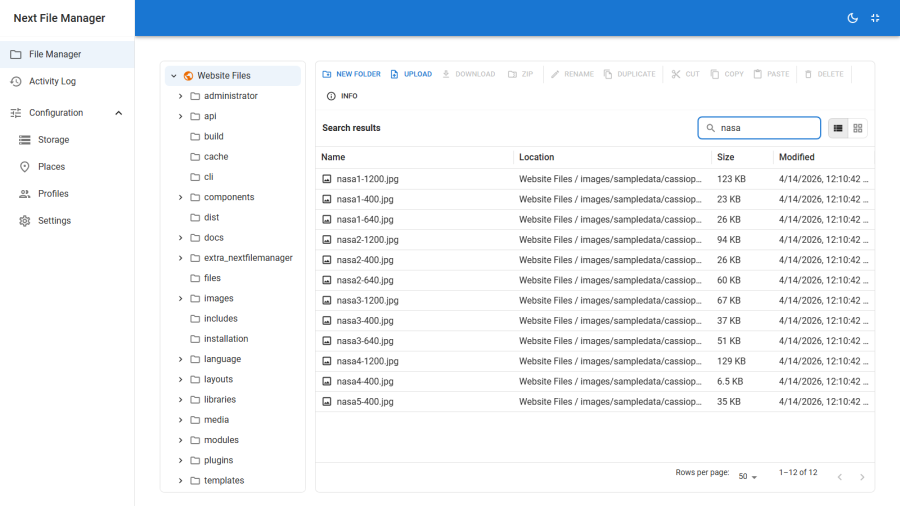
How it works
Type into the search box in the toolbar. Searching starts automatically once you have typed two characters — there is no button to press.
The search covers the whole place, not the folder you are standing in. It walks every folder in the place from its root downwards and matches on file and folder names, so a match three levels away from your current folder is still found. Results replace the browse pane and show each one with its Location — the place name and the path within it — so you can tell two similarly-named files apart.
Acting on a result — open, preview, download, or reveal it in its containing folder — works the same as acting on an item in a normal listing. Clearing the box returns you to the folder you were browsing.
Scope
Search never sees more than you do.
The recursion is bounded by the roots your profile grants. A user granted site / images/clients/acme searching from their top level searches that subtree and stops — there is no query that walks up out of it, because the path resolution that gates every other operation gates this one too.
So the bound on what search can reach is the profile's roots, and nothing else narrows it — navigating into a subfolder first does not.
It is a separate permission
search is one of the sixteen grantable commands, independent of info and preview. Withholding it is meaningful: a user who can browse a folder they were given, but cannot search it, cannot cheaply enumerate a large tree looking for something interesting.
That is worth doing on wide grants and pointless on narrow ones — someone granted a single upload folder can see everything in it by scrolling anyway.
Search versus filters
Two different tools that are easy to confuse:
| Search | Filters | |
|---|---|---|
| Scope | The whole place, from its root down | The current folder only |
| Matches on | Name | Kind, extension, size range, modified date range |
| Runs | On the server | In the browser, on the already-loaded listing |
| Permission | Needs search granted |
Always available |
Use filters to narrow a folder you are looking at — "just the PDFs", "anything over 10 MB", "changed this week". Use search when you do not know which folder the file is in.
See File browser for the filter reference.
Practical notes
- A big place takes real time. The walk is exhaustive, so it scales with the number of files in the place, not with how close you are standing to the match. On a full Joomla install of roughly 70,000 files a search takes on the order of fifteen seconds; the results pane shows a spinner until it finishes.
- Remote drives are slower still, because each folder is a network round trip. Remote walks are deliberately bounded rather than allowed to run forever, so a very large remote drive may report its results as truncated.
- Results are capped. A search returns at most 200 matches and tells you when it has truncated. Narrow the term rather than paging.
- Scoping is done with places and roots. Because search always starts at the place root, the way to make it cheap — and the way to keep a user's search narrow — is a place or a profile root that points deeper. See Places.