File browser
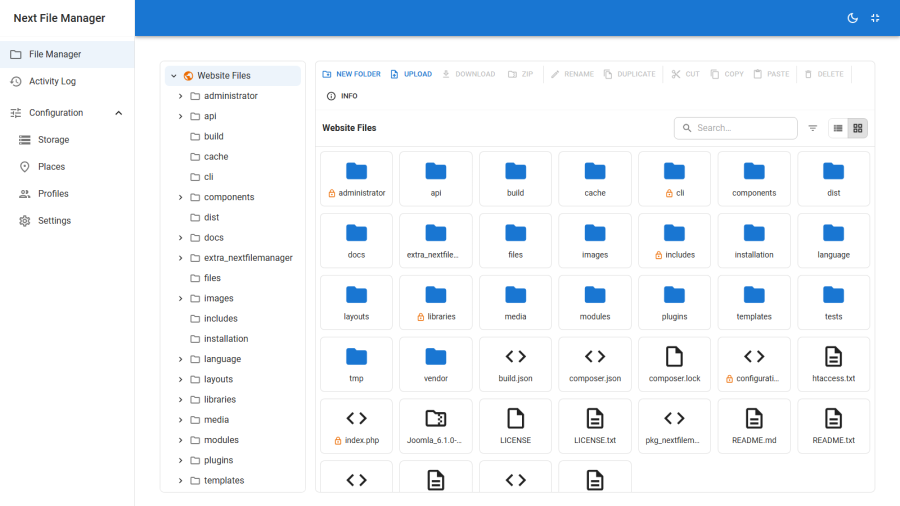
The main working surface: a folder tree, a browse pane, breadcrumbs, a context menu and an info panel.
Layout
| Region | What it does |
|---|---|
| Place switcher | Chooses which place you are browsing. Only places your profile grants appear. |
| Folder tree | A lazily-loaded tree of the folders inside your granted roots. Each level loads when you expand it, so a deep or slow drive does not stall the whole panel. |
| Breadcrumbs | The place name followed by your path within it. Click any segment to jump back to it. |
| Browse pane | The current folder's contents, as a grid or a list. |
| Info panel | Details for the current selection, toggled from the toolbar. |
You never see above your granted root. The tree is built from the roots your profile grants, and the breadcrumb's first segment is the place itself, not the filesystem path underneath it — a user granted site / images/clients/acme sees acme as their top level.
Grid and list views
Switch with the view toggle in the toolbar.
Grid shows tiles with a large icon per file type, and a padlock badge on anything protected. It suits scanning a folder by shape — which items are folders, which are code, which are locked.
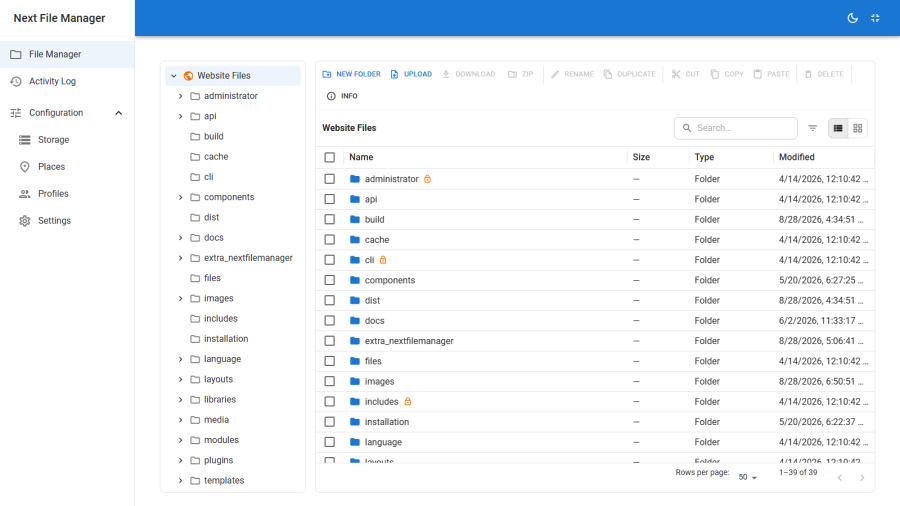
List shows a dense sortable table — name, size, type and modified date — with click-to-sort column headers. It suits large folders and anything where you are looking for a specific file rather than recognising one by sight.
The choice persists as you navigate.
Selection
Click to select. Ctrl/Cmd-click adds to the selection, Shift-click extends a range. The toolbar and the context menu act on the whole selection, and both grey out anything that cannot apply to every item in it — a selection containing a folder will not offer Download, for instance, because a folder is not a file.
Context menu
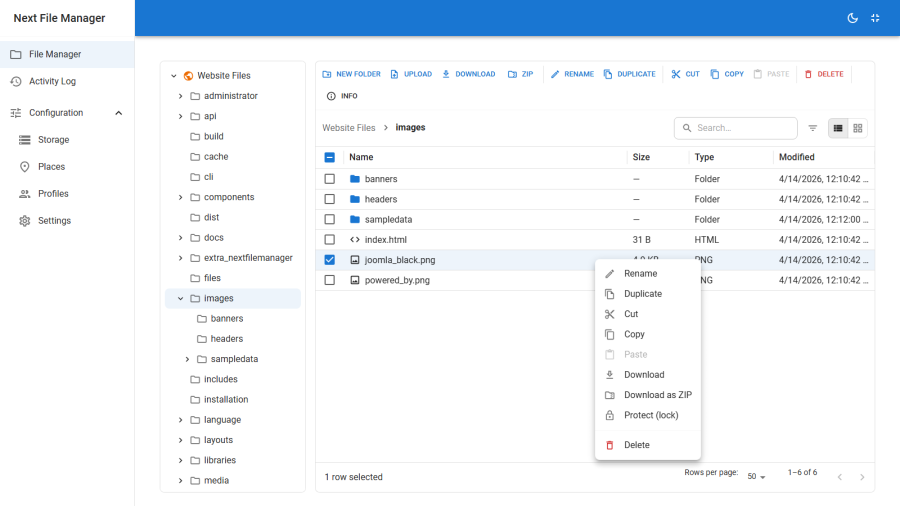
Right-click a file, a folder or a multi-selection:
| Entry | Notes |
|---|---|
| Rename | Single item, on a writable root, not protected |
| Duplicate | Single item, on a writable root, not protected |
| Edit | Text and code files only — see Editing & preview |
| Cut / Copy / Paste | Paste requires a writable destination; source and destination may be on different drives |
| Download | Files only |
| Download as ZIP | Any selection, packed into one archive — see Archives |
| Extract | Archives only |
| Protect (lock) / Unprotect (unlock) | Per-path protection overrides — see Protection |
| Delete | Writable root, nothing in the selection protected |
Entries your profile does not grant are absent, not merely disabled. Entries that are present but greyed out are blocked by something about the current selection — a read-only root, a protected path, or a driver that cannot do it.
Drag to move
Drag a selection onto a folder tile in the browse pane, or onto a node in the folder tree, to move it there. The drop target highlights as you hover it. Moves need cut and paste granted, and a writable destination.
Dragging across places works — dropping a file from one drive onto a folder on another performs a streamed cross-drive transfer rather than loading the file into memory.
Info panel
Toggle it from the toolbar with a selection active.
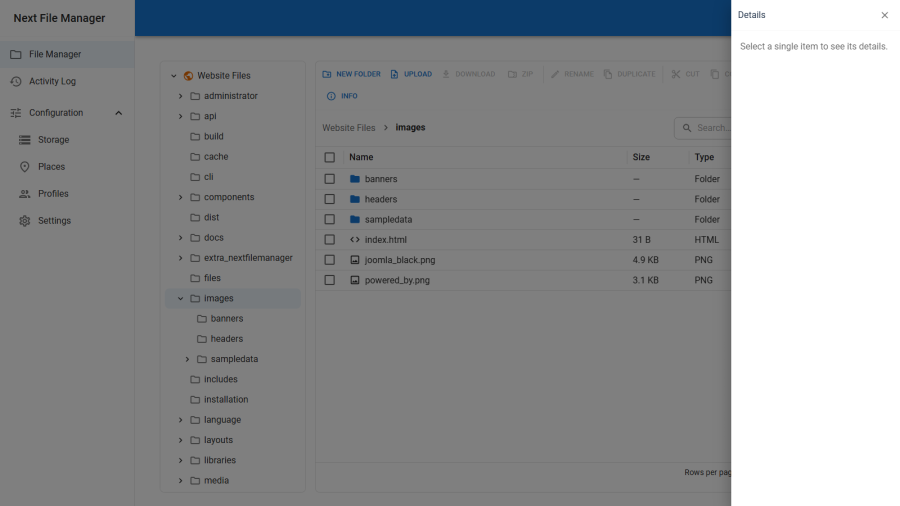
It shows name, type, size, modified date, pixel dimensions for images, the full path within the place, and Writable: Yes / No — plus a download button. That writable flag is the quickest way to answer "why can't I change this": a No means the path is protected, whether by a pattern or by an explicit lock.
Filters
The filter button opens a drawer that narrows the current folder without a server round-trip:
| Filter | Values |
|---|---|
| Show | Folders only · Files only · Images · Documents · Archives · Code & text |
| Extension | One extension or a comma-separated list, e.g. jpg, png |
| Min size / Max size | In MB |
| Modified after / Modified before | Dates |
Active filters appear as chips above the pane; click a chip's × to drop that one, or Clear to drop them all. Filters apply to the folder you are looking at — to search a whole tree, use Search.
What the driver allows
Not every operation exists on every drive. Each storage driver declares what it can actually do, and the browser hides what the protocol does not support rather than offering a button that fails deep inside an adapter.
The most visible case is S3-compatible storage, which has no true directories — an "empty folder" there is a zero-byte marker object, so creating one behaves differently from creating a folder on a real filesystem. Some protocols also cannot rename in place or serve byte ranges, which affects media scrubbing in the lightbox.
See Storage for the capability model, and Troubleshooting if an operation you expected is missing.