Hours
The Hours section holds your regular week and any seasonal weeks.
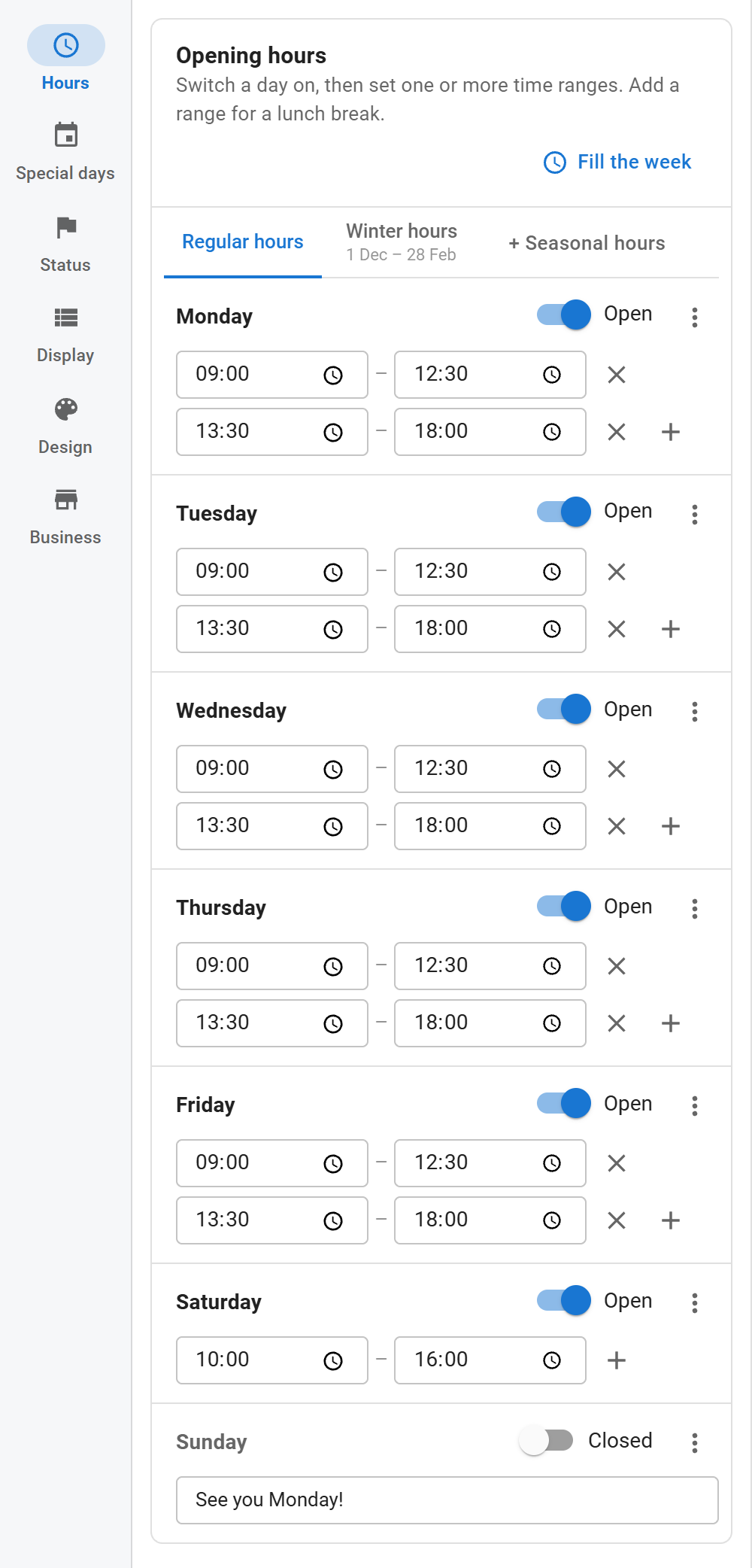
Days and time ranges
Each day has a switch: Open or Closed. An open day has one or more time ranges.
- Type the opening and closing time of each range.
- Click + at the end of the last range to add another one, for example after a lunch break.
- Click × to remove a range (a day keeps at least one while it is open).
Between two ranges the status shows On a break.
Special cases
- Overnight: a closing time earlier than the opening time runs past midnight. 20:00 – 02:00 is one session that ends at 2 a.m. the next day.
- Until midnight: a closing time of 00:00 means midnight at the end of the day.
- 24 hours: 00:00 – 00:00 (or 24:00) shows "Open 24 hours". The day menu has Open 24 hours for this; Set hours turns it back into normal ranges.
The day menu (⋮)
- Copy to Monday – Friday, Copy to the weekend, Copy to every day: copies this day's ranges.
- Open 24 hours
- Add a note / Remove the note: a short line shown under the day, such as "Appointments only".
Fill the week
Fill the week above the days sets the whole week at once:
- Monday – Friday, 9:00 – 17:00
- Monday – Saturday, 9:00 – 18:00
- Monday – Friday with lunch break
- Every day, 10:00 – 22:00
- Open 24/7
- Clear the week
Notes are kept when you fill the week.
Seasonal hours
Use seasonal hours when your week changes for part of the year, for example summer hours.
- Click + Seasonal hours in the tab row.
- Give the season a Name. Visitors see it in the upcoming changes before it starts.
- Set Every year from and Until (day and month). A range across New Year, such as 1 December – 28 February, works.
- Set the season's week the same way as the regular week, or click Copy regular hours first.
Each season gets its own tab. Delete these hours removes a season. Special days still win over seasonal hours on their dates.
Time zone
The time zone is set under Display. Leave it on the site time zone unless the business is elsewhere.