Quick Start
Three steps from a new module to live opening hours.
1. Open the Studio
Create the module under Content > Site Modules > New > Smart Business Hours, pick a position, and click Open Studio on the Module tab.
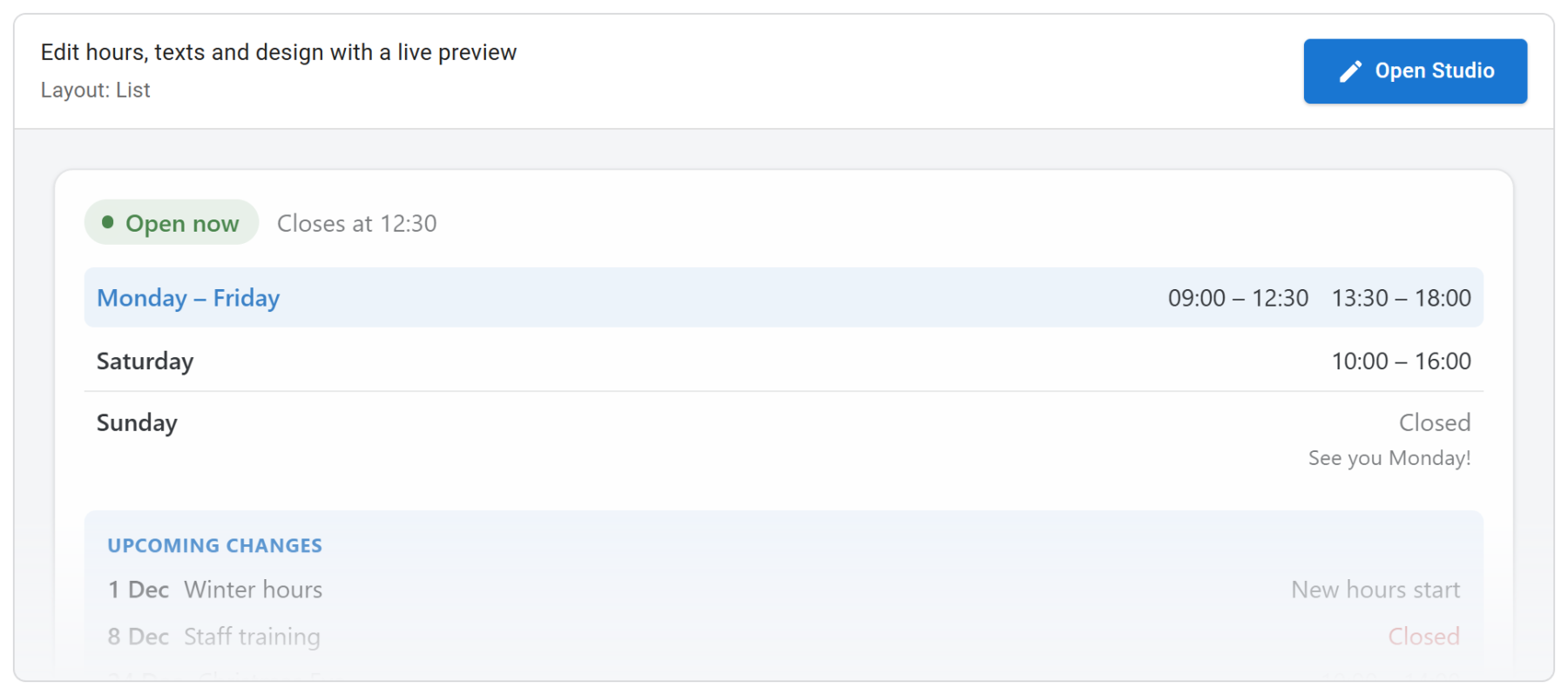
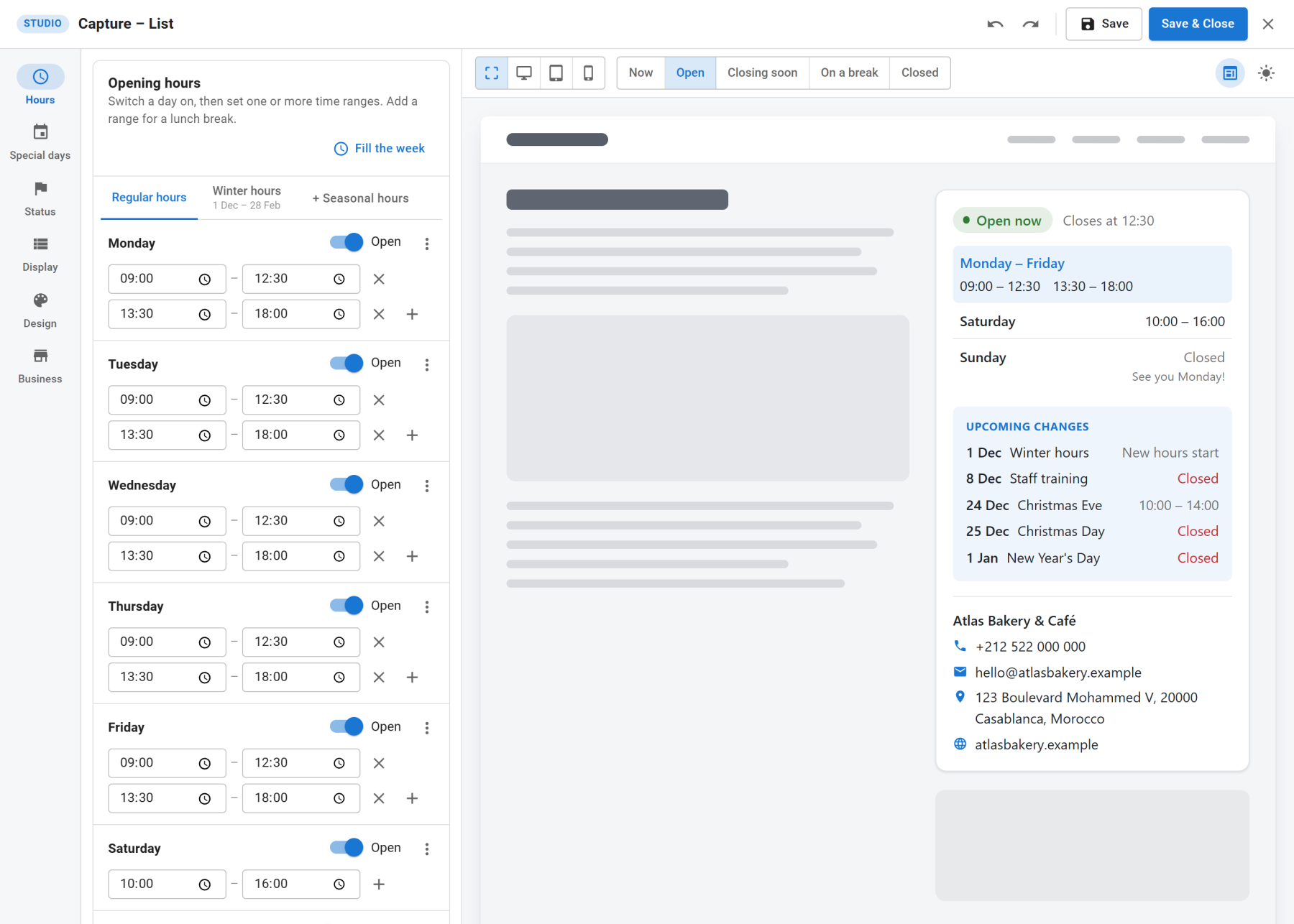
The Studio opens full screen: sections on the left, the live preview on the right.
2. Set your week
In Hours, switch each day on or off and type its opening and closing time. Use the + at the end of a range to add a lunch break or a second session, and Fill the week to start from a common pattern such as Monday – Friday 9:00 – 17:00.
Then set your time zone under Display > Time if the business is not in the site's time zone, and add holidays under Special days.
3. Choose a layout and save
Open Design, pick one of the nine layouts and a style preset. Use the device buttons and the dark page button above the preview to check it, and the state buttons (Open, Closing soon, On a break, Closed) to read every message. Click Save & Close.
What Happens Next
The module shows your week on the chosen pages with the current status. The status, the countdown and today's highlight are worked out in each visitor's browser, so they stay right on cached pages. Special days replace the regular hours on their dates, and upcoming changes appear a few days before they happen.
When your hours change, open the Studio again; nothing else needs updating, including the LocalBusiness data for search engines.