Connections
Connections are the databases that Next DB can open and edit. Every session in the editor works with exactly one connection; the Connection Selector at the top of the editor lists the connections available to you.
The Joomla site database is always listed first; any databases you add appear below it.
Connection lifecycle
- Create — go to Next DB → Connections → New connection, fill in the form for your database engine, and click Test connection to verify it works before saving.
- Test — the Test action opens a real connection to the server and reports the server version, without writing anything to the database. A failing test shows a plain error message; credentials are never shown in error messages.
- Save — saves the connection and, when "Store password" is on, encrypts the password at rest (see Password encryption).
- Select in the editor — published connections you have access to appear in the Connection Selector. Pick one and the editor loads that database.
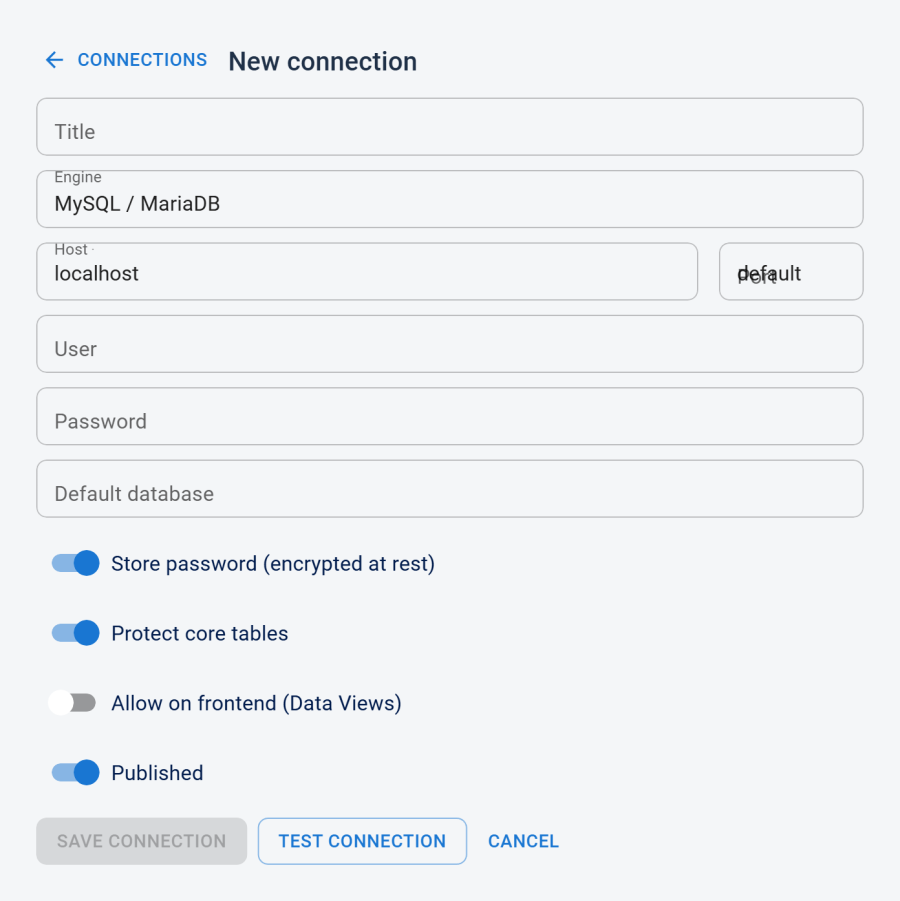
Parameters by engine
MySQL / MariaDB
| Field | What it does | Values / default | Notes |
|---|---|---|---|
| Title | The label shown in the Connection Selector. | Any text — required | — |
| Host | Hostname or IP address of the MySQL / MariaDB server. | localhost default |
You can also enter hostname:port (for example db.example.com:3307) — Next DB splits the host and port for you. |
| Port | The port to connect on. | 0 = the default (3306) |
Leave blank or 0 to use the default. Overridden if the host field already includes a port. |
| Socket | Connect over a Unix socket (MySQL only). | — | Enter as hostname:/path/to/mysql.sock in the Host field. |
| User | Database username — required. | — | — |
| Password | Database password. | — | Never returned to your browser. Leaving the field blank on an existing connection keeps the saved password. |
| Default database | The database to open on connect. | Optional | When left blank, Next DB connects to the server and lets you browse every database the user can see. |
| Options | Advanced connection options. | Optional | Advanced: paste any extra connection options as JSON (for example, to require SSL). Leave blank if unsure. |
| Store password | Whether to keep the encrypted password between sessions. | On by default | When off, the password is not saved; you are prompted for it when you connect. |
| Protect core tables | Block changes to Joomla core tables and the database's internal system tables. | On by default | See Core-table protection. Always on for the Joomla site database. |
| Allow on frontend (Data Views) | Let this connection be used as a source for frontend Data Views. | Off by default | See Frontend opt-in. |
| Published | Whether this connection appears in the editor. | On by default | Unpublished connections are hidden from the Connection Selector. |
Charset: utf8mb4 is set automatically for MySQL / MariaDB connections — you do not need to add it to
the options.
PostgreSQL
| Field | What it does | Values / default | Notes |
|---|---|---|---|
| Title | The label shown in the Connection Selector. | Any text — required | — |
| Host | Hostname or IP of the PostgreSQL server. | — | Required. For a socket-directory connection, enter the socket directory path in the Host field (best-effort). |
| Port | The port to connect on. | 0 = the default (5432) |
— |
| User | Database username — required. | — | — |
| Password | Database password. | — | Same keep-on-blank behaviour as MySQL. |
| Database | The database to connect to. | Required | PostgreSQL needs a named database at connect time — there is no "browse all databases" mode. |
| Options | Advanced connection options. | Optional | Advanced: paste any extra connection options as JSON (for example, to require SSL). Leave blank if unsure. |
| Store password | Keep the encrypted password. | On by default | — |
| Protect core tables | Block changes to core and system tables. | On by default | — |
| Allow on frontend | Data Views opt-in. | Off by default | — |
| Published | Appears in the editor. | On by default | — |
Note: automatic utf8mb4 is MySQL-only — for PostgreSQL, Next DB leaves the client encoding at the
server default.
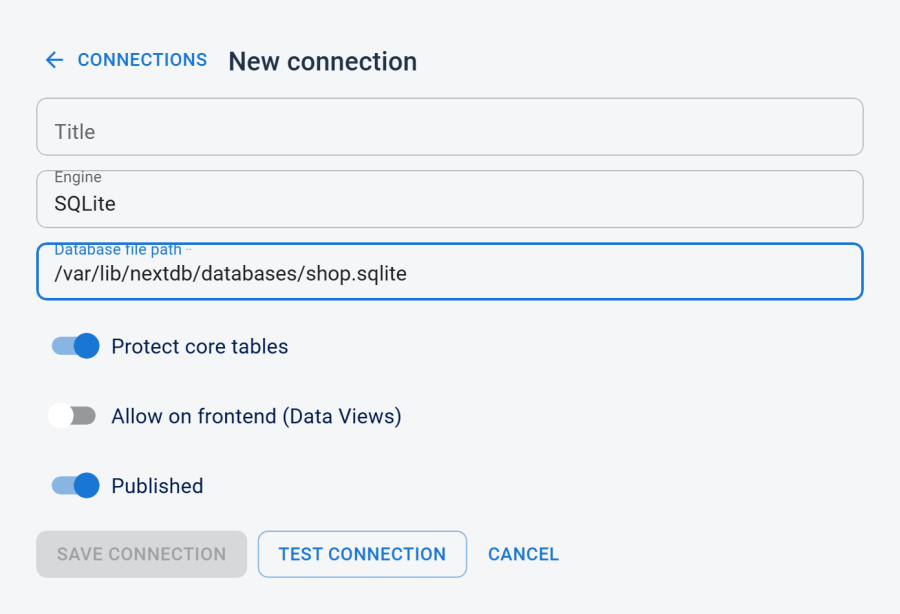
SQLite
| Field | What it does | Values / default | Notes |
|---|---|---|---|
| Title | The label shown in the Connection Selector. | Any text — required | — |
| Database file path | Path to the .sqlite / .db file on the server. |
— | Required. The path is checked on save and on every connect. See SQLite path validation. |
| Protect core tables | Block changes to core and system tables. | On by default | — |
| Allow on frontend | Data Views opt-in. | Off by default | — |
| Published | Appears in the editor. | On by default | — |
SQLite has no network address, port, username, or password — those fields are hidden when you choose the SQLite engine. "Store password" is hidden too and has no effect.
Password encryption
Stored passwords are strongly encrypted at rest, using a key derived from your Joomla site's secret. Passwords are never sent back to your browser.
When you edit an existing connection, the form shows whether a password is already saved; leaving the field blank keeps the existing one.
Store password
| State | What is stored | What happens at connect time |
|---|---|---|
| On (default) | The encrypted password | Used automatically — no re-entry needed. |
| Off | Nothing | The password is not saved. You re-enter it each time you use the connection. |
If your site's secret key changes: saved database passwords can no longer be unlocked — you'll be asked to re-enter and save them. (The Test action will report the decrypt failure rather than silently probing with a blank password.)
Core-table protection and frontend opt-in
Protect core tables (default: on)
When enabled, Next DB blocks all changes (insert, update, delete, structure changes, and console SQL that targets them) against Joomla core tables and the database's internal system tables on that connection. The block is always enforced on the Joomla site database, regardless of this setting.
For the full list of protected tables and how the protection works, see Security — Core-table protection.
Allow on frontend (default: off)
This must be explicitly turned on before a connection can back a frontend Data View. This is an intentional double opt-in — a connection that has never been opted in cannot be used by a published view, even by a Super User. The Joomla site database can never back a frontend view.
When you turn this on, the form reminds you to point the connection at a dedicated, read-only database account so a published view cannot read or change data it shouldn't.
For more on building and publishing views, see Data Views.
Test before save
The Test connection button opens a real connection to verify it works and reports the server version. Credentials are never shown in error messages.
A failed test does not block saving — you can save a connection without testing. Testing first is recommended, especially for remote or SSL-secured servers.
For connections with a saved password: if you leave the password field blank during a test, Next DB uses the saved password automatically. If it can't be unlocked (for example, after a site-secret change) the test reports that explicitly rather than probing with a blank password.
SQLite path validation
A SQLite database "address" is just a file path, so Next DB checks it carefully on both save and connect to prevent traversal attacks and accidental access to sensitive files:
..segments are rejected, regardless of other settings.- Null bytes are rejected.
- When a base directory is configured (Settings → Security → SQLite base directory), the file must fall within that directory. A file that does not yet exist is allowed only when its parent directory is already inside the base.
- When no base directory is configured, only a Super User may create or test SQLite connections. Once a Super User sets a base directory, any operator with permission to create connections may create SQLite connections confined to that directory.
For how to configure the base directory, see Security.
Joomla site database
The Joomla site database always appears and can't be edited or deleted here. Core-table protection is always on for it, and it can't be used for frontend Data Views. To change its credentials, edit your Joomla site configuration directly.
Access control
Which databases you see depends on your profile. Managing connections (create, edit, delete, test) requires the matching permission in your profile (or Super User access).
For full details, see Profiles and ACL.