Profiles and Access Control
A profile is the single thing that governs what a Joomla user or user group may do inside Next DB. Every connection, every operation, and every administration area is governed by the user's profile. This page explains how to create profiles, how permissions are structured, how Next DB decides which profile applies to a user, and exactly what happens when an action is denied.
What a profile is
A Next DB profile is a named set of access rules. A profile contains:
- which connections the user may reach (the Joomla DB plus any stored connections)
- per-connection operations (browse, insert, update, delete, structure, export, import) and whether the SQL console is allowed
- an optional table scope that restricts visibility to a named list of tables
- whether the user may view the audit log and, optionally, how their actions are recorded
- which administration areas they may access (profiles, connections, views, settings, audit)
Profiles are created, edited, and deleted in Configuration → Profiles. The permissions editor within a profile record gives full control over all sections.
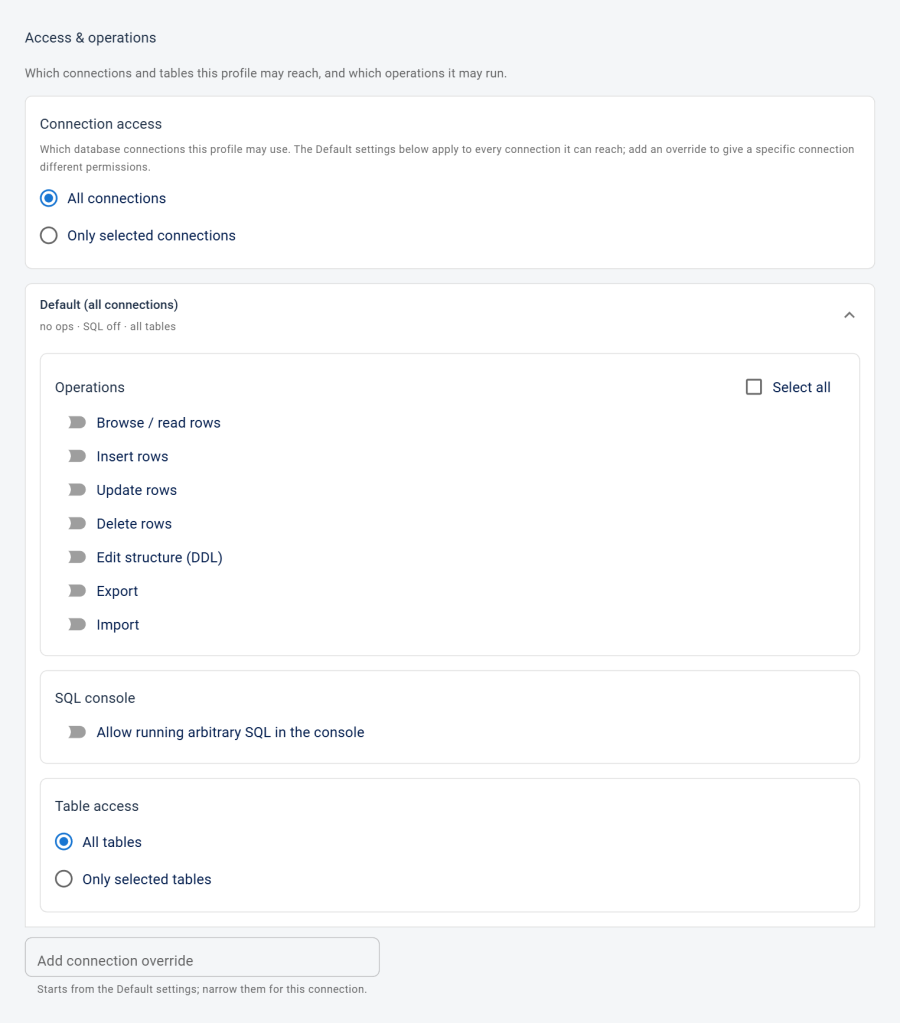
A profile has no effect until it is published and assigned to at least one Joomla user or user group (see Assignments below).
The permissions model
Connection scope
The first gate determines which connections the user may reach at all.
| Field | What it does | Options |
|---|---|---|
| Connection scope | Whether the profile may reach every connection or only a chosen few | All connections (default), or Only selected connections |
| Allowed connections | The connections the profile may reach when scope is "Only selected" | Tick the Joomla site database and/or any stored connections |
When you choose Only selected connections, only the connections you tick appear in the editor's connection selector for that user; all others are invisible.
Per-connection permissions
By default, a profile's permissions apply to every connection it can reach. You can also override the rules for an individual connection — useful when, say, a profile should browse freely everywhere but only browse a few named tables on one production database.
For each connection (or the default that covers them all), you set:
| Setting | What it does | Default |
|---|---|---|
| Operations | Which editor actions are allowed (see below) | All off |
| SQL console | Whether SQL may be run through the SQL console on this connection | Off — granted separately from the operations above |
| Table scope | Whether all tables are accessible, or only a named list | All tables |
| Allowed tables | The tables the user may see and act on when table scope is "Only selected" | — (case-insensitive) |
Note: An override replaces the default rules for that connection — it doesn't add to them. Set every option you want on a connection you're overriding.
What each operation means
| Operation | What it controls |
|---|---|
| Browse | Browse and read rows |
| Insert | Insert new rows |
| Update | Edit existing rows |
| Delete | Delete rows |
| Structure | Change table structure: columns, indexes, foreign keys, and create/rename/drop/empty table |
| Export | Export data and schema (SQL dump, CSV) |
| Import | Import data (.sql scripts, CSV) |
The SQL console is granted separately from the operations above.
Bind to database grants (reserved)
The profile editor shows a "Bind to MySQL grants (hard enforcement)" option. It is reserved for a future release and has no effect in the current version.
Enforcement
Two layers protect every action, and both are always on.
Profile permissions
Every action is checked against your active profile on the server, before any database work happens — connection access, each of the seven operations, SQL console access, and table scope. This can't be bypassed from the browser. Super Users bypass all profile restrictions — the access rules can only widen access for non-Super Users; they can never restrict a Super User.
Core-table protection
On top of the profile check, Next DB blocks changes to critical Joomla tables and the database's internal system tables. This is always on for the Joomla site database, and on by default for attached connections (controlled by the Protect core tables setting). It applies to everyone, Super Users included — it guards the live installation regardless of privilege level.
What you'll see if access is denied
When a profile or core-table check refuses an action, Next DB blocks it and shows the reason inline, without leaving the editor. Nothing is changed. Typical messages:
| Situation | Message shown |
|---|---|
| Not signed in, or no profile grants any access | You are not authorised to use Next DB. |
| The connection isn't allowed by your profile | You do not have access to this connection. |
| The operation isn't granted on this connection | You do not have permission to perform this operation. |
| SQL console isn't granted | You do not have permission to use the SQL console. |
| The table isn't in your allowed list | You do not have access to this table. |
| Core-table protection (row or structure change) | This table is protected and cannot be modified. |
| Core-table protection (SQL console) | This statement targets a protected table and was refused. |
Assignments
A profile has no effect until it is assigned to at least one Joomla user or user group. Assignments are managed on the Assignments tab of the profile record.
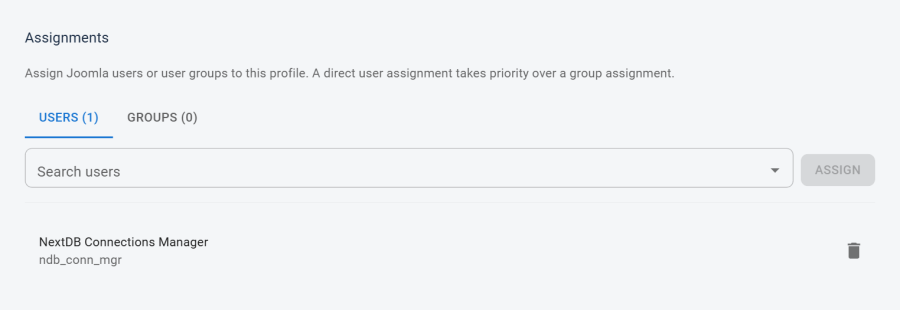
Creating an assignment
- Open Configuration → Profiles and open the target profile.
- Switch to the Assignments tab.
- Use the user search field to find and add individual Joomla users, or select one or more user groups from the group list.
- Save. The assignment takes effect immediately for the next request by that user.
Each assignment links a profile to exactly one target: either a Joomla user or a user group. One user can be a member of many groups, but they receive only one profile (see resolution order below).
Assignment resolution order
When a non-Super User opens Next DB, their permissions come from a single profile:
- A direct assignment to the user wins. If the user is assigned to a published profile directly, that profile is used — regardless of any group assignments.
- Otherwise, a group assignment applies. If there's no direct assignment, Next DB uses a published profile assigned to one of the user's Joomla user groups. If several match, it picks one consistently.
- No assignment means no access. If neither route finds a published profile, the user gets nothing: no operations, no SQL console, no management access, no audit-log access.
A user can only be governed by one profile at a time. There is no merging of multiple group-based profiles.
Assigning management-bearing profiles
If a profile grants any administration permission, only a Super User may assign users or groups to it, or remove those assignments. A delegated profile manager who can normally assign profiles cannot add members to one that carries administration permissions — Next DB refuses with "You may not assign users to a profile that grants management capabilities." This prevents anyone from escalating their own access through the profiles area. See Delegated management for full details.
Worked example — a read-only analyst
Here's how you'd set up a profile for a read-only analyst who may browse and export from two connections (the Joomla site database and one stored "Sales" connection) but cannot change data or run SQL — and on the Sales connection is limited to three tables:
- Connection scope: Only selected connections — the Joomla site database and Sales. All other connections are invisible to this user.
- Operations (default for both connections): Browse and Export ticked; Insert, Update, Delete and Structure left off.
- SQL console: off on both connections.
- Table scope: on the Sales connection, override the default with Only selected tables and list
orders,order_itemsandproducts. Everywhere else, all tables remain available. - Audit log: not allowed to view.
- Administration: none — this user can't open any management area.
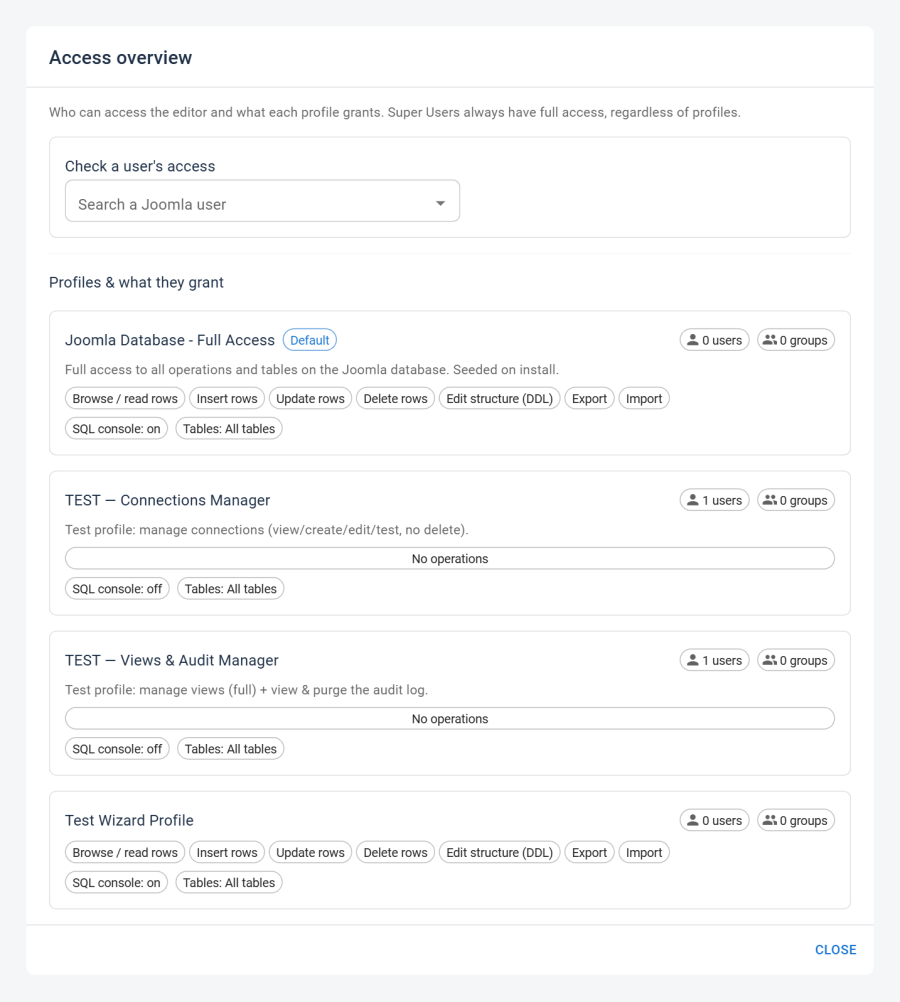
The Access Overview dialog (shown above) lets you confirm the result and look up any Joomla user's effective access. For the audit and administration settings in detail, see Audit policy and Delegated management.