Data Views
Admin-authored, read-only SQL SELECT queries published as routable Joomla pages so non-admin site visitors can browse live database data — without requiring backend access or a database account.
What a Data View is
A Data View is a named, published surface that wraps one admin-authored SQL SELECT around a
paginated, searchable HTML table rendered on the Joomla site frontend. Visitors reach it through a
standard Joomla menu item; the data itself is loaded server-side on demand, so it is always live.
Key properties:
- Read-only by design. The base query is validated as a single, non-mutating
SELECTbefore it is saved (see Validation) — noINSERT,UPDATE,DELETE,DROP, or similar statement can ever be stored or executed. - Joomla-native access control. Who may see a view is governed by any combination of Joomla view-access-levels, user groups, and individual user IDs — no separate login or account is needed.
- Backend-authored. Only users with permission to create or edit views (or Super User access) can build and publish views.
- Frontend-rendered. Each page of data is loaded on demand, so what visitors see is always live and the page stays responsive even over large tables.

Prerequisites
Before you can build a Data View, its backing database connection must meet two conditions:
- Published — the connection must be published so it is active.
- Allow on frontend — the connection must have Allow on frontend (Data Views) explicitly turned on. This is off by default as a deliberate safeguard against accidental public exposure.
The Joomla site database can never back a Data View.
When you turn on "Allow on frontend" the connection form shows a warning reminding you to point the connection at a dedicated, read-only database account. Data Views execute queries using whichever credentials the connection stores — the view itself has no separate credential scope.
See Connections for full details.
Building a view — the step wizard
Open Next DB → Views → New view (or click the title of an existing view to edit it). The builder is a non-linear five-step stepper; you can jump between steps freely — state is preserved across step changes.
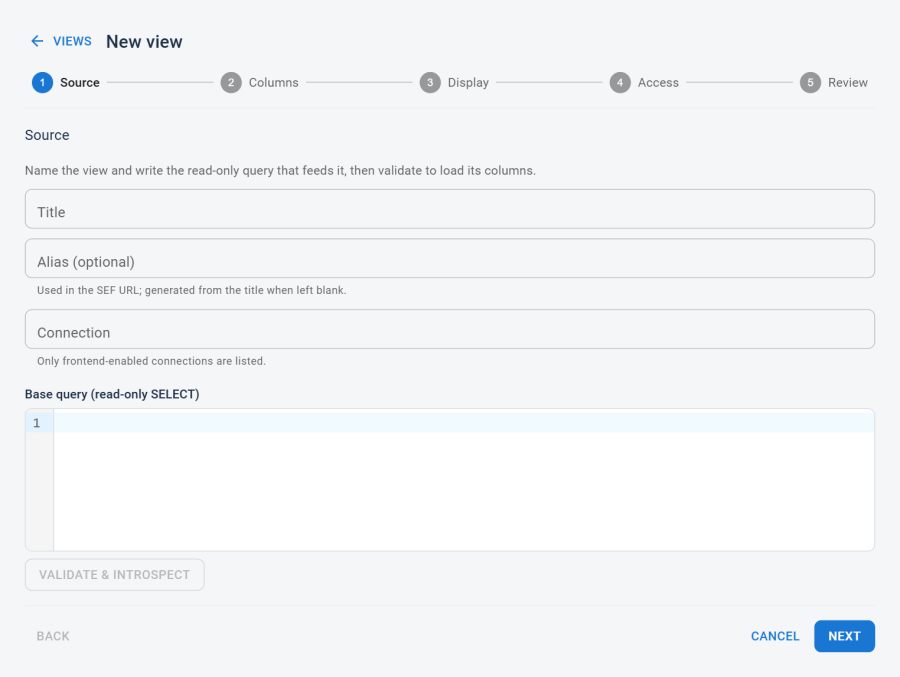
Step 1 — Source
Define the view's identity and its base query.
| Field | Notes |
|---|---|
| Title | Required. The display name of the view (shown in the admin list, and used as the default alias). |
| Alias | Optional. A URL-safe slug used in the page's web address. Auto-generated from the title when left blank. |
| Connection | Required. Only connections that are published and enabled for the frontend are listed. |
| Base query | Required. The read-only SELECT (or WITH … SELECT) that defines the data set. Write it in the SQL editor. |
After entering a connection and a base query, click Validate & introspect. This submits the query to the server, runs the full validation pipeline, and — if the query is valid — returns the column list seeded into step 2. The step is marked complete when title, connection, and base query are all present.
Step 2 — Columns
Configure how each result column is presented. Introspected columns are pre-populated from the
Validate & introspect result; you can adjust them freely. You can also add computed columns
that combine values from two or more source columns via a template.
Per-column settings:
| Setting | What it controls |
|---|---|
| Label | The column header shown to visitors. |
| Visible | Include this column in the table. |
| Detail only | Hide from the main table but show in the per-row detail expand panel (requires "Row detail expand" in step 3). |
| Sortable | Whether visitors can click the header to sort by this column. |
| Searchable | Include this column in global text search. |
| Filter type | Per-column filter control: None, Text, Select, Numeric, or Date. |
| Render type | How the cell value is formatted: plain text, date/time, number, currency, truncated text, prefix/suffix, map to label + colour, link, email (mailto), image, boolean icon, badge, or template (combine columns). |
Computed columns aren't tied to a single source column — they use a template that can combine other columns, and are never sortable or searchable.
Step 3 — Display
Choose which interactive controls and paging behaviour visitors get.
| Option | Default | What it does |
|---|---|---|
| Global search | On | Show a search box that queries all searchable columns at once. |
| Per-column filters | Off | Show an extra header row of filter controls (text, select, numeric range, or date range, per column). |
| CSV / print export | Off | Show Export CSV and Print buttons. Export saves up to the configured Max export rows to a .csv file named after the view's alias. |
| Row detail expand | Off | Show a toggle column; clicking it expands a detail panel beneath the row showing all columns marked "detail only". |
| Rows per page | 25 | Page size. Visitors cannot change this. |
| Max export rows | 5 000 | Hard cap on the number of rows included in a CSV export. |
| Count mode | Exact total | Exact total shows the real total row count; Skip total (faster) omits it and approximates paging — useful for expensive queries over large sets. |
| Default sort | None | Which visible, sortable column to order by on first load, and in which direction. |
Step 4 — Access
Define who may see this view. The access model is any-of (union): a visitor is granted access if they match at least one of the configured entries. See Access control for the full semantics.
Three independent sets can be configured:
- View access levels — Joomla's native access-level checkboxes (Public, Registered, Special, and any custom levels you have defined). The builder defaults a new view to Public so a freshly published view is immediately visible to all visitors.
- User groups — multi-select autocomplete of Joomla user groups.
- Specific users — type-to-search autocomplete of individual Joomla user accounts by name or username.
The interface shows the hint "A visitor sees this view if they match any of the following."
Step 5 — Review
Preview the view using real data before publishing it.
- The preview pane renders the current definition exactly as the live frontend will, and paginates through real results, so you see exactly what visitors will see before the view goes live.
- If the Source step is incomplete (no title, connection, or base query) a warning is shown and saving is blocked.
- A Published toggle at the bottom controls whether the view is live or stored as a draft. An unpublished view is not reachable on the frontend even if a menu item points to it.
Click Save view to persist the definition. The server re-runs the full validation at save time (see Validation) — the preview alone does not bypass it.
Validation
Before a view is saved — and whenever you click Validate & introspect — Next DB checks your query. All of these must pass before the query is accepted:
- One statement only. The query must be a single statement; a multi-statement script (or an empty query) is rejected.
- Must be a SELECT. It must start with
SELECT(or aWITH … SELECT). Anything else — evenEXPLAIN SELECT— is rejected. - No data-changing or administrative commands. Statements that could change data or the database (such as insert, update, delete, drop, create, alter, grant, and similar) are refused, even if they appear inside quoted text or comments.
- Must run and return columns. The query is run live against the connection (returning no rows) to confirm it's valid and to read its column list. If it returns no columns, it's rejected. If two output columns have the same name, you're asked to add an alias (for example, "Column 'id' appears more than once — add an alias.").
Because validation runs the query against the live database, the connection must be reachable both when you validate and when you save.
Access control
A visitor can see a view if they match any of the access entries you configure for it. Three independent, optional lists are available:
- View access levels — Joomla's standard access levels (Public, Registered, Special, and any custom levels).
- User groups — one or more Joomla user groups.
- Specific users — individual Joomla user accounts.
A visitor who matches at least one entry in any list is allowed in; everyone else is kept out.
Default. A new view defaults to the Public access level, so a freshly published view is visible to everyone.
No entries configured. If you clear all three lists, the view is visible to no one on the site (Super Users still see it in the admin area).
Super Users. In the admin area, Super Users can browse every published view. On the public site, the normal access rules apply to everyone — there is no Super User bypass on the frontend.
Always enforced on the server. Access is checked on every request — the initial page, each page of data, and every CSV export — so editing the web address can never reveal data a visitor isn't allowed to see. Guests who lack access are sent to the login page; logged-in users who lack access are shown an access-denied page.
Frontend output
A published Data View is accessed via a Joomla menu item of type "Next DB → Data View", with the target view selected in the menu item's parameters. Joomla's SEF router constructs the URL from the view's alias.
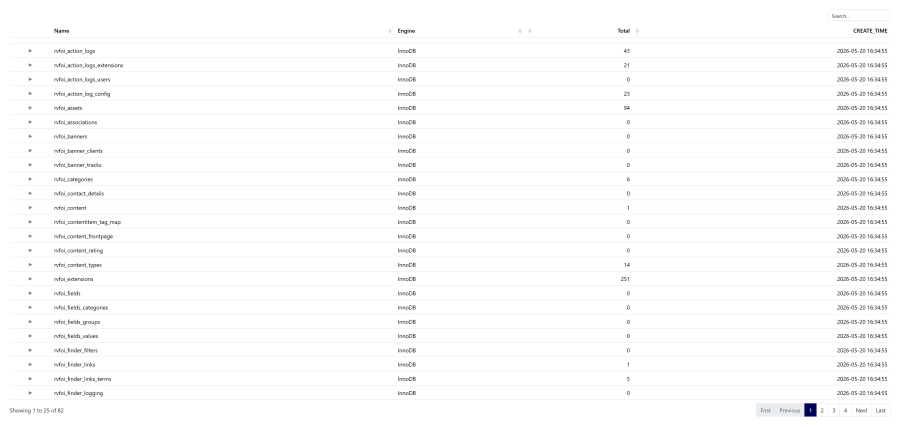
The rendered page is a styled, responsive table that matches your site template. Data loads on demand, so the first page appears as soon as the visitor arrives. Depending on the view's Display options, it can also show a global search box, a per-column filter row, an export/print toolbar, and a row-detail expander.
Interactions
| Feature | Control | Default |
|---|---|---|
| Sort by column | Click a sortable column header | Default sort from step 3, or none |
| Global search | Search box | Enabled |
| Per-column filter | Filter row | Disabled |
| Expand row detail | Toggle column | Disabled |
| Export CSV | Toolbar button | Disabled |
| Toolbar button | Disabled |
Statement timeout
Every data request and export applies a time limit before running the base query, so a slow query can't tie up the server. The default is 5 seconds, adjustable per view. This is best-effort — if the database doesn't support the limit, the query still runs.
Browsing views in the admin back-end
In addition to the site frontend, published Data Views also appear inside the Next DB administration area under the Visualise section, as a grid of cards. A backend user sees a card for each view they're entitled to browse (Super Users see all of them). Opening a card shows the same data in a full table, using the same access rules. The underlying query and access settings are never exposed here — only the data and how it's displayed.
Management permissions
Creating, editing, and deleting Data Views is controlled by your profile's management permissions:
| Action | Permission |
|---|---|
| See the list of views | View |
| Create a new view | Create |
| Edit an existing view | Edit |
| Delete a view | Delete |
Super Users always have full access. All view changes are recorded in the audit trail, according to your audit settings.
For full details on the management permission model, see Delegated management.
See also
- Connections — enabling a connection for the frontend
- Profiles and ACL — management permissions and profile structure