SQL Console
Run SQL against any database you have access to — directly inside Next DB, without leaving Joomla.
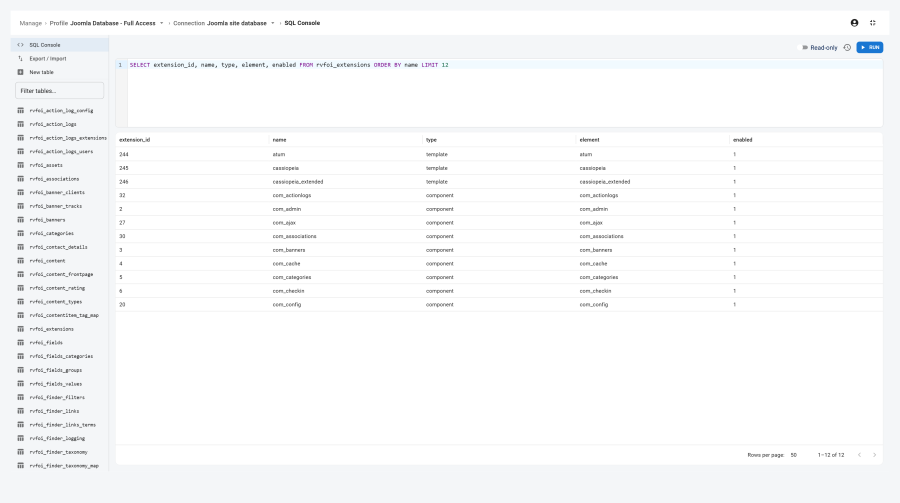
The editor
The SQL console gives you a comfortable place to write and run queries:
- SQL syntax highlighting — keywords, string values, and identifiers are coloured for legibility.
- Bracket matching — parentheses and quotes are visually paired.
- Placeholder hint — the editor reminds you to run one statement at a time.
- Keyboard shortcut — press Ctrl+Enter (Windows / Linux) or Cmd+Enter (macOS) to run the statement without reaching for the mouse. The Run button in the toolbar does the same thing.
One statement at a time
The console runs exactly one SQL statement per run. Next DB checks you have submitted exactly one statement before running anything; it ignores semicolons that appear inside quotes and comments. If you submit more than one statement, it is rejected with:
Statement must be a single SQL statement.
So pasting a multi-statement script into the console and pressing Run will be refused — use Import instead, which processes scripts statement by statement (see Export & Import).
Note: Statements that define triggers or stored procedures may not split correctly — use Import for those. Ordinary
SELECT, data, and structure statements run fine.
Read-only mode
A Read-only toggle appears in the toolbar to the left of the Run button. When on:
-
Any statement that would change data or structure is refused before it reaches the database. You see the message:
Blocked: read-only mode is on.
-
The refusal is recorded in the audit trail as a blocked SQL operation.
-
Reads (
SELECT,SHOW,EXPLAIN, and similar) run normally.
The toggle resets to off when the page reloads. It is a safety net during exploratory sessions on a live database — it does not replace your profile's permissions.
Result handling
Result sets
Statements that return rows (such as SELECT, SHOW, EXPLAIN, DESCRIBE) show their columns and rows
in a result grid. The grid:
- Shows
NULLvalues as an italic grey NULL so you can tell them apart from an empty string. - Starts at 50 rows per page; the page-size control in the footer offers 25, 50, and 100.
- Is read-only — you cannot edit cells here, regardless of your browse/edit permissions.
Row cap and truncation
There is a maximum number of returned rows, set in Settings → Editor → SQL console max rows (default 1 000). Once the limit is reached, the server stops collecting rows.
When a result is cut short, an info banner appears above the grid:
Showing the first N rows (result was truncated).
To retrieve more rows, add a LIMIT clause to your query.
Write statements
Statements that change data or structure (such as INSERT, UPDATE, DELETE, CREATE, ALTER, DROP,
TRUNCATE) return a count of affected rows:
Statement executed. N row(s) affected.
For statements that return neither rows nor a meaningful count (such as SET or USE), the count is 0;
this is normal.
Query history
Every statement you run is saved to a history (up to 50 entries).
| Behaviour | Detail |
|---|---|
| Where it is stored | Stored only in your browser (not on the server). Not shared between browsers or devices, and not filtered by connection. |
| Limit | 50 entries. The oldest entries are dropped once the list is full. |
| No duplicates | If you run a statement that is already in the list, the older copy is removed and the statement moves to the top with a fresh timestamp. |
| Success vs. failure | Failed runs are included (shown in red). |
| One-click re-run | Click any history entry to load it into the editor. Press Run (or Ctrl/Cmd+Enter) to execute. |
Toggle the history panel with the clock icon (History) in the toolbar. Use the bin icon (Clear history) to erase all entries.
Access control
SQL Console permission
The console is controlled per profile and per connection. When SQL Console access is off for the active connection, the editor is hidden with a warning, and the action is blocked on the server even if it is called directly.
Super Users always have access. For everyone else, this must be explicitly granted in the profile editor.
See Profiles and Access Control for how the SQL console permission and per-connection settings work.
Core-table protection
Every console statement is checked against Next DB's core-table protection — including for Super Users. Write or structure statements aimed at protected tables are blocked before they run; read-only queries are always allowed.
Because this check scans the SQL text, treat it as an extra safety layer; for the strongest protection, also restrict the database account's own privileges. See Security for the full scope of what is protected.
Error reporting
Database errors are shown inline in a red banner above the result area. Only the first line of the engine's error is shown; technical follow-on lines (which can leak query or connection details) are stripped.
Failed write attempts are recorded in the audit trail with their cleaned error message when audit recording is enabled for SQL operations. See Audit Trail for details.
See also
- Profiles and Access Control — SQL Console permission; per-connection settings; operation grants
- Security — core-table protection
- Settings — SQL console max rows (Editor section)
- Editor overview