Delegated Management
Next DB's administration areas were originally accessible only to Joomla Super Users. Delegated management lets you hand specific areas of administration to non-Super Users through their profile — for example, a connections manager who can add and test connections but cannot edit profiles or change global settings.
What delegated management means in practice
A delegated manager is any non-Super User whose profile grants at least one administration permission. They can log in to the Next DB console and use only the areas — and only the specific actions — that their profile authorises. They cannot browse the database editor unless their profile also grants editor operations.
Super Users retain unconditional access to every management surface and action. The management block only ever widens access for non-super users; it cannot restrict a Super User.
Management areas and actions
Each administration area has its own set of actions you can grant independently. The complete set is:
| Area | Action | What it permits |
|---|---|---|
| Profiles | View | Open the Profiles list; read profile records |
| Profiles | Create | Create new profiles |
| Profiles | Edit | Edit existing profiles |
| Profiles | Delete | Delete profiles |
| Profiles | Assign | Add or remove users and groups from profiles |
| Connections | View | Open the Connections list; read connection records |
| Connections | Create | Create new connections |
| Connections | Edit | Edit existing connections |
| Connections | Delete | Delete connections |
| Connections | Test | Run the "Test connection" action |
| Data Views | View | Open the Data Views list; read view records |
| Data Views | Create | Create new data views |
| Data Views | Edit | Edit existing data views |
| Data Views | Delete | Delete data views |
| Settings | Edit | Open the Settings area and save component settings (editor and security preferences) |
| Audit | Purge | Purge entries from the audit log |
| Audit | Manage policy | Edit the global default audit policy |
Viewing the audit log is separate. The right to view the audit log is controlled in the profile's Audit settings, not here. See Audit policy.
Each action is granted independently. Granting Create on an area does not automatically grant View — always add View as well if you want the user to be able to open that area at all. An area's menu item appears only when the user has View for it.
Super User bypass
Super Users always have full access to every administration area, regardless of profile settings. A Super User's profile (if any) is never consulted for administration permissions.
No-escalation rules
Delegated management is designed so that no non-super user can ever grant themselves or others more rights than they already have. Three enforced rules make this guarantee:
Rule 1 — Only a Super User can set administration permissions
When a delegated manager edits a profile (even one they're allowed to edit), the profile's administration permissions are left unchanged — only a Super User can change them. A brand-new profile created by a non-Super User starts with no administration permissions at all. The Management section of the profile editor is shown only to Super Users, and the server enforces this regardless of what the browser sends.
If someone reaches an administration action they're not entitled to, Next DB refuses it with a message such as "You are not authorised to manage Next DB connections" or "Only a Super User may perform this action."
Rule 2 — Only a Super User may assign users to a profile that grants administration
If a profile grants any administration permission, then only a Super User may add users or groups to it, or remove those assignments — even a delegated manager who can normally assign profiles. Next DB refuses with "You may not assign users to a profile that grants management capabilities" (and likewise refuses removing an assignment from such a profile).
Rule 3 — Duplicating a profile drops its administration permissions
When a non-Super User duplicates a profile, the copy has no administration permissions, even if the original had some. Only a Super User keeps the administration permissions when duplicating.
Together these three rules mean a delegated manager cannot use the profiles area to create, edit, or duplicate their way to a profile that grants management capabilities, and cannot assign anyone (including themselves) to a profile that already has them.
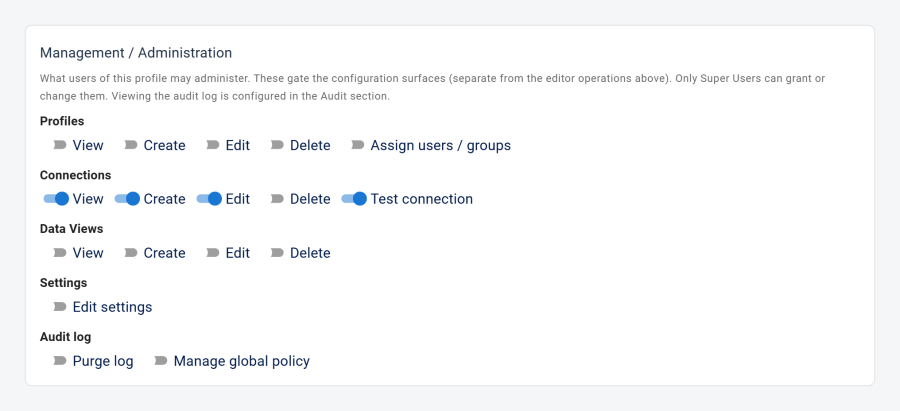
What the interface shows
Menu items and buttons appear only for the areas and actions your profile allows — the Profiles, Connections, Data Views, Settings and Audit menu entries show only when you can view them, and buttons like Create, Edit, Delete, Test, Purge and Manage Policy appear only when that action is granted. Hiding a control is only for convenience: the server independently enforces every permission on each request, so a hidden button is never the only safeguard.
If your profile changes while you're signed in, reload the page to see the update.
Worked example — Connections Manager
Goal: an admin-level Joomla user (ndb_conn_mgr) who can manage connections (view the list, create new ones, edit existing ones, test them) but cannot delete connections and has no access to profiles, views, settings, or audit management.
What this user can do:
| Action | Permitted? | Reason |
|---|---|---|
| Open the Connections list | Yes | Granted the Connections View permission |
| Create a new connection | Yes | Granted Create |
| Edit an existing connection | Yes | Granted Edit |
| Run "Test connection" | Yes | Granted Test |
| Delete a connection | No | Delete not granted — the button is hidden and the action is refused on the server |
| Open the Profiles list | No | No Profiles View permission — the Profiles menu item doesn't appear |
| Assign users to a profile | No | Assigning a profile that grants administration requires Super User status |
| Open Settings | No | No Settings Edit permission |
| Purge the audit log | No | No audit Purge permission |
| Browse database tables | Depends | Only if the profile also grants editor operations on a connection; administration permissions are separate from editor permissions |
What a Super User must do to set this up:
- Open Configuration → Profiles and create a new profile (or open an existing one).
- In the Management section (visible only to Super Users), enable
connections.view,connections.create,connections.edit, andconnections.test. Leave all others off. - Save the profile.
- Switch to the Assignments tab and assign
ndb_conn_mgr(or the appropriate user group) to the profile.
Because this profile doesn't grant any administration permission on Profiles or Audit, assigning it doesn't need Super User status — any user who can assign profiles could add members to a connections-only profile. (The restriction kicks in only when the profile grants at least one administration permission.)