Data Editor
Browse, insert, edit and delete rows in any database you can reach through Next DB, using a fast, paginated grid.
Opening the editor
The editor is where you land after you log in to the Joomla administrator and open Next DB. If you have more than one profile, you first see the Profile Picker.
Step 1 — Select a profile
The Profile Picker shows every published profile assigned to your Joomla account (or to one of your user groups). Super Users see all published profiles and can switch freely between them. Choose a profile to enter the editor with that profile's permissions.
Profiles you use often can be starred to float them to the top of the Favourites section. Recently used profiles appear as one-click chips above the full list.
Step 2 — Select a connection
Once the profile loads, the Connection Selector in the header shows the databases your profile can reach. The Joomla site database always appears as "Joomla site database". Stored connections appear by their configured title.
Whatever you pick is your active session: every action (browse, insert, structure, export, and so on) applies to that profile and connection together. You can switch either one at any time from the header without reloading the page.
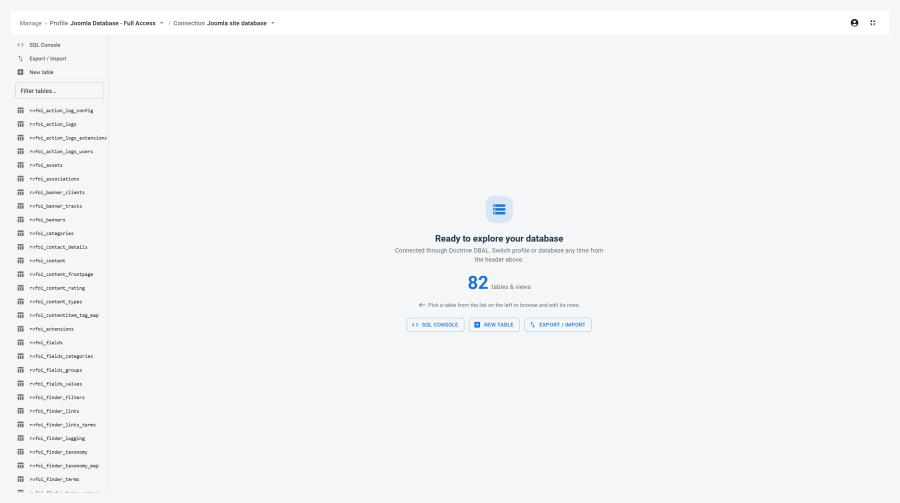
Object tree
The left sidebar lists every table and database view your profile can see on the active connection. The list is sorted alphabetically and refreshes whenever you switch connections.
Filter box
A text field at the top of the sidebar narrows the list to names that contain what you type (case-insensitive). Filtering is instant.
Toolbar items
These items appear above the filter box only when your profile grants the matching permission. Each is hidden if you don't have that permission.
| Item | Appears when you can | Opens |
|---|---|---|
| SQL Console | Use the SQL console | SQL editor for running your own queries |
| Export / Import | Export or Import | Export and import panel |
| New table | Make structure changes | New-table form in the structure editor |
Tables vs views
Tables carry a grid icon; views carry an eye icon. Both can be browsed. Views are always read-only in the editor (see Read-only situations below).
Table scope
If your profile is limited to a list of tables on this connection, only those tables appear — others are invisible, not just disabled.
Browse grid
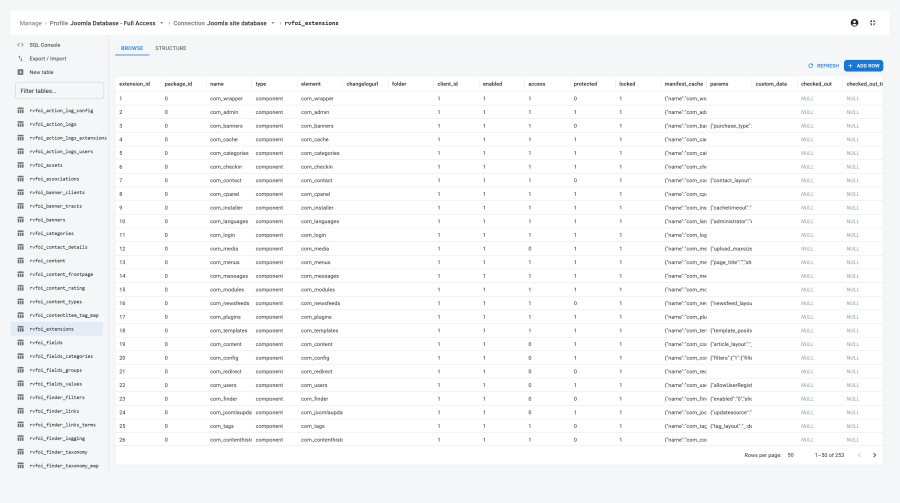
Clicking a table name in the object tree opens the Browse view: a paginated data grid.
Pagination
Only the current page of rows is loaded at a time, and the pager shows the correct number of pages from the total row count.
- Default page size comes from Settings → Editor → Default page size. The page-size picker offers 25, 50, 100 and 200, plus your configured default.
- Maximum: 500 rows per page. A request for more than 500 rows is reduced to 500.
Sorting
Click any column header to sort ascending; click again for descending. Only one sort column is active at a time.
NULL display
Cells that hold a SQL NULL value show an italic grey NULL badge instead of an empty cell, so you
can always tell a NULL apart from an empty string at a glance.
Note: All browsing is done safely — your input is validated on the server before any query runs.
Row editor drawer
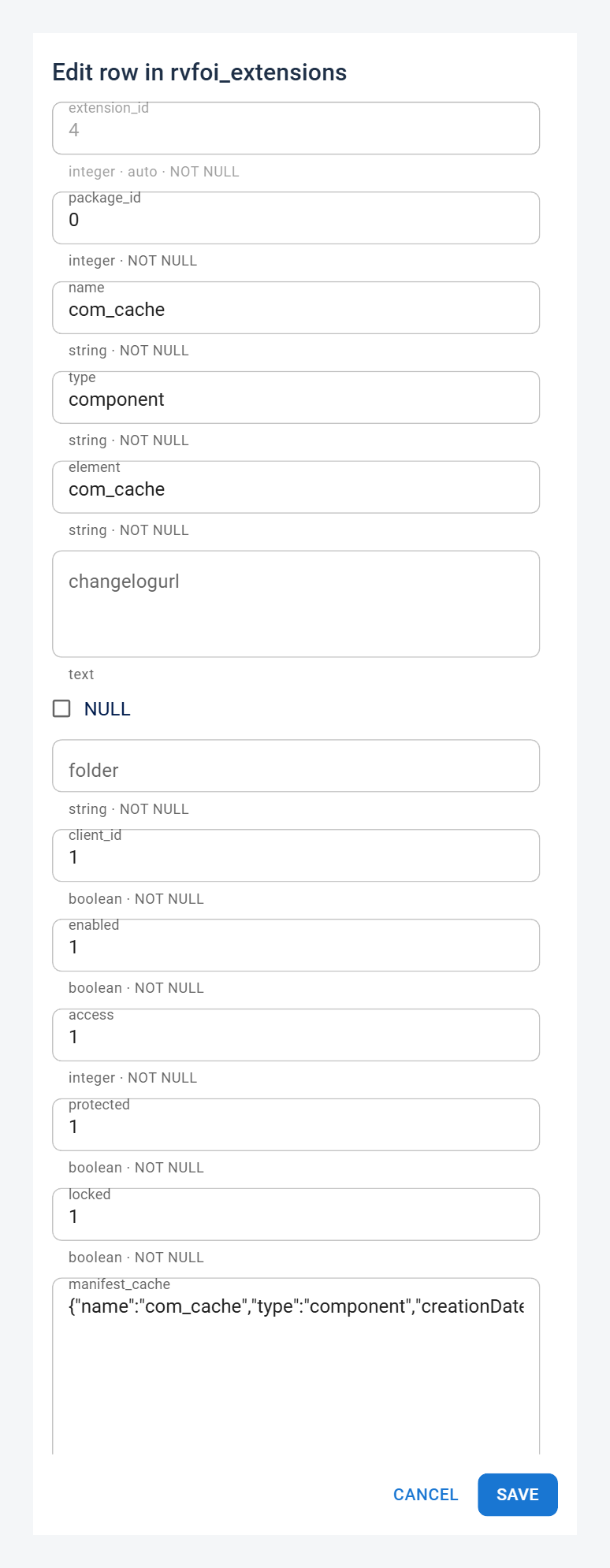
Clicking a row — or the Add row button in the toolbar — opens the Row editor drawer on the right side of the screen. The drawer handles both adding and editing rows.
Editing the right row
Next DB uses the table's primary key to target the exact row you edit or delete. Tables with no primary key are read-only — a banner explains this, and Add, Edit and Delete are turned off. You can still view the data.
How fields are shown
The drawer shows one field per column, with the column name as the label and a short hint about the column's type below it:
| Column type | How the field behaves |
|---|---|
| Auto-increment column | Left blank when you add a row (the database fills it in); shown but read-only when you edit |
| Required column | No NULL checkbox — the field can't be left empty |
| Nullable column | A NULL checkbox appears; ticking it clears the field and stores a NULL |
| Primary key column (when editing) | Pre-filled but locked — the primary key can't be changed here |
Adding a row
When you save a new row, only real columns of the table are stored. If nothing valid was entered, the save is refused with a clear message.
Editing a row
When you save an edit, the change targets only the specific row you opened, identified by its primary key. A change that would somehow affect every row is refused.
Deleting a row
The delete icon on a grid row opens a confirmation dialog ("Delete this row? This cannot be undone.") before anything happens. Deleting is only available from the grid's row actions, not from inside the drawer, and it always targets the single row by its primary key.
Audit trail
When your active profile records add, edit or delete actions, the change is written to the audit log:
- Add — the new values are recorded.
- Edit — the row is captured before the change and the new values after it.
- Delete — the row is captured before it's removed.
Sensitive columns (password, secret, token, and similar) are masked in these snapshots. See Audit policy for retention and visibility settings.
Read-only situations
Several things can make a table, or one action on it, unavailable. In every case the table is still browsable unless Browse itself is denied.
| Situation | Effect | When it applies |
|---|---|---|
| Table is a database view | Add, Edit and Delete are hidden; the grid is read-only | Always — views are read-only |
| Table has no primary key | Add, Edit and Delete are disabled; a banner explains why | Automatic when the table has no primary key |
| Core-table protection applies to the table | Add, Edit, Delete, structure changes and console writes are blocked; you can still see the rows | Always on for the Joomla site database; on by default for stored connections — see Security |
| Your profile doesn't grant Insert | Add row button is disabled | Set per connection in the profile — Insert permission off |
| Your profile doesn't grant Update | Edit is hidden; clicking a row doesn't open the drawer | Set per connection in the profile — Update permission off |
| Your profile doesn't grant Delete | Delete icon is hidden | Set per connection in the profile — Delete permission off |
| Your profile doesn't grant Browse | The table can't be opened at all | Set per connection in the profile — Browse permission off |
Next DB hides controls you don't have permission to use, and the server enforces every permission independently — so you can't get around a limit by working around the screen.
Engine notes
The editor works the same across all three hardened engines, with a few small differences:
| Engine | Notes |
|---|---|
| MySQL / MariaDB | Full support, including row counts and sorting on any column. |
| PostgreSQL | The table list reflects the connection's current schema. Cross-schema browsing isn't supported yet. Row counts and sorting work as on MySQL. |
| SQLite | Avoid editing a SQLite file that another program is actively writing to. Everything else works as on the other engines. |