Structure Editor
Change a table's design with confidence: edit columns, indexes and foreign keys, then review the exact statements before a single change runs.
The Structure tab
Select any table in the object tree and open the Structure tab to load its full design — columns, primary key, indexes, foreign keys and table options — into an editable form. The form always reflects the table's real current state, read live from the database, so you always start from the truth rather than a cached copy.
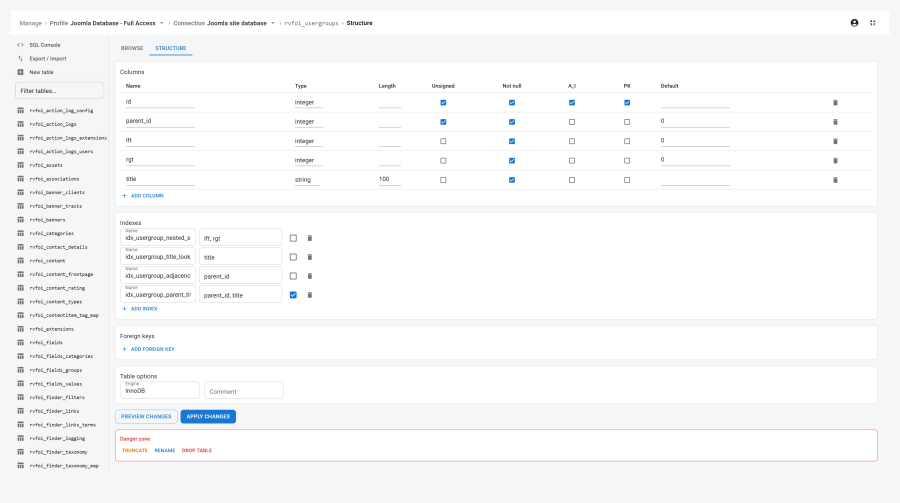
Columns
Each column row gives you:
| Field | Notes |
|---|---|
| Name | Editable. Renaming a column here is treated as a true rename, not a delete-and-recreate — see Preview-then-apply below. |
| Type | Common portable column types (integer, string, text, decimal, boolean, datetime, date, float, and so on). |
| Length | Used by types that carry a length, such as string and decimal (precision/scale). |
| Unsigned | Shown on MySQL/MariaDB connections only — it's a MySQL/MariaDB-only idea, so the field is hidden on PostgreSQL and SQLite. |
| Not null | Requires the column to always have a value. |
| A_I | Marks the column as auto-increment. |
| PK | Marks the column as part of the primary key. Compound primary keys are supported — tick the box on each column that should take part. |
| Default | Optional default. An empty value is kept as a real empty-string default, which differs from having no default at all. |
Use Add column to append a new blank row; the delete icon on any row removes it from your pending design.
Indexes
Each index entry carries:
- Name — optional; leave it blank and the database picks a name.
- Columns — choose from the table's columns. The order you pick them in is kept.
- Unique — ticked makes it a unique index; unticked makes an ordinary index.
The primary key isn't managed here — use the PK checkbox in the Columns section.
Foreign keys
Each foreign key entry specifies:
| Field | Notes |
|---|---|
| Local columns | One or more columns from this table. |
| Referenced table | Chosen from the live table list for the active connection. |
| Foreign columns | The column name(s) in the referenced table (typed as a comma-separated list). |
| ON DELETE | One of RESTRICT, CASCADE, SET NULL, NO ACTION, or unset (the database default). |
Table options
| Option | Availability |
|---|---|
| Engine | MySQL/MariaDB only. Defaults to InnoDB for new tables. Hidden on PostgreSQL and SQLite. |
| Charset / Collation | MySQL/MariaDB only. Hidden on PostgreSQL and SQLite. |
| Comment | Portable across engines; stored as the table's comment. |
Note: Engine, charset and collation are MySQL/MariaDB-only ideas, so the form hides them on PostgreSQL and SQLite. Next DB ignores those MySQL-only fields on other engines, so the preview always matches what will actually run.
Preview-then-apply
Editing columns, indexes, foreign keys or table options does not change the database straight away. The workflow is:
- Edit — make your changes in the form.
- Preview changes — Next DB compares the table's current design with the changes you've asked for and works out the exact statements needed to get there.
- Review dialog — those statements are shown to you before anything runs. If nothing has changed, the dialog says "No changes to apply" and the Apply button stays disabled.
- Apply — runs the statements against the live database.
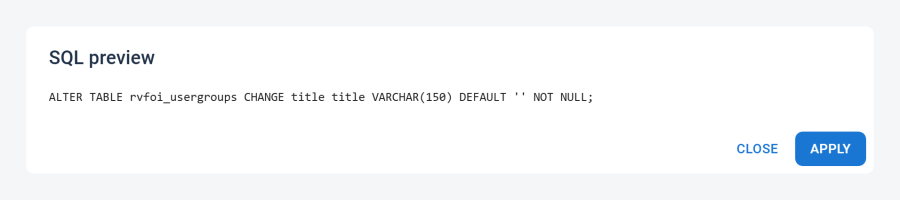
How column renames work
When you rename a column, Next DB treats it as a true rename, so your data is preserved rather than being dropped and recreated. (Renaming applies to existing tables; columns on a brand-new table are simply created.)
Engine-specific behaviour
On MySQL/MariaDB, each structure change is applied immediately and can't be rolled back.
On PostgreSQL and SQLite, all parts of a change succeed together or are undone together, so a failed change never leaves your table half-modified.
Table-level actions
These appear in the Danger zone panel at the bottom of the Structure tab and ask you to confirm before running. All require the Structure permission in your active profile.
| Action | Description |
|---|---|
| Truncate | Empties all rows and resets the auto-increment counter (handled correctly per engine). |
| Rename | Renames the table; the old and new names are both checked against core-table protection. |
| Drop | Deletes the table permanently. |
Creating a new table uses the same form; there's no preview step (there's nothing to compare against yet). After saving you land on the new table's Structure tab.
Access control
The Structure tab requires the Structure permission in your active profile. If you don't have it, the tab shows a warning and all actions are disabled.
Core-table protection also blocks structure changes to Joomla core tables and the database's internal system tables — always on for the Joomla site database, and on by default for attached connections. You can't rename a table into a protected name.
See Profiles and ACL for permission configuration and Security for core-table protection settings.