Audit Trail
A log of every recorded database change and Next DB administration action, with a filterable viewer, before/after row snapshots, and built-in redaction of sensitive data.
What is recorded
When an action is performed, Next DB checks the user's audit settings and, if recording is enabled, saves an entry to the audit log (stored in your Joomla site database). Browsing is never recorded.
Per-operation coverage
| Operation | What is logged | Before/after snapshots |
|---|---|---|
| Insert | Target connection, database, table, the statement run, the new row, affected rows | After-snapshot only |
| Update | Target connection, database, table, the statement run, the old and new rows, affected rows | Before and after |
| Delete | Target connection, database, table, the statement run, the deleted row, affected rows | Before-snapshot only |
| Structure | One summary entry: the structure change applied (columns, indexes, foreign keys, create/drop/rename/truncate) | None |
| SQL console | One summary entry: the statement submitted | None |
| Import | One summary entry: the import file name or script, plus row count | None |
| Export | One summary entry: scope (table or full database) and format | None |
| Configuration changes | One entry per save or delete of a connection, profile, or assignment | None |
Browsing (reading rows) is deliberately excluded — it does not change anything, and recording it would flood the log with noise.
Configuration changes — saving or deleting a connection, profile or assignment — are recorded only when the global "record configuration changes" setting is on (a global setting, not overridable per profile). See Audit Policy for details.
What each entry captures
Each audit entry records the following.
| Field | Description |
|---|---|
| When | Date and time (UTC) of the operation |
| User ID / Username | The Joomla user id and username of the person who acted (the username is stored at the time so it stays readable even if the account is later renamed or deleted) |
| Connection | Shown as "Joomla site database" or the stored connection's title at the time of the operation |
| Driver | The database engine in use: MySQL/MariaDB, PostgreSQL, or SQLite |
| Database | Target database name |
| Operation | Operation type (see the table above) |
| Table | Affected table; empty for whole-database or configuration operations |
| Statement | The SQL statement or a short summary; long statements are truncated. Passwords in the statement are redacted before storage — see Redaction below |
| Before / After data | The row before and/or after a data change. Sensitive columns are redacted — see Redaction below |
| Affected rows | Number of rows affected, as reported by the engine |
| Status | success or error |
| Error message | The engine's error text when the status is error; blank on success. Passwords are redacted before storage |
| IP address | The address the request came from |
| Expiry | When the entry becomes eligible for automatic deletion, based on the retention setting in effect when it was recorded (blank = keep forever) |
How the log is written
The audit log is always written to your Joomla site database, never to the database you are editing. Writing is best-effort — if it can't be written, your action still completes. An audit failure never blocks a database operation.
This is intentional: a broken or unavailable audit log should not make an otherwise healthy editor unusable. If audit completeness is critical for your site, monitor the log for gaps.
Redaction
The audit log should record what happened — not become a second store of secrets. Two redaction passes run automatically before anything is stored.
Passwords in a recorded statement (and in any engine error message) are replaced with [REDACTED]. And in
the before/after row snapshots, columns whose names suggest a secret — password, secret, token, key,
and similar — are masked with [REDACTED]. Columns that are empty or NULL are left as-is, since there is
nothing sensitive to protect.
The audit entry still shows which row changed and that the sensitive column was touched; it does not copy the value into the log.
For full details see Security — Audit redaction.
Viewing the audit log
Navigate to Next DB → Monitoring → Audit log.
Access: viewing the audit log requires the View Audit Log permission (Super Users always have it). Users without it don't see the menu item.
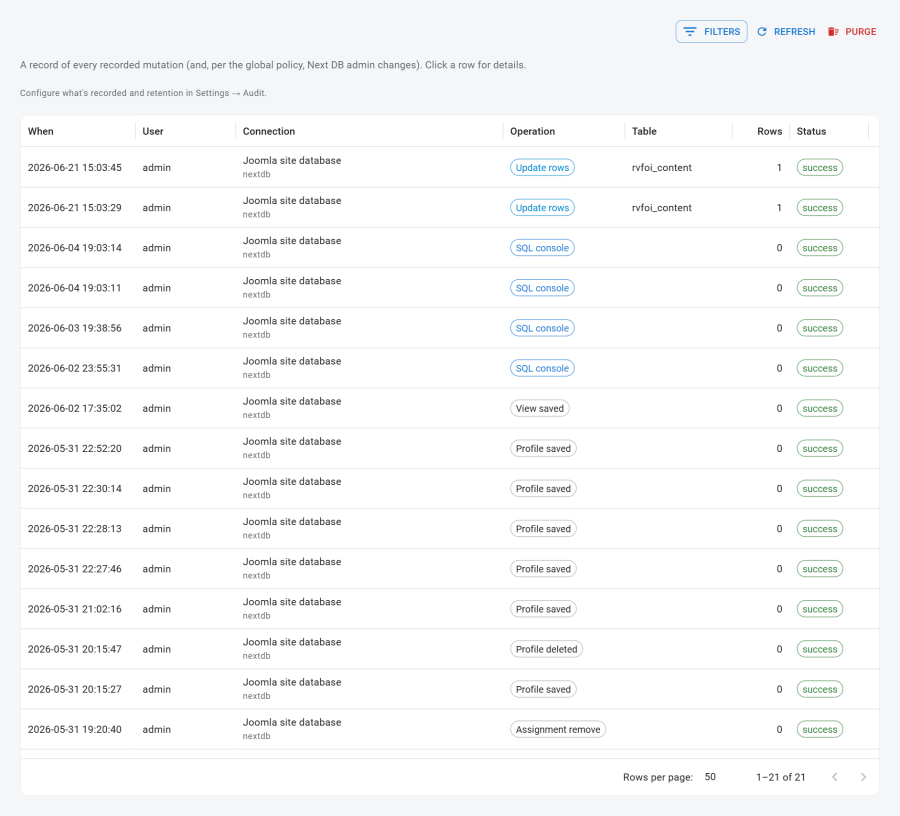
Columns
| Column | Content |
|---|---|
| When | Date and time (UTC) of the operation |
| User | Username, or #<id> when the username is empty |
| Connection | Connection title, with the database name beneath it in a smaller caption |
| Operation | Colour-coded chip: green = insert, blue = update, red = delete, amber = structure, purple = import, primary = SQL console, grey = configuration or export |
| Table | Affected table name |
| Rows | Affected row count |
| Status | Chip: green = success, red = error |
Rows are sorted newest-first, with paging handled by the server. Page sizes of 25, 50, or 100 rows are available.
Filtering
Click the Filter button (top-right of the page) to open the filter panel. Changing any filter resets the page to the first result.
| Filter | Type | Searches |
|---|---|---|
| Search | Free text | Statement text, table name, username, and error message |
| User | Drop-down | Users present in the log |
| Connection | Drop-down | Connections present in the log |
| Operation | Drop-down | Operation types present in the log |
| Status | Drop-down | success or error |
| From / To | Date pickers | An inclusive date range |
Before/after detail drawer
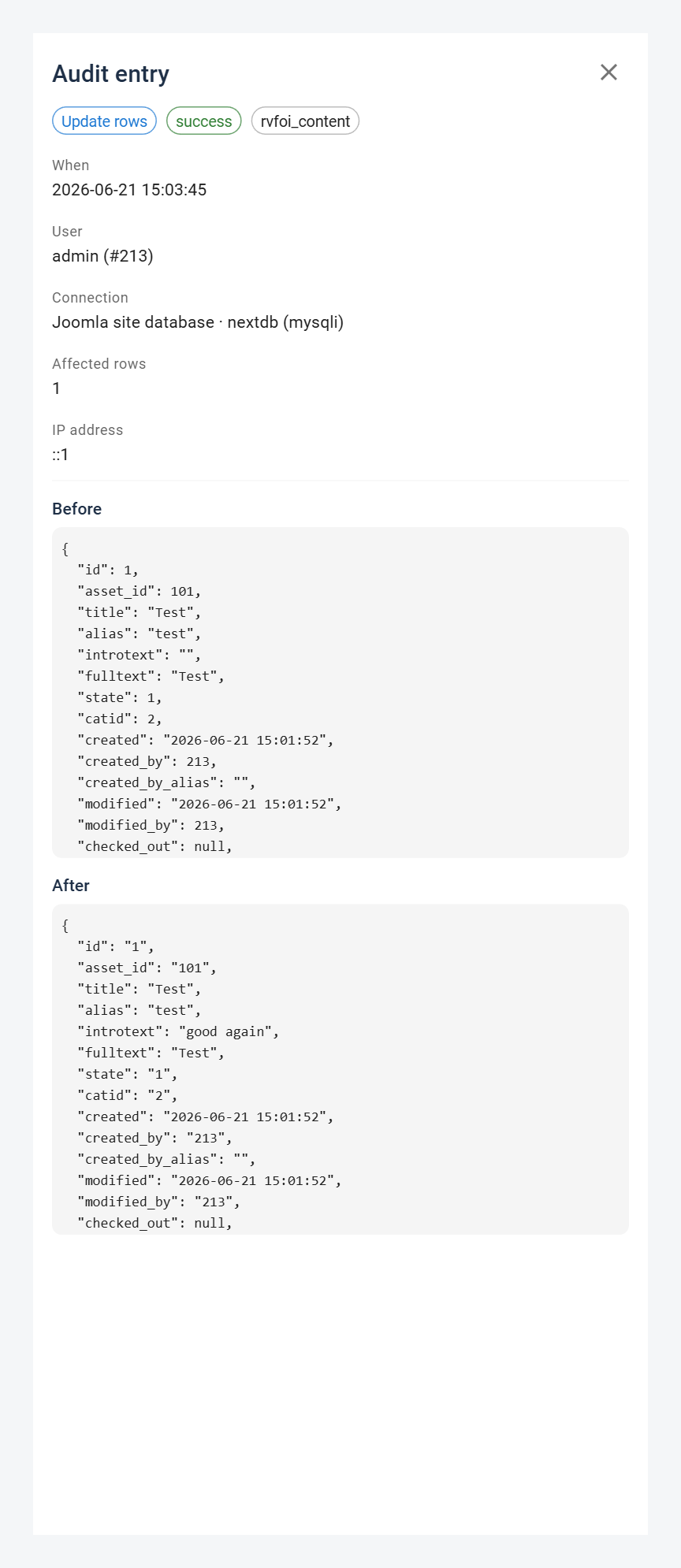
Click any row to open the detail drawer on the right-hand side. The drawer shows every field of that entry
in full, including the complete statement text and the before/after row snapshots (as a key/value table).
Redacted columns show [REDACTED] in place of their original value.
Refresh
Click Refresh to reload the current page of results. This also tidies up the log opportunistically — expired entries are removed before the results are returned.
Purge
The Purge button appears only for users with the Purge Audit Log permission (or Super Users). A confirmation dialog is shown before any deletion.
Four purge presets are available from the drop-down:
| Preset | What is deleted |
|---|---|
| Delete entries older than 30 days | Entries created more than 30 days ago |
| Delete entries older than 90 days | Entries created more than 90 days ago |
| Delete entries older than 1 year | Entries created more than a year ago |
| Clear entire log | All entries, regardless of age or expiry |
Purge is immediate and irreversible. The response reports how many entries were deleted.
For automated retention and the scheduled-task plugin, see Audit Policy — Pruning paths.
See also
- Audit Policy — what gets recorded, retention settings, the two-tier policy model, and scheduled pruning
- Security — Audit redaction — statement and snapshot redaction details