Basic Setup
The Basic tab contains the core setting: your Google Analytics or Tag Manager tracking ID.
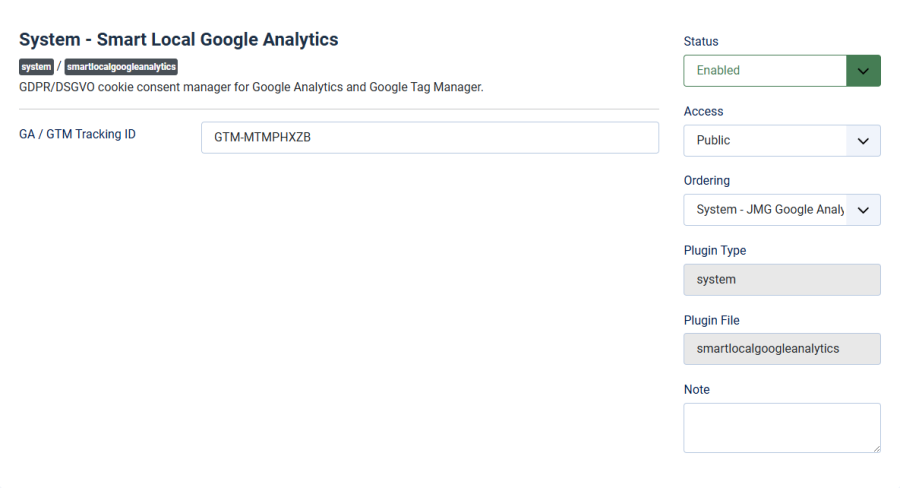
GA / GTM Tracking ID
| Setting | Details |
|---|---|
| Field | GA / GTM Tracking ID |
| Type | Text |
| Default | Empty |
| Example | G-XXXXXXXXXX or GTM-XXXXXXX |
Enter your tracking ID to enable managed mode — the plugin handles all script injection automatically.
Where to Find Your ID
- Google Analytics 4: Go to Admin > Data Streams > select your stream > copy the Measurement ID (starts with
G-) - Google Tag Manager: Go to your GTM workspace > the Container ID is shown at the top (starts with
GTM-)
Managed Mode vs Legacy Mode
The tracking ID field determines which mode the plugin uses:
| Mode | When | Behavior |
|---|---|---|
| Managed | Tracking ID is entered | Plugin injects the GA4/GTM script only after consent. No template editing needed. |
| Legacy | Tracking ID is empty | Plugin scans the page for existing GA/GTM scripts (added by your template or another extension) and strips them until consent is given. |
Managed mode is recommended for most sites. It gives you full control and works with local script hosting.
Legacy mode is useful if your template or another extension already adds Google Analytics code and you cannot remove it. See Legacy Mode for details.
How Managed Mode Works
- Visitor loads a page — no GA/GTM scripts are present
- If the visitor has already consented, the plugin injects the tracking script before the page is sent
- If no consent decision exists, the consent dialog is shown instead
- For GA4 IDs (G-), the plugin adds the
gtag.jssnippet before</head> - For GTM IDs (GTM-), the plugin adds the GTM head script and the
<noscript>iframe after<body>