Home, Recent & Starred
Get back to the files you work with, without browsing for them.
Home
Home is a start page. It shows what you touched lately, what you starred, and every drive you can reach.
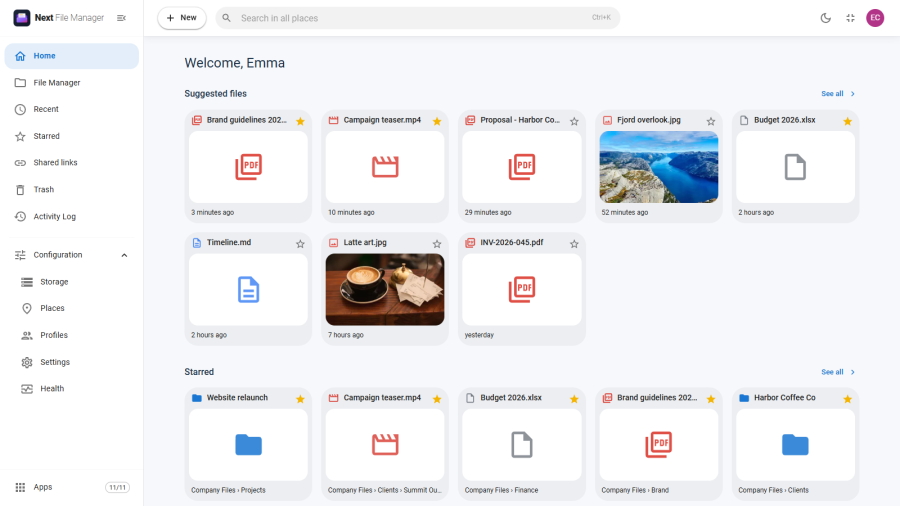
| Section | What it shows |
|---|---|
| Suggested folders | Up to four folders from your recent activity, such as folders you created, renamed, moved or copied. Hidden when there are none. |
| Suggested files | Up to eight files you recently opened, uploaded, edited, copied, moved or downloaded, newest first. Images show a thumbnail; other files show their type icon. See all opens Recent. |
| Starred | Up to eight of your starred files and folders, with where each one lives. See all opens Starred. |
| My places | A card for each drive your profile grants, with its icon and colour. The card says what kind of drive it is (Website, This server, or the connection type such as SFTP) and adds Read-only when you cannot change anything on it. |
Click a folder to open it. Click a file to open its folder in the File Manager with that file selected.
Every file card has a star in its corner. Click it to add the file to Starred or remove it.
Choosing the first page. An administrator sets which screen opens first in Configuration → Settings → Appearance → Start page: Home or Files. Sites updated from 6.0 keep opening on Files until someone changes this.
The "New" button
New sits in the header on every screen, so you can create something without first opening the File Manager.
| Entry | What it does |
|---|---|
| New folder | Asks for a name and creates the folder |
| File upload | Opens your browser's file picker |
| Folder upload | Uploads a whole folder with its sub-folders |
Where the new item goes:
- On the File Manager screen, into the folder you have open.
- On any other screen, into the last folder you browsed.
- If neither is possible, or that drive is read-only, into the top of the first drive you can write to.
Afterwards Next File Manager switches to the File Manager at that folder, so you can see the result.
You only see the entries your profile allows. Folder upload needs both the upload and the new-folder permission. When you may do neither, the button is hidden.
Recent
Recent lists the files and folders you touched lately, newest first. It is personal: it shows only what you did, not what other users did.
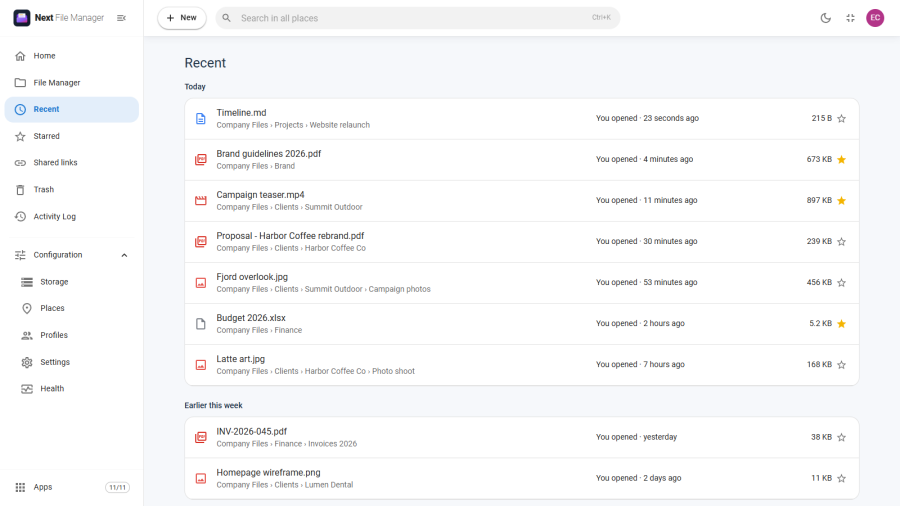
Items are grouped into Today, Earlier this week and Older. Each row shows:
- the name, and where it lives (drive and folders);
- what you did and when, for example You opened · 4 minutes ago or You uploaded · yesterday;
- the size, and a star you can click.
These actions put an item on the list: opening a file in the preview or the editor, uploading, editing, creating a folder, renaming, moving, copying, making a copy, extracting and downloading. Each item appears once, with the latest thing you did.
Recent keeps up to 50 items. An item you deleted, moved out of reach, or can no longer reach through your profile drops off the list.
"Today" means today in your Joomla time zone: your own time zone setting in your Joomla account, or else the site's time zone. It is not your browser's or computer's clock.
Starred
Star the files and folders you come back to, and find them in one click.
To star an item, use any of these:
- Right-click it (or use its ⋮ button) and choose Add to Starred.
- Select one or more items and click the star in the selection bar.
- Click the star on a grid tile, a list row, a Home card or a Recent row.
Choose Remove from Starred, or click a filled star, to take it off.
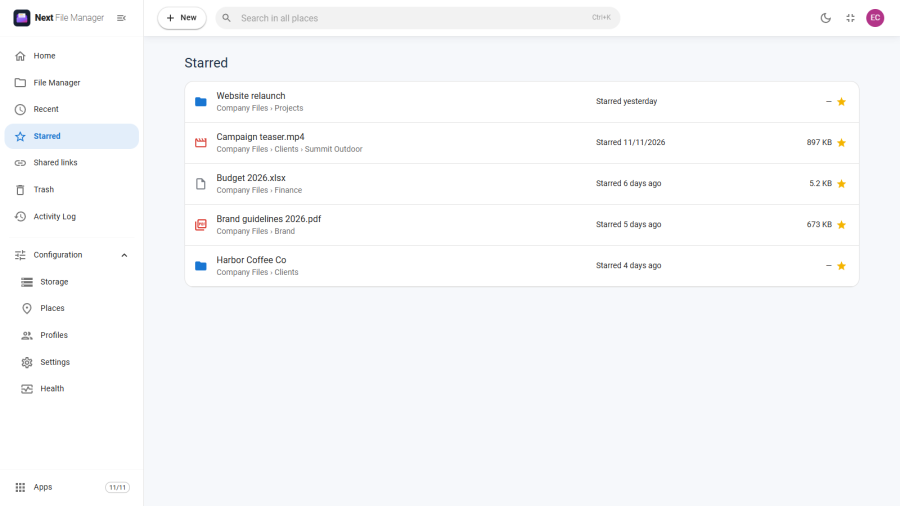
The Starred page lists your starred items, newest star first, with where each one lives and when you starred it. Click a row to open it.
Stars are personal. Other users do not see yours.
Stars follow the item. When it is renamed or moved, the star moves with it. When it is deleted, the star is removed, and it does not come back if the item is restored from the Trash. A starred item you can no longer reach is left out of the list.
Switching these screens off
Recent and Starred are separate apps. An administrator can turn either one off in Configuration → Apps. Its menu entry, its page and its section on Home then disappear. Home itself and My places are always available.