Trash
Deleted files and folders wait in the Trash, so a mistake can be undone.
Deleting moves to the Trash
Select one or more items and choose Delete from the right-click menu, the ⋮ menu or the selection bar, or press the Delete key.
The items go to the Trash straight away. There is no confirmation dialog, because nothing is lost yet. A message appears at the bottom of the screen:
Moved 3 item(s) to the Trash. Undo
Click Undo to put everything back where it was in one step. The message stays on screen long enough to reach the button, and clicking elsewhere on the page does not close it early.
Moving an item to the Trash is quick even for a large folder: it is moved aside on the same drive, not copied.
Deleting forever
To skip the Trash, choose Delete forever from the menu, or press Shift+Delete.
This asks first: Delete 3 items? — This permanently deletes the selection, including any folder contents. This cannot be undone. Click Delete to confirm.
The Trash screen
Open Trash from the menu.
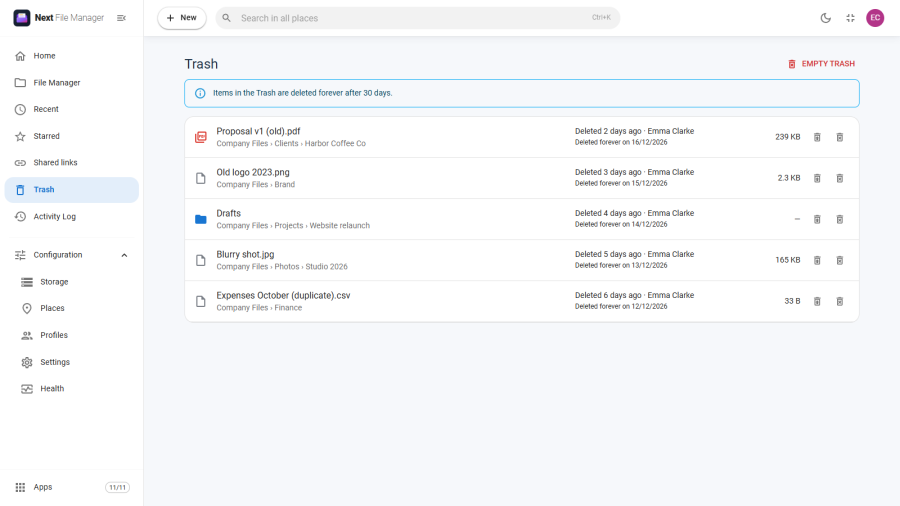
The notice at the top says how long items are kept, for example Items in the Trash are deleted forever after 30 days.
Items are listed newest first. Each row shows:
- the name, and the folder it was deleted from;
- when it was deleted and by whom, for example Deleted 2 days ago · Emma Clarke;
- the day it will be deleted for good: Deleted forever on a date;
- the size of a file;
- a Restore button and a Delete forever button.
Dates follow your Joomla time zone: the time zone in your Joomla account, or else the site's time zone.
Who sees what
The Trash is not personal. You see every trashed item whose original folder your profile can reach, whoever deleted it. A colleague who shares a folder with you sees what you deleted there, and you see what they deleted.
You see nothing from folders your profile does not reach.
The Restore, Delete forever and Empty Trash buttons appear only if your profile allows deleting. Restoring and deleting forever also need write access to the folder the item came from.
Restoring
Click Restore on a row. The item goes back to the folder it was deleted from.
- If that folder no longer exists, it is created again.
- If another item now has the same name, the restored item gets (restored) added to its name, before the extension, for example Budget (restored).xlsx.
A message confirms it, for example Restored “Budget.xlsx”. Click Show to open its folder with the item selected.
The same checks apply as for any other change: an item cannot be restored into a folder that has since become protected or read-only for you.
Stars are removed when an item is deleted, and they do not come back when it is restored.
Deleting from the Trash
- Delete forever on a row removes that one item. It asks first: Delete forever?
- Empty Trash at the top removes every item in the list. It asks first: Empty the Trash? — Every item in the Trash will be deleted forever. This cannot be undone.
Empty Trash removes only the items you can see. Items from folders you cannot reach stay in the Trash for the users who can.
How long items are kept
Items are deleted for good 30 days after they were deleted.
An administrator can change this in Configuration → Settings → Trash with Keep deleted items in Trash for (days). Set it to 0 to keep items until someone empties the Trash.
Old items are cleared once a day, the first time someone uses the file manager that day. On a quiet site an item can therefore stay a little longer than the set number of days.
Disk space
Items in the Trash are kept on the drive they were deleted from, in a hidden folder. They still use space on that drive until they are deleted for good. The hidden folder never shows up in the File Manager, in search or in ZIP downloads.
To free space now, delete items forever or empty the Trash.
Switching the Trash off
The Trash is an app. An administrator can turn it off in Configuration → Apps. Then:
- Delete asks for confirmation and deletes permanently, as Delete forever does;
- the Trash screen and the Delete forever menu entry disappear;
- items already in the Trash stay there, and are back in view when the app is switched on again. They are still cleared once they are older than the set number of days.