Share links
Send a file or a whole folder to someone who has no account on your site.
A share link is a public web address. Anyone who has it can download the shared file, or browse the shared folder and download what is in it. You can add an expiry date, a password and a download limit, and you can revoke the link at any time.
Creating a link
Right-click a file or folder (or use its ⋮ button) and choose Share link…. The share dialog opens.
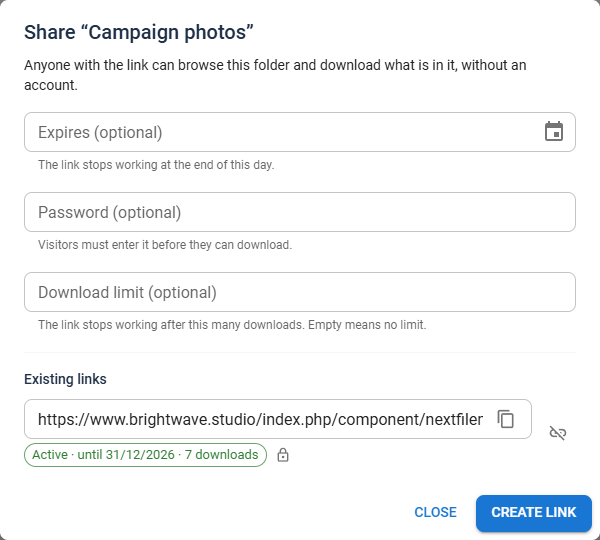
All three fields are optional:
| Field | What it does |
|---|---|
| Expires (optional) | Pick a date in the calendar. The link stops working at the end of that day. The earliest date you can pick is tomorrow. |
| Password (optional) | Visitors must enter it before they can see or download anything. It must be 8 to 200 characters long. |
| Download limit (optional) | The link stops working after this many downloads. Leave it empty for no limit. |
Click Create link. The new address appears at the top of the dialog and is copied to your clipboard (Link created and copied.). Paste it into an email or a chat. The copy button next to the address copies it again.
To make a second link for the same item, with different settings, click Create another link.
Expiry dates follow your Joomla time zone. "The end of the day" is midnight in the time zone set in your Joomla account, or the site's time zone if you have not set one. It is not your computer's clock and not UTC.
Existing links
Under the fields, Existing links lists the item's links that still work. Each one shows:
- its address, with a copy button;
- its status, for example Active · until 31/12/2026 · 7 downloads, or 3 of 10 downloads when it has a limit;
- a padlock when it has a password.
Click the Revoke button (the broken-link icon) to switch a link off. Revoking is immediate and final: the link never works again. To change a link's expiry, password or limit, revoke it and create a new one.
What cannot be shared
- A whole drive. Share a folder inside it instead.
- Protected items. Share link… is greyed out on a protected file or folder. See Protection.
- Secret files, such as the site's configuration file, keys and environment files. They are refused, and they are left out of any shared folder that contains them.
Who can share
Share link… only appears for users whose profile allows both sharing and downloading, and only when one item is selected. See Profiles & access control.
The Shared links screen
Shared links in the menu lists every link you have made.
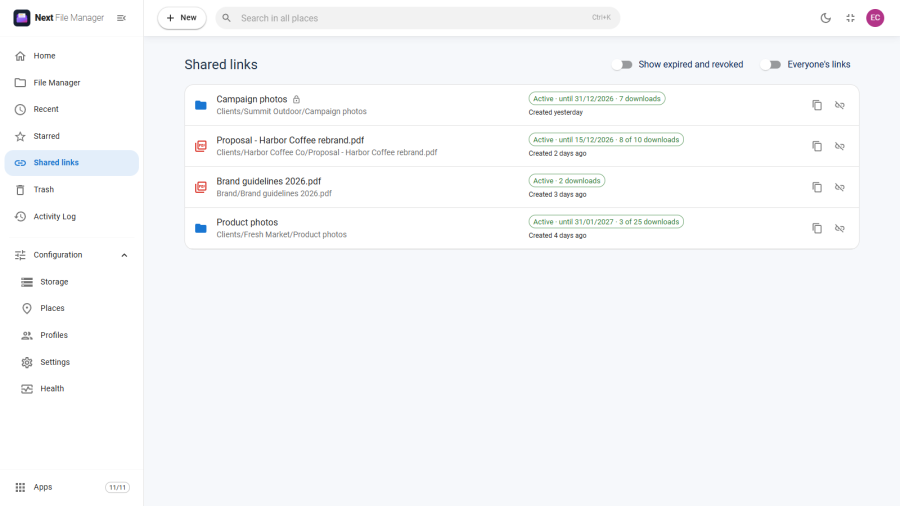
Each row shows:
- the item's name, with a padlock if the link has a password;
- where the item lives, or No longer in your places when you can no longer reach it;
- the status: Active (with its end date and download count), Expired, Download limit reached or Revoked;
- when the link was created and when a visitor last used it;
- Copy link and Revoke buttons.
Click a row to open the item in the File Manager, in its folder and selected.
Two switches sit at the top of the screen:
| Switch | What it does |
|---|---|
| Show expired and revoked | Off by default, so the list shows only links that still work. Turn it on to see the old ones too. |
| Everyone's links | Super Users only. Lists the links of every user, with the owner's name on each row. A Super User can revoke any of them. |
What the visitor sees
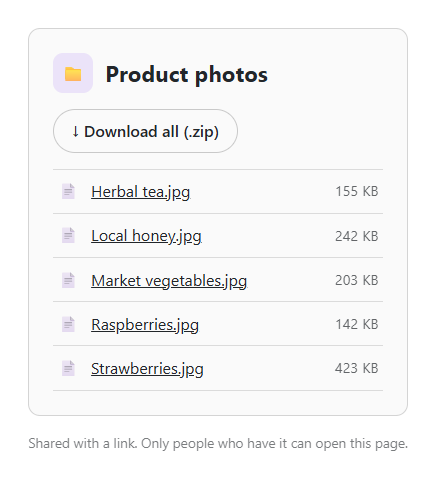
The visitor opens the link in a normal browser. No account and no login are needed. The page is a plain download page on your site.
A shared file shows its name, size and date, and a Download button.
A shared folder shows its contents, folders first:
- Click a folder to open it. A path at the top leads back up.
- Click a file to download it.
- Download all (.zip) downloads the folder the visitor is looking at, with everything below it, as one ZIP file. This button appears only while the Archives app is switched on.
Hidden files (names starting with a dot) and symbolic links are not listed. Secret files are never listed or served.
Every file download counts towards the link's download limit. A Download all (.zip) counts as one download.
A password-protected link first shows This link is protected and a password box. After the right password, the visitor can use the link for the rest of their visit without entering it again. A wrong password shows That password is not right.
A link that no longer works shows Link not available. The page does not say why: expired, revoked, limit reached or removed all look the same to a visitor.
Each download from a link is recorded in the Activity log under the name of the link's owner.
Limits and safety
ZIP downloads are capped
A folder downloaded with Download all (.zip) may hold at most 20,000 files and 2 GB. A larger folder is refused. The visitor can still open sub-folders and download smaller parts, or download files one at a time.
A ZIP that could not be built does not use up one of the link's downloads.
Password guessing is blocked
After 5 wrong passwords from the same visitor, that visitor must wait 15 minutes (Too many attempts. Please try again in 15 minutes.). Attempts are also counted for the link as a whole, so someone switching between many addresses is stopped too.
Short passwords are refused when you create the link: the minimum is 8 characters.
A link lives only as long as its owner's access
The link is checked against its owner's access every time it is opened. It stops working when:
- the owner's Joomla account is blocked or deleted;
- the owner's profile no longer allows sharing or downloading;
- the owner's profile no longer reaches the folder the item is in;
- the item becomes protected;
- the item is deleted.
Renaming or moving a shared item, or a folder above it, keeps its link working: the link follows the item to its new name and place, as long as the owner can still reach it there.
If the Share links app is switched off in Configuration → Apps, every link stops working until it is switched back on.
Site-wide maximum duration
An administrator can set Longest a share link may last (days) in Configuration → Settings → Sharing. When it is set:
- a new link without an expiry date gets that maximum as its expiry;
- an expiry date beyond the maximum is refused;
- existing links count too: a link older than the maximum has expired, even if it was made before the setting was changed.
Set it to 0 for no maximum.
Symbolic links stay inside the folder
A shared folder never leads outside itself through a symbolic link. Links inside it are not listed and cannot be opened, on every drive type, including SFTP and FTP drives.
No caching
Files downloaded from a share link are sent with instructions not to store them in the browser or proxy caches. A link that has been revoked or has expired cannot be served from a cache.