Phone app
On a phone, Next File Manager opens as a touch app. On HTTPS sites it can also be installed as an app: Next File Manager is a Progressive Web App (PWA).
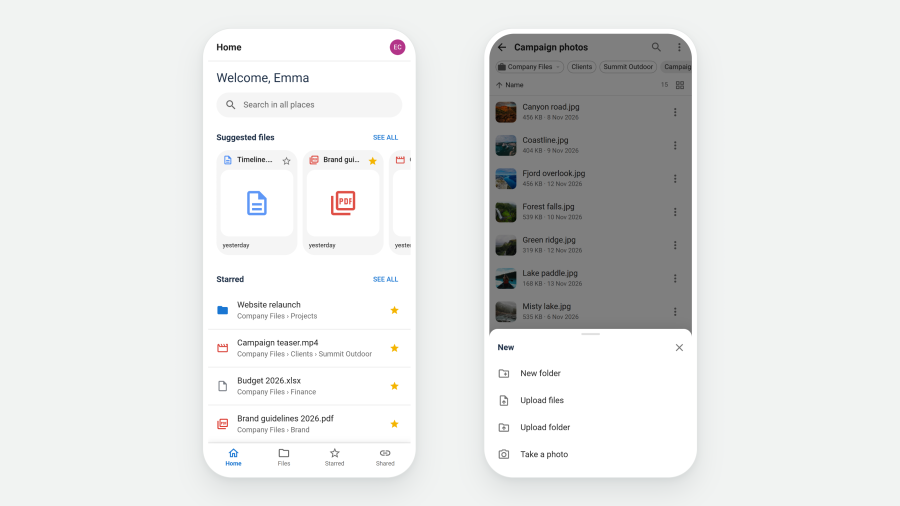
The phone app
Open the file manager on a phone and you get the phone app, in the site backend and on the site front end alike. It fills the whole screen, without the Joomla template around it. Nothing needs to be set up.
It uses the same profiles, places and protection as the full version. Only the screens are different.
The tab bar
A tab bar at the bottom of the screen is always one thumb away:
| Tab | What it shows |
|---|---|
| Home | A greeting, a Search in all places box, Suggested files (the files you used recently), your first starred items, and your places |
| Files | The folder you are in, with the places and the path as chips under the title |
| Starred | Everything you starred |
| Shared | Your share links |
Starred and Shared appear only while those apps are switched on.
Tap your avatar in the top right corner for the rest: Recent, Trash and Activity Log (when you may see them), light or dark mode, Open full version, Back to Joomla and Log out.
Working with files
- Tap a file to open it, or a folder to go into it. The back arrow in the title bar goes up one level.
- ⋮ on a row opens that item's actions in a sheet that slides up from the bottom. Swipe it down, or tap outside it, to close it.
- Sort and view. The row under the path sorts by Name, Size, Type or Modified, and switches between a list and a grid of cards.
- Large folders load in batches as you scroll down.
- Pull to refresh. Pull the list down from the top and let go to reload the folder.
Selection mode
Long-press a file or folder to start selecting. From then on, a tap adds or removes an item. The bar at the top shows how many are selected, with Select all, Move to…, Delete and More actions.
The phone's Back button first leaves selection mode. Only the next Back leaves the folder.
Adding files
The round + button opens the New sheet:
- New folder
- Upload files
- Upload folder
- Take a photo — opens the phone's camera and uploads the photo into the folder you are in
The entries follow your profile: without the upload command only New folder is shown, and in a read-only folder the button does not appear at all.
Searching
The search button in Files, or the search box on Home, opens a full-screen search.
- Type at least two characters to search every place you can reach.
- Type chips under the box — Images, PDFs, Documents, Videos, Audio, Folders — narrow the results. A chip on its own, with nothing typed, lists everything of that type.
- Before you type, the screen shows your recent searches and recently opened files.
Tapping a result opens its folder in Files, with the item briefly marked.
Switching to the full version and back
The phone app covers everyday file work. Storage, places, profiles, settings and the Apps manager are only in the full version. Opening one of those screens on a phone shows a card with an Open full version button.
- Open full version (in the avatar menu, or on that card) loads the full version on the same screen. Your phone remembers the choice, so it keeps opening the full version.
- Phone version, in the account menu of the full version (shown on phones only), takes you back to the phone app.
On a desktop, a window made narrower than a phone (or wider again) offers the other version in a small notice. It never switches on its own, so an upload or an open editor is not cut short.
Install as an app
On HTTPS sites the phone app can also be installed on the home screen and opened like any other app, with folders you already opened readable offline. See Install as an app.