Roles & Permissions
Next Inventory ships with its own role-based permission system separate from Joomla ACL. Define roles (sets of permissions), assign them to users or Joomla user groups, and the UI automatically hides buttons and pages the assigned user can't reach. This screen is where roles live and where assignments happen.
Open it from Components > Next Inventory > Configuration > Roles. Role Assignments is a sub-page under the same section.
For Users
You won't see this screen unless you have the manage_roles
permission. What you will see from your role is:
- Menu items for features you have access to — no page without permission, no 403 surprises.
- Buttons only for actions you can perform — if you lack
inventory.delete, the Delete button is hidden rather than greyed out. - Filtered dropdowns — e.g. on Stock Movements, the movement
type dropdown only shows types your role allows (
checkout,add_stock, etc.).
If you think you should have access to something you don't, ask a super-admin to review your role assignment.
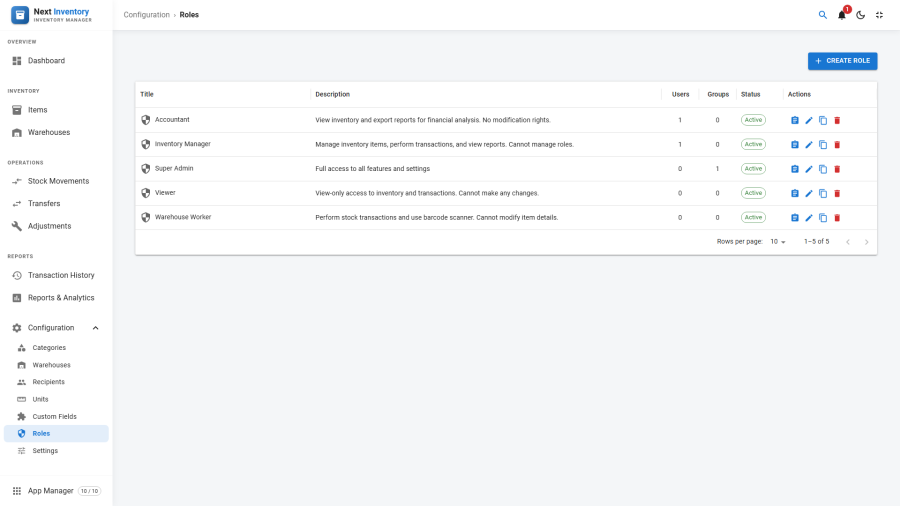
For Admins
This screen has two main views:
- Roles — the role definitions with their permission matrices.
- Role Assignments — who has which role.
Why Separate from Joomla ACL?
Joomla's ACL works great for extension-scoped coarse-grained permissions ("can access Next Inventory at all"). What it doesn't do well is fine-grained per-feature actions — "can add stock but not remove", "can view reports but not export". Next Inventory's role system layers on top of Joomla ACL for that fine-grained control.
The split means Joomla still gates component-level access (via its normal permissions UI); Next Inventory roles gate everything inside the component.
Defining a Role
- Open the Roles sub-tab → New.
- Enter a Title ("Warehouse Staff", "Read-Only Auditor", "Branch Manager") and a Description.
- Pick Status: Published / Unpublished. Unpublished roles can't be assigned.
- Fill in the Permissions matrix — tick the actions this role unlocks. The matrix groups actions by feature area.
- Save.
The Permission Matrix
The matrix has seven feature areas with these actions each:
| Feature | Actions |
|---|---|
inventory |
create, edit, edit.own, delete, view, manage_transfers, manage_adjustments |
transactions |
checkin, checkout, add_stock, remove_stock, view |
categories |
create, edit, delete, view |
reports |
view, export |
configuration |
manage_warehouses, manage_recipients, manage_roles, manage_notifications, manage_settings, manage_units, manage_custom_fields |
warehouses |
view |
scanner |
use |
warehouses is the operational Warehouses dashboard, separate from
configuration.manage_warehouses, which governs editing the warehouse
records themselves.
Permissions default to off when not ticked — absence means denial. There's no separate "deny" state.
Assigning Roles
Open the Role Assignments page to wire roles to people:
- Assign to a user — pick a Joomla user, pick a role. The user immediately gains that role's permissions.
- Assign to a group — pick a Joomla user group, pick a role. Every user in that group inherits the role.
Precedence rule: direct user assignments take precedence over group assignments when both apply. If a user is directly assigned "Read-Only Auditor" and belongs to a group assigned "Warehouse Staff", they get the Auditor role.
Super Administrators Bypass Everything
Any Joomla user in the Super Users group bypasses Next Inventory's role checks entirely. This is by design — you need a break-glass path out of misconfigured roles, and Joomla's Super Users is the obvious one. Plan your initial role assignments so at least one Super User covers inventory admin tasks; avoid baroque role setups just to emulate what Super Users already do.
Refreshing After Changes
Role changes take effect on a user's next page load — there is nothing to clear or rebuild. If someone still sees their old permissions after you've saved a change, have them reload the page, or log out and back in.
Permissions
| Action | Feature | Permission |
|---|---|---|
| See Roles and Role Assignments | configuration |
manage_roles |
| Create or edit a role | configuration |
manage_roles |
| Assign roles to users or groups | configuration |
manage_roles |
Only users with manage_roles (plus Super Users) see this screen at
all.
Edge Cases
- A user has no role assigned — they see only what Joomla ACL permits at the component level, which in practice means "nothing useful". Assign at least a basic view-only role to every Next Inventory user.
- Deleting a role with active assignments — blocked by default; the UI lists the affected users / groups. Reassign or unpublish instead of deleting.
- Renaming a role — safe; assignments follow.
- edit.own vs edit —
edit.ownlets a user edit only the records they created themselves. Use for roles like "Data Entry" where users should correct their own typos but not rewrite someone else's records. Not grantingeditwhile grantingedit.ownis the common "limited editor" recipe. - Role assignment with no permissions enabled — creates a role that grants nothing, identical to "not assigned". Useful for placeholder roles during phased rollouts.
Form Reference
Role
| Field | Required | What it's for |
|---|---|---|
| Title | yes | The role's name ("Warehouse Staff") |
| Description | no | A note for admins on what the role is for |
| Status | yes | Published / Unpublished — unpublished roles can't be assigned |
Role Assignment
| Field | Required | What it's for |
|---|---|---|
| Role | yes | Which role is being assigned |
| User | conditional | Assign the role to a specific Joomla user |
| User Group | conditional | Assign the role to every user in a Joomla user group |
(Each assignment needs either a User or a User Group.)