Notifications
Next Inventory's notification system is multi-channel — the same event (usually low stock, but also check-outs, transfers, and adjustments) can reach you via email, browser push, in-app notification centre, and sound cue. Every channel is user-configurable per event type.
Open it from the bell icon in the top bar → Notification Centre, or from the user menu → Notification Preferences.
For Users
The Notification Centre
The bell icon in the top bar shows a red badge with the count of unread notifications. Clicking it opens a dropdown preview; clicking View All opens the full Notification Centre page.
On the full page you can:
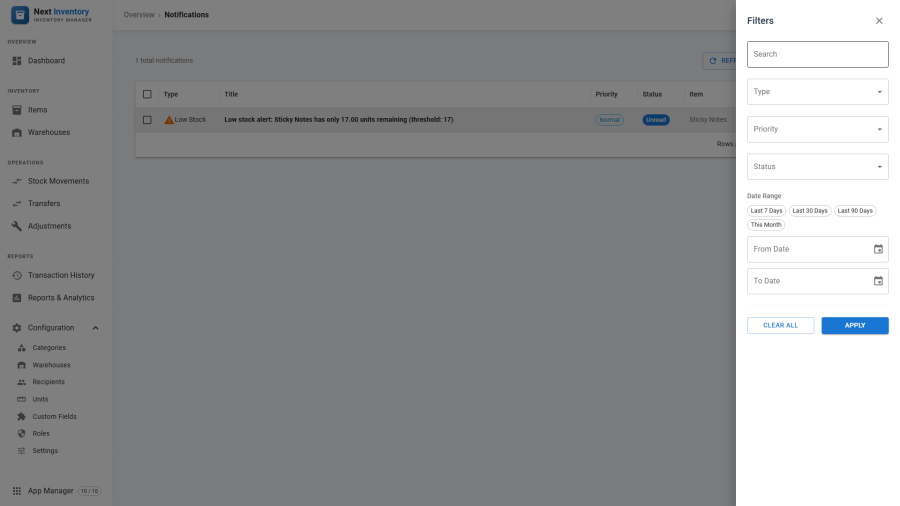
- Filter — by type (low stock, check-out, transfer, adjustment, system), priority (low / normal / high / urgent), read/unread, date range, or free-text search.
- Bulk actions — select rows via checkbox and mark-as-read or archive many at once.
- Click through — each notification carries a link that jumps you to the relevant item, transaction, or report.
The list refreshes itself every 60 seconds — you don't need to reload the page to see new notifications.
Notification Preferences
Each user controls their own preferences at user menu → Notification Preferences. The page has three sections:
- Email — tick the event types you want delivered by email.
- Browser Push — subscribe your current browser / device to receive push notifications, even when Next Inventory isn't open. A per-device toggle per event type.
- Sound — plays a chime when new notifications arrive in the centre. Per-event type so you can be loud about urgent alerts and quiet about routine ones.
See Settings > Notifications for the admin-side VAPID configuration that enables the Browser Push channel below.
First-Time Push Setup
The first time you toggle a push notification on:
- The browser asks for notification permission. Click Allow.
- Next Inventory registers your browser with the server so push messages can be delivered to this device.
- The toggle lights up, and the next matching event triggers a browser push notification.
You can revoke permission at any time from your browser's site permissions settings, or un-toggle in Preferences. Either way, the server's record for your device is cleaned up automatically.
Common Workflows
- Silence all notifications for the weekend — Preferences, tick off Email and Push on everything, leave Sound off.
- Get paged when something's really wrong — keep only urgent priority push notifications on; everything else lives in the centre for later.
- Triage the weekly backlog — Monday morning: filter to unread, bulk-read after scanning, archive what's resolved.
For Admins
Event Types
The built-in event types:
| Type | Fired when | Default priority |
|---|---|---|
| Low stock | An item's stock falls to or below its threshold | normal |
| Check-out | An asset is checked out | low |
| Check-in | An asset is checked in | low |
| Transfer | A transfer is finalised | normal |
| Adjustment | An adjustment is finalised | normal |
| System | Admin alert / broadcast | varies |
Channels and How They Work
- In-app — every notification lands in the Notification Centre. The bell checks for new notifications every 60 seconds.
- Email — HTML email via Joomla's mailer. Requires working SMTP configuration in Global Configuration > Server > Mail.
- Browser push — real push notifications delivered by the browser itself. Requires the VAPID key pair configured in Settings. Push works across browser restarts and when the tab is closed.
- Sound — a short chime played in the browser. Requires the user to have interacted with the page at least once (browser autoplay policy).
VAPID Setup for Push
Under Configuration > Settings > Notifications, click Generate to create a fresh VAPID key pair, or paste keys you already have. If the public key isn't set, the push toggle in user Preferences stays disabled with a "Push notifications not configured" message.
Device registrations older than the configured retention window are removed automatically, so long-gone browsers and devices don't accumulate.
Deduplication
Low-stock notifications are throttled to once per 24 hours per item per user. A user who gets a low-stock alert for Item A today won't get another for Item A until tomorrow, even if the stock dips and rises repeatedly.
Other event types (checkout, transfer, adjustment) fire on every event by design — each is a specific action with its own audit trail.
Permissions
Notifications are per-user, not per-role. Any authenticated Joomla user with access to Next Inventory can receive notifications. The only role-based check is for sending system broadcasts:
| Action | Feature | Permission |
|---|---|---|
| Receive notifications | always available | — |
| Broadcast a system alert | configuration |
manage_notifications |
| Configure VAPID / channels | configuration |
manage_settings |
Edge Cases
- HTTPS required for push — browsers only allow push
notifications on HTTPS sites (or
localhost). Push on plain HTTP is silently unavailable. - Email not arriving — check Joomla's mail log (if enabled) and the user's own Notification Preferences. If the email toggle for that event type is off, the user un-subscribed themselves.
- Push arrives but click does nothing — clicking a push notification opens the notification's link. If that link is missing or malformed, the click does nothing. Open the same notification from the Notification Centre as a fallback.
- Sound blocked — Chromium-based browsers block audio before first interaction. Tell users to click anywhere on the page once per session to unlock it. The page intentionally doesn't force- play sound to avoid being that kind of site.
- Archiving vs deleting — archive hides a notification from the centre but keeps it on record for audit. There's no permanent delete from the screen on purpose.