Adjustments
Adjustments record stock changes that aren't check-ins, check-outs, or deliveries — things like damaged during handling, lost in the warehouse, or found an uncounted pallet at the back. They're the write-off and write-on mechanism for when reality and the system need to agree.
Open it from Components > Next Inventory > Adjustments, or the Adjustments tab in the navigation.
For Users
When to Use an Adjustment
Reach for an adjustment when you need to change stock for a reason that isn't a regular stock movement:
- A box arrived damaged and you're writing off four units.
- Annual stocktake finds three extra items in the corner.
- A pallet was stolen. No bargaining, it's gone.
- A counting error from last week needs reconciling.
For "we actually received 12 units", use Add Stock (Stock Movements). For "someone wants a laptop for the week", use Check Out. Adjustments are the catch-all for everything that isn't a routine movement.
Three Adjustment Types
| Type | Direction | Typical use |
|---|---|---|
| Addition | +stock | Found items, stocktake surplus, miscounts |
| Damage | -stock | Damaged beyond use, written off |
| Subtraction | -stock | Lost, stolen, miscounted short |
The type is a hard choice because it changes both the sign of the quantity and the reporting category — Damage rolls up into "write-off" analytics separately from Subtraction.
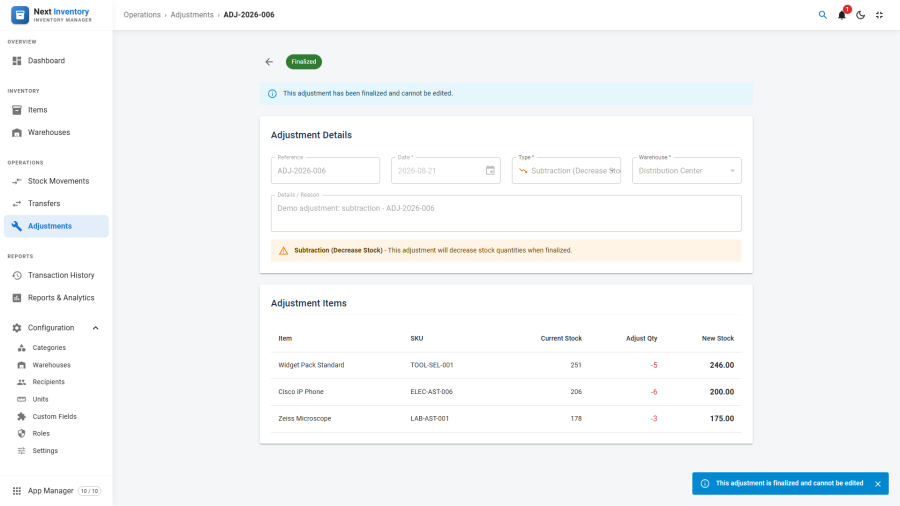
Creating an Adjustment
- Click New on the Adjustments list.
- Set the Adjustment Date and the Warehouse affected.
- Pick the Adjustment Type (Addition / Damage / Subtraction).
- Add a free-text Reference if you have one (e.g. a police report number, stocktake sheet reference).
- In the line-items panel, add each item with a quantity. For damage and subtraction, a reason is mandatory on each line — this is the audit story for "why did this disappear".
- Save to keep as draft, or Save & Finalise to commit.
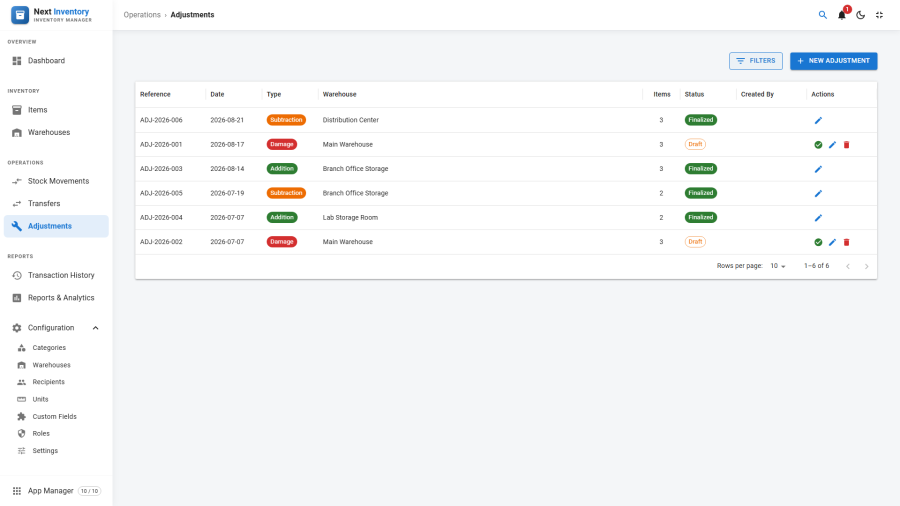
Common Workflows
- End-of-quarter stocktake — one adjustment per warehouse, type Addition for surpluses and Subtraction for shortages, reasons pulled from the stocktake sheet.
- Damaged delivery — one Damage adjustment, one line per written-off item, reason per line.
- Theft incident — one Subtraction adjustment, reason references the incident report.
Tip: finalise adjustments the same day you record them. Drafts sitting for weeks lose the context of why the adjustment was needed, and the reason field stops being self-explanatory.
For Admins
What Gets Written
For each line item, finalising records one entry of type Adjustment in the transaction history. The sign of the quantity change matches the adjustment type (positive for Addition, negative for Damage and Subtraction), and the line's reason is stored with the entry — adjustments are the only transactions where a reason is enforced for subtraction and damage lines.
Each item's stock updates together with its transaction entry, and all lines succeed or all fail. A partially-applied adjustment is not a thing that can exist.
Permissions
| Action | Feature | Permission |
|---|---|---|
| See the Adjustments list | inventory |
manage_adjustments |
| Create or edit a draft | inventory |
manage_adjustments |
| Finalise a draft | inventory |
manage_adjustments |
| Delete a draft | inventory |
manage_adjustments + inventory.delete |
Users without manage_adjustments don't see the Adjustments tab at all.
This is stricter than basic transactions on purpose — adjustments
write off real value, so the gate is narrower.
Edge Cases
- Subtraction would push stock negative — blocked at finalise. The form tells you which lines are short. Drafts save regardless.
- Reason missing on a subtraction line — finalise is blocked with a per-line error. Addition lines don't require a reason (the type alone is the explanation).
- Wrong warehouse picked after line items added — changing the warehouse doesn't drop the line items, but the finalise check against stock happens against the new warehouse. Double-check the numbers before finalising.
- Attachments — use the side panel on the edit page to attach files. Photos of damaged goods and stocktake sheets attach here and survive finalise.
- Deleting a finalised adjustment is not possible from the UI. The adjustment transactions remain in the audit log.
- Bulk stocktake — there's no dedicated stocktake screen, so large stocktakes typically become one or two adjustments per warehouse with dozens of line items. Performance is fine into the hundreds of lines; very large stocktakes (1000+ lines) are better split into multiple adjustments for easier review.
Form Reference
Header fields
| Field | Required | What it's for |
|---|---|---|
| Reference | No | Your own paperwork reference (up to 100 characters) |
| Adjustment Date | Yes | Effective date of the adjustment |
| Adjustment Type | Yes | Addition, Damage, or Subtraction |
| Warehouse | Yes | Warehouse being adjusted (published warehouses only) |
| Details | No | Free-text header notes |
| Attachments | No | Files added via the side panel; kept after finalise |
Line-item fields
| Field | Required | What it's for |
|---|---|---|
| Item | Yes | The item being adjusted |
| Quantity | Yes | Size of the change — always positive; the type sets the direction |
| Unit | No | Unit the quantity is expressed in |
| Reason | For Damage / Subtraction | The audit story for why stock changed; optional for Addition |
| Serial Number | No | Pin the line to a specific serial-tracked asset |