Recipients
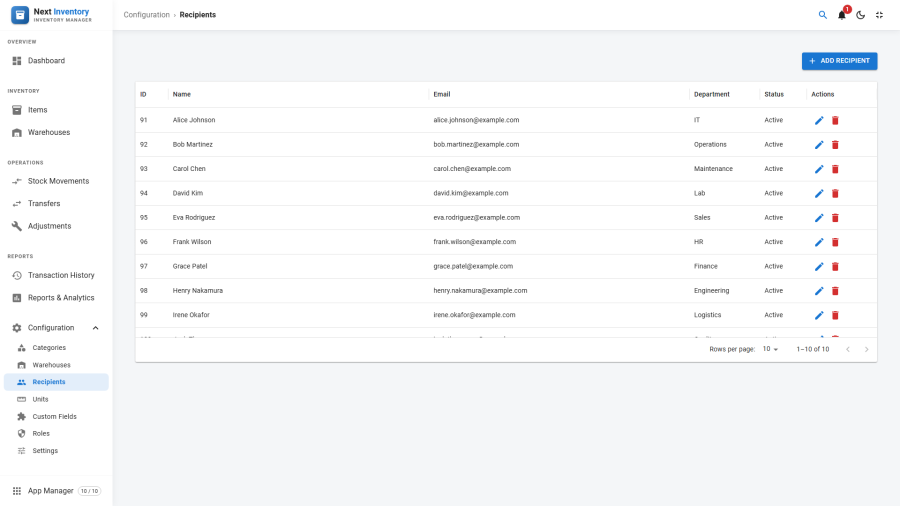
Recipients are the people (or external parties) who hold items checked out from inventory. Every Check Out transaction requires a recipient, and check-in / loan reports aggregate by recipient. This screen is where you add, edit, and retire those records.
Open it from Components > Next Inventory > Configuration > Recipients.
For Users
Most users interact with recipients only through the check-out flow — they pick a recipient from a dropdown when recording a check-out, and that's it. What to know:
- Recipients are structured records, not just free-text names — you can always tell who had what, contact them, and see their department.
- Filter transactions by recipient to see everything one person currently holds.
- Unpublished recipients don't appear in new check-out dropdowns but their historical transactions stay intact.
For Admins
Creating a Recipient
- Click New on the Recipients list.
- Enter the Name — first + last name in whatever form your organisation prefers ("Jane Smith", "Smith, J.").
- Optionally add an Email — validated to be a syntactically valid email address. Used for recipient-level notifications and lookups.
- Optionally add a Department — plain text ("Marketing", "Warehouse A", "External Contractor"). Used as a filter and a report dimension.
- Pick Status: Published / Unpublished.
- Save.
Recipients vs Joomla Users
Recipients are not Joomla users. They're deliberately kept separate so you can lend inventory to people who have no login on your site — employees without admin accounts, external contractors, delivery services, or anyone else you hand items to.
If you do need to cross-reference a recipient with a Joomla user account, add a custom field for recipients (a number field holding the account ID works well) and fill it in manually.
Custom Fields on Recipients
Create custom fields for recipients in Configuration > Custom Fields and they appear on the recipient edit form. Typical uses:
- Phone number — for urgent contact.
- Employee ID — for cross-reference with HR systems.
- Start / end date — for contractors with fixed engagements.
- Cost centre — chargebacks for departmental loans.
Mark a field as searchable to filter the Recipients list by it, and as filterable to filter Transactions and Reports by recipient details.
Retiring Recipients
When someone leaves, don't delete their recipient record — their check-out history disappears from meaningful reports if you do. Instead:
- Unpublish — hides from new check-out dropdowns, keeps history. Reactivate if they come back.
- Delete — only if the recipient has no transaction history. Usually the right move only when correcting a mistake (duplicate recipient, typo-corrected replacement).
Permissions
| Action | Feature | Permission |
|---|---|---|
| See the Recipients list | configuration |
manage_recipients |
| Create or edit a recipient | configuration |
manage_recipients |
| Delete a recipient | configuration |
manage_recipients |
| Check items out to a recipient | transactions |
checkout |
Edge Cases
- Duplicate names — the UI allows two recipients with the same name. Distinguish with email or department, or pick a canonical naming convention ("Jane Smith (Marketing)" vs "Jane Smith (Finance)").
- Recipient email bounces — Next Inventory doesn't check email deliverability. If check-out emails bounce, fix the email field on the recipient record; historical transactions keep the recipient's name (snapshot at transaction time).
- External contractors — create a recipient per contractor as normal. For short-term engagements, consider start-date and end-date custom fields and a monthly report pulling expired contractors with open check-outs.
- Historical transactions for deleted recipients still show the recipient name — the recipient's name is stored on the transaction itself, so history still reads correctly even if you delete.
Form Reference
| Field | Required | What it's for |
|---|---|---|
| Name | Yes | The display name used in dropdowns and transactions |
| No | Contact address; must be a valid email format | |
| Department | No | Free-text department, team, or group |
| Status | Yes | Published / Unpublished |
| Custom fields | Per field | Any custom fields you've defined for recipients |