Working in the Interface
The things that behave the same way on every screen: how you move around, how lists sort and filter, how dates are entered, how you act on several rows at once, and what happens if you wander off with unsaved work.
For Users
Two Shells: Inside Joomla, and Fullscreen
Embedded, Next Inventory sits inside Joomla's own chrome and each page carries its title as a heading.
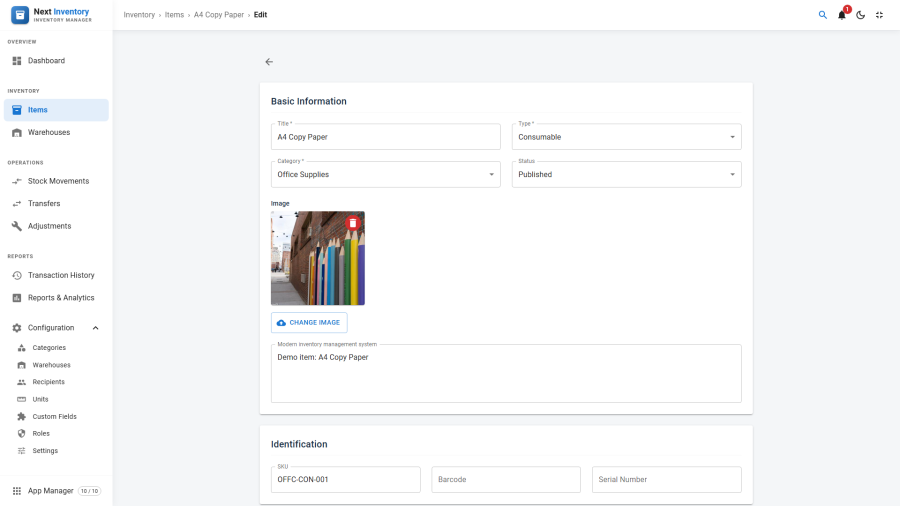
Fullscreen — the expand button at the top right — replaces that with Next Inventory's own shell: a sidebar with the brand mark at the top and the App Manager pinned at the bottom, and a breadcrumb in the top bar. The big page heading disappears in fullscreen on purpose, because the breadcrumb is already the title and two of them would be one too many.
Finding Your Way
The breadcrumb reads group › screen › record › what you are doing, so editing an item shows Inventory › Items › Blue Laptop › Edit. Everything except the last segment is a link. On a phone the group is dropped and only the innermost two segments show.
The sidebar groups are Overview, Inventory, Operations, Reports and Configuration, with the App Manager sitting apart at the bottom.
Quick Search
Ctrl + K — ⌘ + K on a Mac — opens Quick Search from anywhere.
Type at least two characters of a title, SKU or barcode and matching
items appear as you type. See Scanner for the barcode
side of it.
Keyboard Shortcuts
| Shortcut | What it does |
|---|---|
Ctrl + K / ⌘ + K |
Open Quick Search from anywhere |
Esc |
Close the open dialog, drawer or search panel |
Ctrl + P / ⌘ + P |
Print the current screen — navigation is stripped and it prints dark-on-white |
Sorting a List
Every column header sorts, one column at a time. Sorting happens on the server, so it orders the whole list rather than the rows in front of you: sort by Stock on page 1 and you get the lowest stock in the system, not the lowest on that page. Changing the sort takes you back to page 1.
A column that cannot be sorted meaningfully — a computed count, say — simply does not respond, rather than sorting the visible page and looking as though it worked.
Filters and paging are remembered between visits. Sorting is not; each visit starts from the screen's natural order.
Filtering a List
The Filters button opens a drawer beside the list. Filters apply as you set them, and the drawer stays open so you can adjust several in a row. Clear Filters empties them.
If a filter combination matches nothing you get "No results match your filters" and a button to clear them — not the first-run "add your first item" prompt, which would be misleading on a system that is already full of data.
Choosing Dates and Date Ranges
Every date field is a picker: type into it, or click the calendar. It
shows and accepts dates in the format set under
Configuration → Settings → Date Format, so a site set to d/m/Y
never shows an American date. A half-typed date is ignored until it is
complete, so a list is never filtered on 2026-09-0.
Screens covering a period offer a Date Range with one-click presets above the From and To fields:

- Last 7 Days
- Last 30 Days
- Last 90 Days
- This Month
A preset highlights while the dates still match it. An end date before the start date is refused with "End date must be on or after the start date."
You will find the date range on Stock Movements, Transfers, Adjustments, Transaction History, the Notification Centre and Reports.
Selecting Several Rows
Ticking a row's checkbox selects it — it does not open the record. A toolbar appears above the list with a count of what you have picked, the actions available on that screen, and Clear selection.
Items offers Publish, Unpublish and Delete; the Notification Centre offers its own bulk actions. See Items for the detail.
Leaving a Page With Unsaved Changes
Every edit form, and the Settings page, watches for unsaved changes. Navigate away with work in progress and you get a prompt offering Stay or Leave. It fires on in-app navigation, on the browser Back button, and on closing the tab.
For Admins
What Server-Side Sorting Means for You
Sorting, filtering and paging are all resolved by the server against the whole dataset. Practically: results are correct on large inventories rather than correct-looking, and the browser is not asked to hold thousands of rows in memory to sort them.
Permissions
Nothing on this page needs a permission of its own. The bulk actions
respect the permissions of the actions they perform — Publish and
Unpublish need inventory.edit, Delete needs inventory.delete — so
someone without them simply does not see those buttons.
Edge Cases
- A stale browser tab after an update. If a new version is deployed while a page is open, the page reloads itself once rather than failing on a file that no longer exists.
- Sorting is per visit. If people expect a list to open in their last sort order, tell them it will not; filters and paging do persist.
- The unsaved-changes prompt on tab close is the browser's own wording, not ours, and browsers do not let it be customised.