Transactions
Transactions is the read-only audit log of every stock movement Next Inventory has ever recorded. Every check-in, check-out, add-stock, remove-stock, transfer, and adjustment line item records one entry here, and no entry is ever edited or deleted — that's the whole point.
Open it from Components > Next Inventory > Transactions (labelled Transaction History in the navigation sidebar). Unlike Stock Movements, there's no New button: transactions are produced by other screens, never typed directly.
For Users
Reading a Transaction Row
Each row answers six questions in order:
- ID — the transaction's unique number. Useful when referring to a specific entry in paperwork or a support ticket.
- Item — title and SKU of what moved.
- Type — Check Out, Check In, Add Stock, Remove Stock, Transfer, or Adjustment, colour-coded by direction (green for incoming, red for outgoing).
- Quantity Change — signed number, e.g.
-3for a check-out,+12for a delivery. - New Quantity — what the item's stock read right after this transaction was applied. This is a snapshot, not a live value — the item's current stock is shown on the item record itself.
- Recipient (for check-in / check-out only) — who holds the item.
When Inventory Costing is set to FIFO or LIFO, a COGS column joins them, showing what the outgoing stock on that row actually cost — taken from the layers it consumed, not from the item's current price. Incoming rows leave it empty. On Standard costing the column is not there at all.
The Reason column (next to Recipient) is the free-text note that was entered at transaction time. For remove-stock and adjustment entries, this field is mandatory when the transaction is created, so you'll find an answer there.
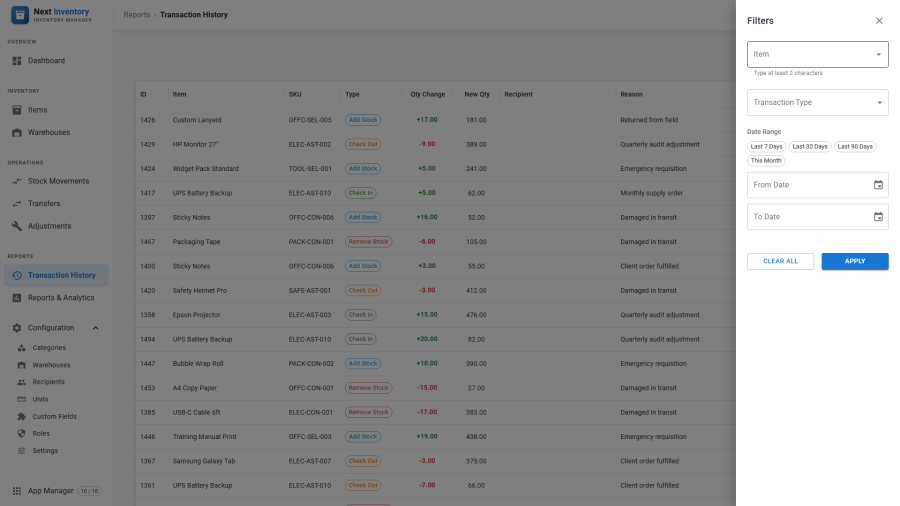
Finding What You Need
Open the filter drawer (funnel icon) to narrow the list:
- Search — matches against item title, SKU, and reason text.
- Item — restrict to a single item (autocomplete picker with live search).
- Transaction Type — one of the six types above.
- Date Range — presets plus From / To pickers, inclusive of the end day.
- Created By — the Joomla user who recorded the transaction.
Filters persist in the URL and the Joomla session, so a bookmark or link you share will reopen with the same view.
The Date Range block offers Last 7 Days, Last 30 Days, Last 90 Days and This Month as one-click presets above the From and To date pickers — see Choosing dates and date ranges.
Common Workflows
- "When did we last receive printer toner?" — filter by item Printer Toner, type Add Stock, scan the date column.
- "Who had the laptop last?" — filter by the laptop item, type Check Out, sorted by date descending.
- "What did we write off last quarter?" — filter by type Adjustment and a three-month date range.
For Admins
This Screen is Read-Only on Purpose
There is no edit button because Next Inventory treats transaction history as an append-only ledger. The only way to correct a mistake is to create an opposite transaction (often through Stock Movements or Adjustments) — not to rewrite the record.
If you really do need history cleaned up (a botched import, a test site you want reset, entries left behind by deleted items), that isn't something the screens can do — and shouldn't be attempted by hand. Contact [email protected] and describe what needs to go.
Where Transactions Come From
Every transaction is written by exactly one of these operations:
| Source | Transaction type(s) written |
|---|---|
| Stock Movement finalise | Check Out, Check In, Add Stock, Remove Stock |
| Transfer finalise | Transfer (one entry each side, written as a pair) |
| Adjustment finalise | Adjustment |
Entries written together by the same movement, transfer, or adjustment share a batch reference, so you can always reconstruct which operation produced them.
Permissions
| Action | Feature | Permission |
|---|---|---|
| See the Transactions list | transactions |
view |
| Export to CSV | reports |
export |
There's no per-type gating on viewing — if you have
transactions.view you see everything. Per-type restrictions apply
to creating transactions, which happens elsewhere.
Edge Cases
- Transactions for deleted items still show up in the list. The Item column shows the title and SKU as they were captured at transaction time, so history reads correctly even if the item has since been deleted.
- Timestamps are shown in your Joomla timezone, using the date format from Settings.
- Sorting defaults to newest first. You can click any column header to re-sort, though on very large histories (100,000+ entries) the default order stays the fastest.
- Paging stays fast. Only the page you're looking at is loaded, so browsing a history of tens of thousands of entries doesn't slow the screen down.
- Export — the CSV export from Reports pulls from this same table with your current filters applied. There's no direct export button on this screen; cross over to Reports when you need a file.
Column Reference
Transactions are read-only, so there are no form fields to document. What each column in the list shows:
| Column | What it shows |
|---|---|
| ID | The transaction's unique number — quote it in paperwork or support tickets |
| Item | Title and SKU of the item, as they were at transaction time |
| Type | Check Out, Check In, Add Stock, Remove Stock, Transfer, or Adjustment |
| Quantity Change | Signed amount — negative when stock went down |
| New Quantity | The item's stock right after this transaction was applied |
| Recipient | Who holds the item (check-in / check-out only) |
| Reason | The free-text note entered when the transaction was created |
| Date | When the transaction was recorded, shown in your Joomla timezone |