Transfers
Transfers move stock from one warehouse to another. They're the two-warehouse variant of Stock Movements: you pick a source and a destination, add line items with quantities, and finalise — the system records a matching pair of transactions for every line (stock out of the source, stock into the destination) in one go.
Open it from Components > Next Inventory > Transfers, or the Transfers tab in the navigation.
For Users
Creating a Transfer
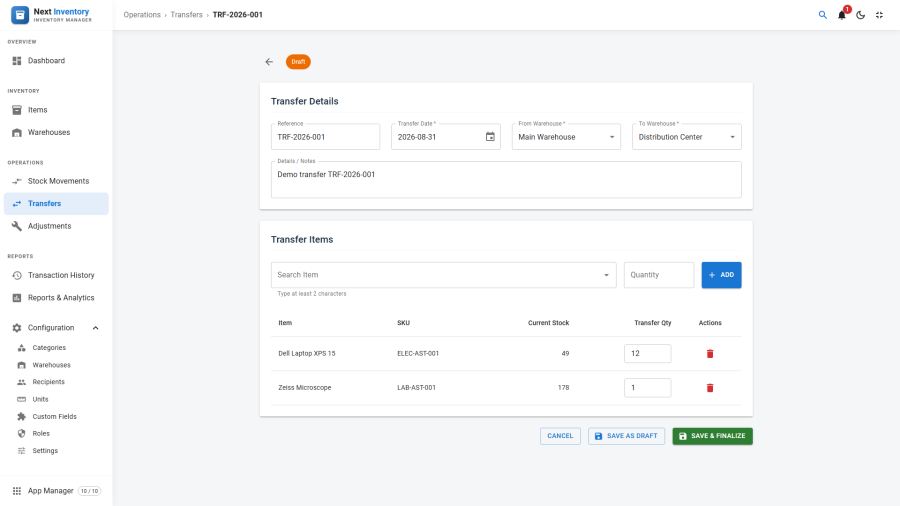
- Click New on the Transfers list.
- Pick the Source Warehouse and Destination Warehouse. They must both be published warehouses, and they must be different.
- Set the Transfer Date — the effective date of the movement.
- Optionally add a Reference (e.g. a delivery note number) and Details (free-text notes).
- In the line-items panel, add each item and quantity you're moving. One line per item; use multiple lines when moving several items in the same run.
- Click Save to keep it as a draft, or Save & Finalise when you've confirmed what's actually moving.
Draft vs Finalised
Same pattern as Stock Movements:
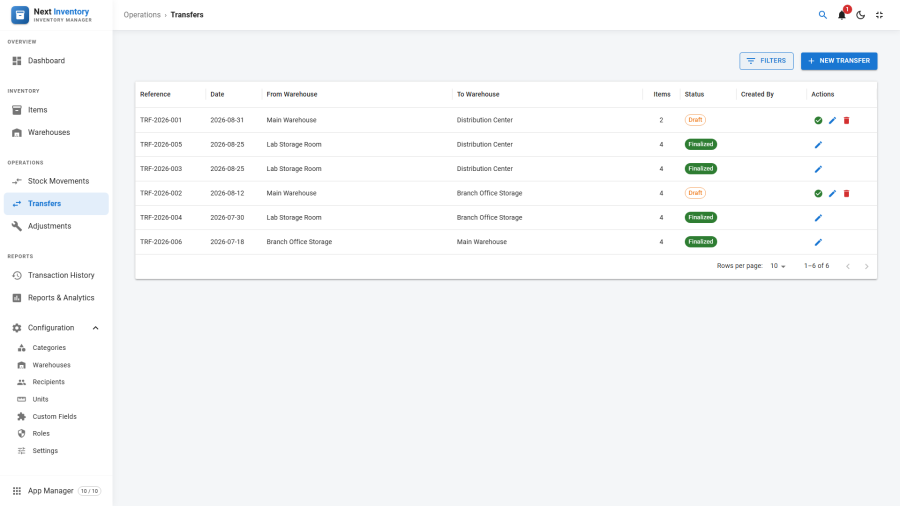
- Draft — editable, no stock changes, no transactions written. Great for planning tomorrow's warehouse reshuffle today.
- Finalised — read-only, stock quantities updated on both sides, transactions written. The transfer becomes part of the audit trail.
Finalising a transfer is all-or-nothing: either every line item succeeds and all stock quantities update together, or nothing changes. You won't end up with half a transfer.
Common Workflows
- Replenishing a retail floor from the back room — draft a transfer at open, add lines as requested, finalise at close.
- Moving equipment between offices — one transfer per office move, one line per asset serial.
- Receiving a pallet in one warehouse and redistributing — two movements: an Add Stock into the receiving warehouse (via Stock Movements), then transfers out to the destinations.
Tracking an In-Flight Transfer
Transfers that are in Draft status represent plans, not actual stock in motion. There's no "in transit" status — the moment you finalise, stock is considered to have arrived. If you need a physical-transit tracking step, keep the transfer in Draft while items are moving and finalise only on arrival at the destination.
For Admins
What Gets Written
For each line item, finalising records two entries in the transaction history:
- One of type Transfer with a negative quantity change, attributed to the source warehouse.
- One of type Transfer with a positive quantity change, attributed to the destination warehouse.
Both entries share the same batch reference, so reports can reconstruct the original transfer from the audit log. The item's overall stock is updated once — a transfer never double-counts, because total stock belongs to the item as a whole. Per-warehouse quantities in reports are worked out from the transfer history.
Permissions
| Action | Feature | Permission |
|---|---|---|
| See the Transfers list | inventory |
manage_transfers |
| Create or edit a draft | inventory |
manage_transfers |
| Finalise a draft | inventory |
manage_transfers |
| Delete a draft | inventory |
manage_transfers + inventory.delete |
Users without manage_transfers don't see the Transfers tab at all.
Edge Cases
- Source = destination — blocked at validation. A warehouse can't transfer to itself.
- Source warehouse is out of stock for a line item — finalise will fail with a validation error listing the shortfall lines. Draft will save regardless, so the form isn't a blocker.
- Destination warehouse unpublished — unpublished warehouses don't appear in the dropdown. If you unpublish a warehouse with open drafts targeting it, the drafts stay but can't be finalised until the warehouse is republished or retargeted.
- Attachments — use the side panel on the edit page to attach files (delivery notes, photos, forms). They stay with the transfer and persist after finalise.
- Line-item unit conversion — if the item has a unit of measurement, quantities in different compatible units are converted on save. See Units.
- Deleting a finalised transfer is not possible from the UI. The paired transactions remain in the audit log forever.
Form Reference
Header fields
| Field | Required | What it's for |
|---|---|---|
| Reference | No | Your delivery-note / paperwork reference (up to 100 characters) |
| Transfer Date | Yes | Effective date of the transfer |
| Source Warehouse | Yes | Where the stock leaves from (published warehouses only) |
| Destination Warehouse | Yes | Where the stock arrives (must differ from the source) |
| Details | No | Free-text notes about the transfer |
| Attachments | No | Files added via the side panel; kept after finalise |
Line-item fields
| Field | Required | What it's for |
|---|---|---|
| Item | Yes | The item being transferred |
| Quantity | Yes | How much moves — a positive number, decimals allowed |
| Unit | No | Unit the quantity is expressed in; converted on save |
| Serial Number | No | Pin the line to a specific serial-tracked asset |