Scanner
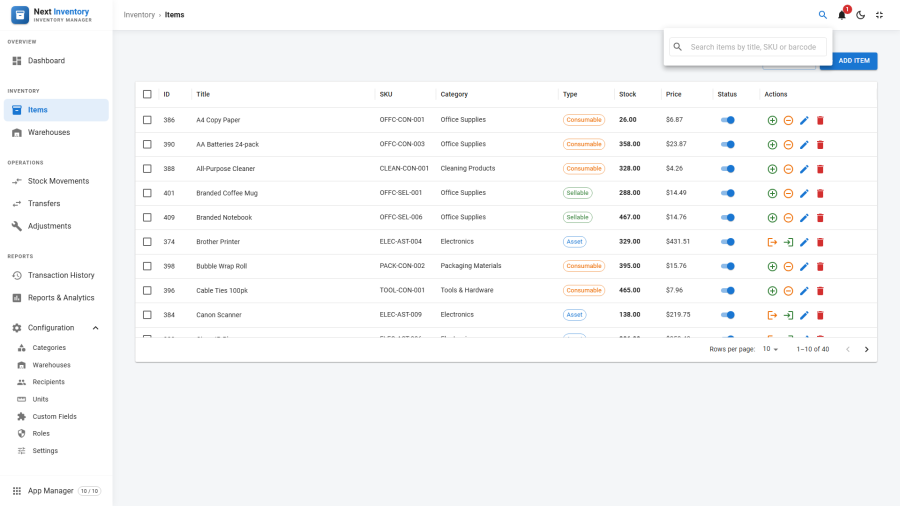
Next Inventory's scanning flow is built around the Quick Search bar at the top of every page. Type or scan a SKU, barcode, or serial number, press Enter, and you land on the matching item. No separate scanner page, no dedicated driver — just a fast search field that any barcode-to-text source can feed into.
The design is deliberate: warehouses use a wild variety of scanning hardware, and the most compatible approach is to accept text input from whatever device the warehouse already owns.
For Users
Opening the Quick Search
- Keyboard shortcut:
Ctrl + K(Windows / Linux) or⌘ + K(Mac) from anywhere in Next Inventory. - Mouse / touch: click the search field in the top bar.
The field has a placeholder text Quick Search (Ctrl+K) so you
always know how to reopen it.
Using a USB Barcode Scanner
Most handheld USB scanners ship as keyboard wedges — plug them into USB, they show up as a keyboard, and everything they scan is typed into whatever input currently has focus. No drivers, no pairing, no configuration inside Next Inventory.
The flow is:
- Click the Quick Search field (or press Ctrl+K).
- Point the scanner and pull the trigger.
- The scanner types the barcode text, then presses Enter.
- Next Inventory opens the matching item's details page.
If your scanner types the barcode but doesn't press Enter, reprogram
it to append a carriage return (\n) as a suffix — every USB scanner
we've seen has a config barcode in its manual for this.
Scanning with a Phone Camera
Most warehouse workers already carry a phone with a barcode-reading app (Google Lens on Android, the camera app on iOS, or a dedicated scanner app). The pattern:
- Open Next Inventory in the phone's browser and focus the Quick Search field.
- In the camera/scanner app (or in a separate window), scan the barcode to extract its text.
- Paste the text into the Quick Search field and press Enter.
You can also install a free barcode-scanner keyboard app on Android that adds a scan button to your keyboard — one tap, camera opens, scan, text types into the active field. With that installed, phone scanning is as smooth as USB scanning on a desktop.
Searching by Serial, SKU, or Barcode
The Quick Search checks all three identifiers, in this order: exact barcode match → exact SKU match → exact serial match → partial title match. Whichever hits first wins.
If no match is found, the field shows an inline "No results" state with a link to open a full search instead.
Common Workflows
- Check if we have it — scan, read the stock number on the item details page.
- Do a quick stock count — scan each item in turn, eyeball the number, add a reason to a running Adjustment draft when something doesn't match.
- Find out who has it — scan an asset's serial, open the Transactions tab on the details page to see the last check-out.
For Admins
How to Make Barcodes Findable
For scanning to work, the item record must have the scanned value in one of its identifier fields:
- Barcode — the code on the packaging (EAN, UPC, Code 128); preferred for sellable / consumable items.
- SKU — your internal stock identifier.
- Serial Number — unique per physical unit (useful for assets).
Leading/trailing whitespace on these fields breaks scanner matching because scanners don't strip whitespace. If scanning stops working for an item, inspect its record for stray spaces first.
The Scanner Permission
The scanner.use permission in Roles
exists to gate whoever you want restricted to scanner-driven workflows
— e.g. warehouse floor staff who should scan items but not edit them.
It doesn't disable the Quick Search itself (that's always available
when Next Inventory is open), but it can be paired with narrower
inventory.view-only permissions to build a read-only scanner role.
Permissions
| Action | Feature | Permission |
|---|---|---|
| Use the Quick Search / scanner flow | scanner |
use |
| Open the item details page after a scan | inventory |
view |
Edge Cases
- HTTPS for camera access — browsers only allow web pages to use
the device camera on
https://sites (orlocalhost). If your site runs on plain HTTP, browser-based camera scanning won't be able to open the camera. - Very rapid scanning — if your warehouse team scans aggressively (one scan per second or faster) and reports "first scan works, second scan opens the wrong item", contact [email protected] and we'll look into it.
- Duplicate barcodes across items — Next Inventory doesn't enforce unique barcodes. If two items share one, Quick Search opens the older of the two. Treat one-barcode-per-item as a workflow rule your team follows, since the software won't enforce it for you.
- Scanner stops working on a specific page — make sure the page doesn't steal keyboard focus with a modal or confirm dialog. Dialogs prevent the scanner's typed characters from reaching the Quick Search.
- Non-Latin barcodes (e.g. Japanese or Arabic product codes) — the field is UTF-8 safe, but your scanner must be configured to send the correct encoding. Check the scanner's manual.