Warehouses
Warehouses are physical locations where stock lives — a building, a room, a shelf, a storage unit. Next Inventory supports any number of them and tracks stock movements between them via Transfers.
Open it from Components > Next Inventory > Configuration > Warehouses. This page is the admin CRUD for warehouse records — for the day-to-day operational view (per-warehouse KPIs, inventory drill-in, scoped activity), see Warehouses (Operational View).
For Users
If you work at one location, pick a single warehouse called something obvious ("Main Office", "Stockroom") and never think about this screen again — every item defaults to it.
If you work across multiple sites, the important things to know:
- Every item lives in one warehouse at a time — the item's warehouse setting is where its stock currently is.
- Transfers move stock between warehouses — they're the only way to move stock without writing a bunch of manual transactions.
- Reports can filter by warehouse — ask "how much inventory is at Warehouse A?" and Reports has the answer.
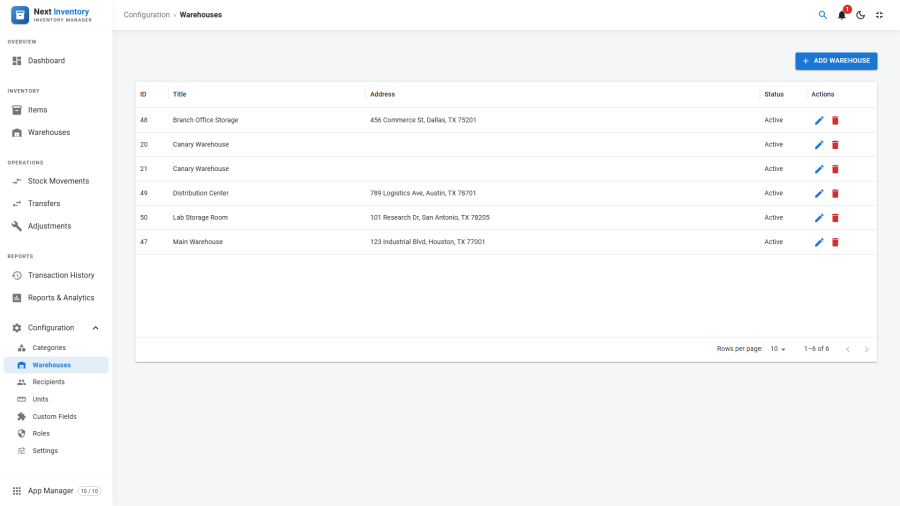
For Admins
Creating a Warehouse
- Click New on the Warehouses list.
- Enter a Title — keep it descriptive but short ("London HQ", not "London Headquarters - Main Building - 3rd Floor Store Room").
- Optionally add an Address — full postal address or a shelf reference, whatever makes sense for your operation (free text).
- Pick Status: Published / Unpublished.
- Save.
Warehouse Planning Guidance
- Start coarse, refine later. One warehouse per physical site is the minimum; subdividing by floor or aisle within the same building usually creates more friction than value unless you're managing a serious warehouse operation.
- Name for the warehouse, not its purpose. "London HQ" beats "Marketing Stock" — purposes change, buildings don't.
- Match warehouse count to your transfer frequency. If you never transfer between two locations, modelling them as separate warehouses is extra bookkeeping with no upside. Merge them.
Custom Fields on Warehouses
Create custom fields for warehouses in Configuration > Custom Fields and they appear at the bottom of the Warehouse edit form. Typical uses:
- Contact person — who to call at that site.
- Opening hours — searchable so you can filter warehouses by weekend coverage.
- Storage capacity — helps with "are we close to full?" reporting.
- Postal code — structured instead of buried in the free-text address field.
Searchable custom fields on warehouses become filter options on the Items and Transactions lists, so "show me all items at warehouses in postal code SW1" becomes a one-click filter.
Unpublishing vs Deleting
- Unpublish — hides the warehouse from new-movement dropdowns but preserves all historical transactions and item references. Use for closed sites or seasonal stockrooms.
- Delete — blocked if any items are assigned to this warehouse. Bulk-edit the items to a different warehouse first.
Permissions
| Action | Feature | Permission |
|---|---|---|
| See the Warehouses list | configuration |
manage_warehouses |
| Create or edit a warehouse | configuration |
manage_warehouses |
| Delete a warehouse | configuration |
manage_warehouses |
| Transfer stock between warehouses | inventory |
manage_transfers |
The manage_warehouses permission gates all CRUD. Users who only
need to use warehouses (move stock into / out of them) need
transaction permissions, not this.
Edge Cases
- Unpublishing a warehouse with open transfer drafts — the drafts remain but can't be finalised until the warehouse is republished or retargeted. The UI shows the unpublished warehouse in the draft but warns that finalise is blocked.
- Items without a warehouse — the warehouse field is optional on items. Items without one don't appear in warehouse-filtered reports, which is usually the wrong answer — set a warehouse on every item if you care about location reporting.
- Warehouse-aware stock reporting — an item's stock is one number, not a per-warehouse figure. Per-warehouse figures come from the movement history between warehouses. If you need per-warehouse balances, the Reports tab is where to look.
Form Reference
| Field | Required | What it's for |
|---|---|---|
| Title | Yes | The warehouse name shown in dropdowns and reports |
| Address | No | Free-text address or location notes |
| Status | Yes | Published / Unpublished |
| Custom fields | Per field | Any custom fields you've defined for warehouses |