Settings
Settings is Next Inventory's configuration hub — currency, date format, number formatting, image upload behaviour, and notification channel configuration all live here. The screen is tabbed; each tab controls a distinct subsystem, and every setting is applied live across the component without requiring a restart.
Open it from Components > Next Inventory > Configuration > Settings.
For Users
This screen is admin-only — regular users don't see it. If you notice the component using the wrong currency or date format, ask a super-admin to adjust the Settings. Changes apply immediately to every page you reload afterwards.
For Admins
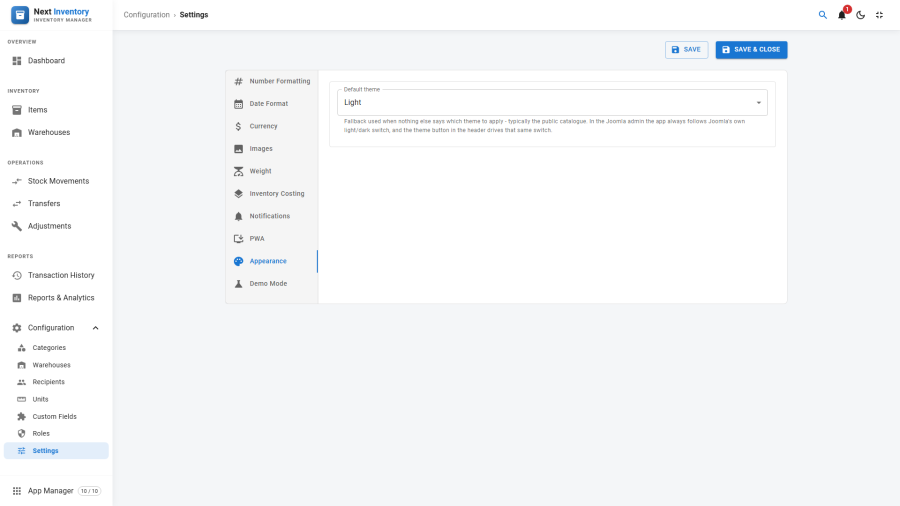
The settings page is a vertical left-hand tab bar. Up to ten tabs appear: Number Formatting, Date Format, Currency, Images, Weight, Inventory Costing, Notifications, PWA, Appearance, and Demo Mode. Each tab groups related fields, and everything saves as one settings document when you click Save.
Two of them come and go:
- Notifications is hidden while the Notifications app is switched off in the App Manager.
- Demo Mode is hidden unless the Demo Data app is switched on and you are a Joomla Super User.
Two switches that used to live here have moved to the App Manager: the Progressive Web App and Demo Mode. Their tabs remain — the PWA tab now tells you whether the app can actually install on this site, and the Demo Mode tab is where you install, remove and reset the sample data — but the on/off switch for each is in the App Manager alongside every other app.
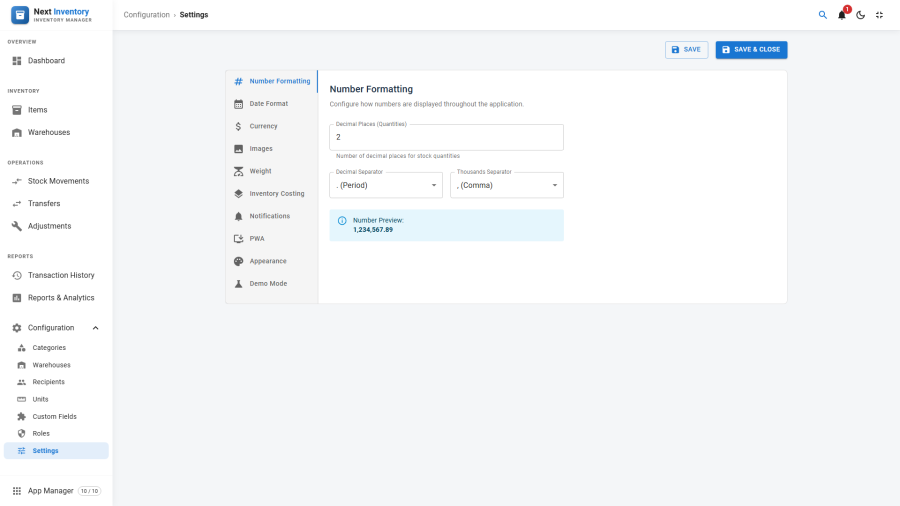
Numbers & Date
These formats apply to every number and date displayed across the component.
Numbers tab:
- Decimal Places (Quantities) — default decimals for non-currency numbers.
- Decimal Separator —
.or,(locale-dependent). - Thousands Separator —
,,., or a space.
Date tab: the date display format (e.g. Y-m-d, d/m/Y,
m/d/Y) — the same format codes Joomla uses elsewhere.
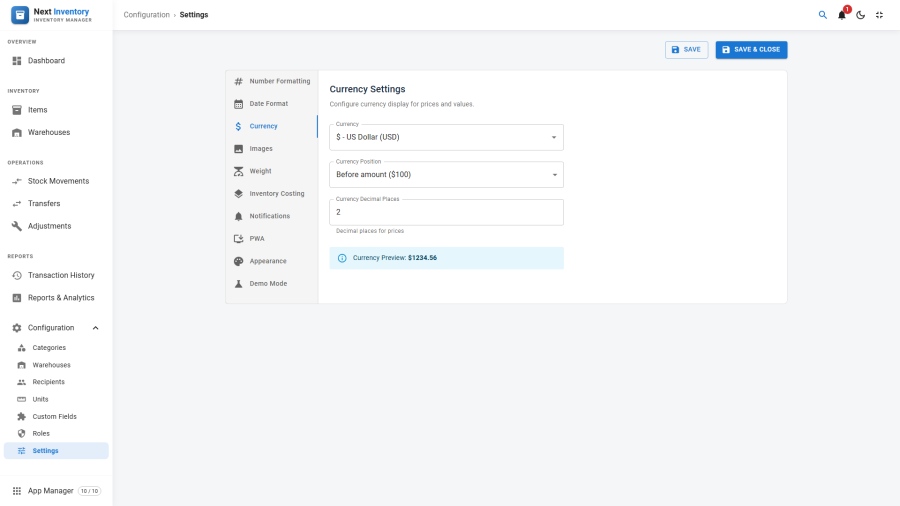
Currency
Controls how monetary values display in the Dashboard, Reports, and item pages.
- Currency Code — ISO 4217 code (USD, EUR, GBP, JPY, AED, etc.). Next Inventory recognises 60+ currency codes and shows the matching symbol; unrecognised codes fall back to displaying the code itself.
- Currency Position — before (
$1,234.56) or after (1.234,56 €). - Currency Decimals — number of decimal places in monetary values (0, 2, or 3 are common; JPY typically uses 0).
Images
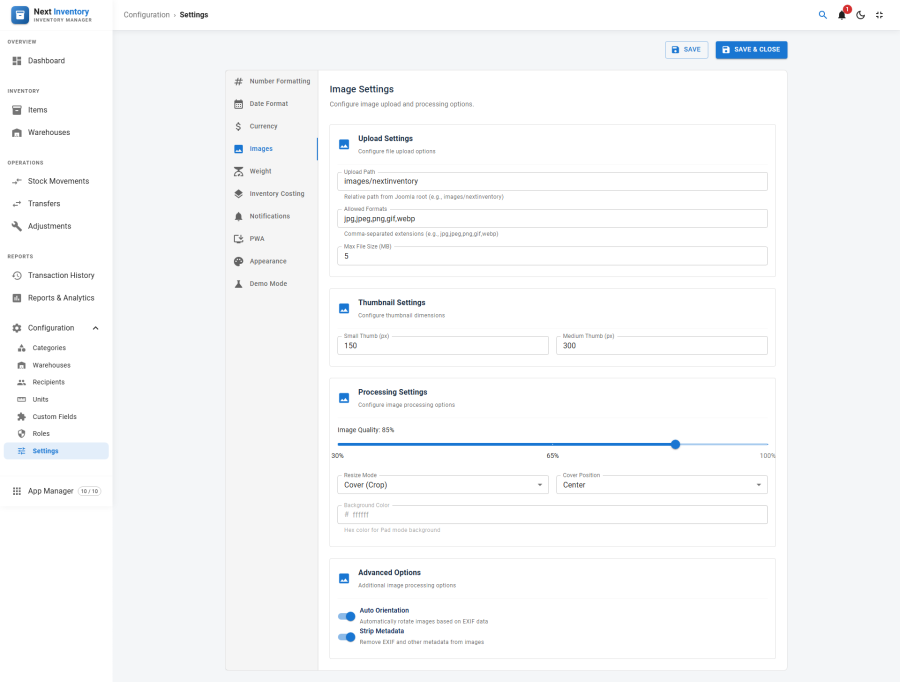
Controls item-image uploads and thumbnail generation.
- Image Upload Path — folder under the Joomla root where
uploaded images are stored (
images/nextinventoryby default; each item gets its own folder beneath it). - Allowed Formats — comma-separated list (e.g.
jpg,jpeg,png,webp,gif). Uploads with any other extension are rejected. - Max Size (MB) — hard upload cap. Browsers also enforce their own limits, but this is the server-side gate.
- Thumb Small / Medium — pixel dimension for each thumbnail size. Defaults to 150 / 300 — adjust if the item lists or item details pages need bigger previews.
- Image Quality — JPEG / WebP quality (1–100). Defaults to 85; drop to 75 for smaller files, raise to 95 for archival.
- Resize Mode — Cover (crop to fill), Scale Down (only shrink, never crop), or Pad (fit with a background colour).
- Cover Position — when using Cover, where the crop is anchored (centre, top, bottom, left, right, or combinations).
- Background Color — hex colour used by Pad mode.
- Auto-Orientation — rotate photos the right way up based on the camera's orientation data (usually on).
- Strip Metadata — remove hidden camera data on upload (recommended for public-facing catalogues — removes geotagging and device info).
Changing thumbnail dimensions does not retrospectively regenerate existing thumbnails — only new uploads use the new size. If you change dimensions, plan to re-upload images or run a regeneration script.
Weight & Costing
Weight tab controls the default unit and precision for weight- tracked items (see Items — the Track Weight option). Costing tab selects how inventory value is calculated on reports — Standard (each item's unit price), FIFO, or LIFO (layered cost tracking) — and whether unit prices default to zero for new items.
Switching from Standard to FIFO or LIFO turns on a set of screens that stay hidden otherwise, because there are no cost layers to show under Standard costing:
- two extra Reports tabs, COGS Analysis and Inventory Aging (see Reports);
- an Inventory Layers card on consumable and sellable item pages (see Items);
- a COGS column on the Transactions list;
- a Cost/Unit field on stock movements that add stock (see Stock Movements).
Switching back to Standard hides them again. Nothing is deleted — layers already recorded stay put and reappear if you switch back.
Notifications
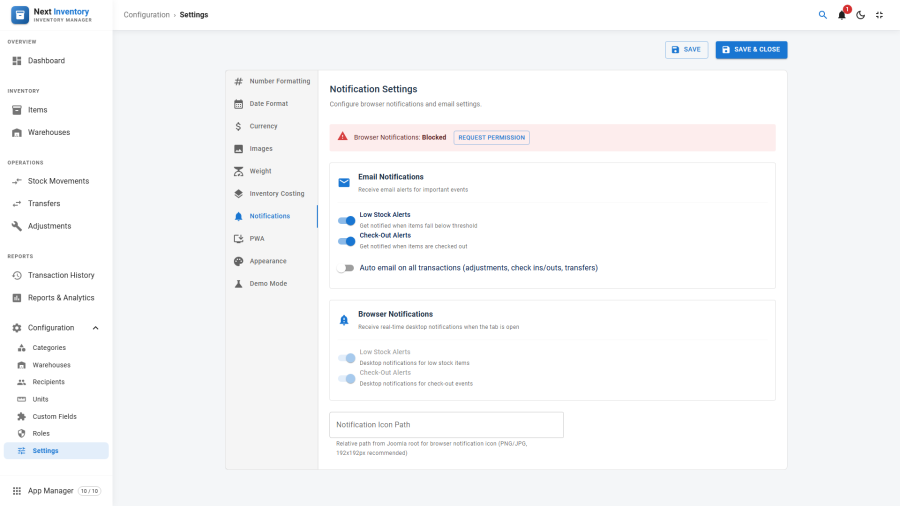
Wires up the notification channels, including the keys needed for browser push.
- Browser Notifications Enabled — master toggle for push.
- Email Notifications — per-event toggles for low-stock, check-out, and auto-email-on-all-transactions.
- Browser Notifications — per-event toggles that become the system default (users can still override in their own Notification Preferences).
- VAPID Public Key / Private Key — the key pair browsers use to verify that push messages really come from your site. Click Generate to create a fresh pair, or paste existing keys if you have them.
- Subject URI — identifies the sender in push messages
(usually
mailto:[email protected]). - Retention (days) — how long inactive push subscriptions are kept before being cleaned up automatically.
Without VAPID keys configured, the Browser Push channel for end-user notifications stays disabled with an admin hint pointing here.
PWA
The PWA tab is a diagnostics panel. Progressive Web App features — install to a home screen, offline reading of pages you have already visited, queued changes that send themselves when the connection returns, and push notifications — work in both the administrator and the logged-in site frontend.
The on/off switch is in the App Manager, under
Tools. This tab tells you why the app is, or is not, running: whether
the connection is secure (HTTPS in production; localhost counts as
secure in development), whether the browser supports it, and whether
the app is switched on. The app ships off; it is something you
opt into.
Appearance
One setting: Default theme, Light or Dark.
It is a fallback, not a master switch. Inside the Joomla administrator, Next Inventory follows Joomla's own light/dark setting, and the theme button in the Next Inventory header drives that same setting — so one click re-themes the whole administrator, not just this component. This default only decides the theme where Joomla has no colour scheme of its own to follow, which in practice means the public catalogue pages. It ships as Light.
The full picture is in Light & Dark Mode.
Demo Mode
The Demo Mode tab installs, removes and resets a sample dataset, and configures automatic resets for public demo sites. It appears only for Super Users, and only while the Demo Data app is switched on in the App Manager — and that app ships off.
Demo data is added alongside whatever is already in the database, and every row it creates is tracked, so removing the demo takes away only what it added. Turning demo mode on also makes everyone except Super Users read-only.
See Demo Mode for the full guide, including the Joomla Scheduled Task that makes automatic resets actually run.
Permissions
| Action | Feature | Permission |
|---|---|---|
| Open the Settings page | configuration |
manage_settings |
| Change VAPID keys | configuration |
manage_settings + manage_notifications |
Edge Cases
- Changing the currency mid-use — live reports and charts simply relabel with the new symbol. Historical report exports already written keep their original currency label (it's in the exported file, not live-linked).
- Changing the date format — applies to all views on next page load. In-flight views keep the old format until refreshed.
- Image path outside the Joomla root — not supported. The path must sit under the Joomla root so the site can serve the uploaded images.
- VAPID keys regenerated — invalidates every existing push subscription. Users see a browser-side error the next time their browser wakes the service worker, and they have to re-subscribe from Preferences. Only regenerate when you have a security reason to.
- Thousands separator = decimal separator — blocked at validation. Using the same character for both makes numbers unparseable.
Settings Reference
| Setting | Default | What it controls |
|---|---|---|
| Currency Code | USD |
ISO 4217 code monetary values display in |
| Currency Position | before | Symbol before or after the amount |
| Currency Decimals | 2 |
Decimal places on monetary values |
| Decimal Places (Quantities) | 2 |
Decimal places on non-currency numbers |
| Decimal Separator | . |
Character between whole and decimal parts |
| Thousands Separator | , |
Character used to group thousands |
| Date Format | Y-m-d |
The pattern dates display in |
| Image Upload Path | images/nextinventory |
Folder under the Joomla root where images are stored |
| Allowed Formats | jpg,jpeg,png,webp,gif |
File extensions accepted for upload |
| Max Size (MB) | 5 |
Largest upload accepted |
| Thumb Small | 150 |
Pixel size of the small thumbnail |
| Thumb Medium | 300 |
Pixel size of the medium thumbnail |
| Image Quality | 85 |
JPEG / WebP quality (1–100) |
| Resize Mode | Cover | How images are fitted: crop, only shrink, or pad |
| Cover Position | center | Where the crop is anchored in Cover mode |
| Background Color | #ffffff |
Fill colour used by Pad mode |
| Auto-Orientation | on | Rotate photos the right way up automatically |
| Strip Metadata | on | Remove hidden camera data from uploads |
| Notification Icon | — | Icon shown on browser push notifications |
| VAPID Public Key | — | Required to enable browser push |
| VAPID Private Key | — | Required to enable browser push |
| Subject URI | — | Sender contact included in push messages |
| Retention (days) | — | How long inactive push subscriptions are kept |