Warehouses (Operational View)
The Warehouses view is the day-to-day operations screen for everyone who works with warehouses rather than configures them. It answers the questions you ask several times a day: what's running low at this site, how much inventory is sitting here, what's coming in, what's going out, what just happened.
Open it from the top-level Warehouses tab in the Next Inventory navigation. It is distinct from Configuration > Warehouses, which is the admin CRUD screen for creating and editing warehouse records.
For Users
The Warehouse Grid
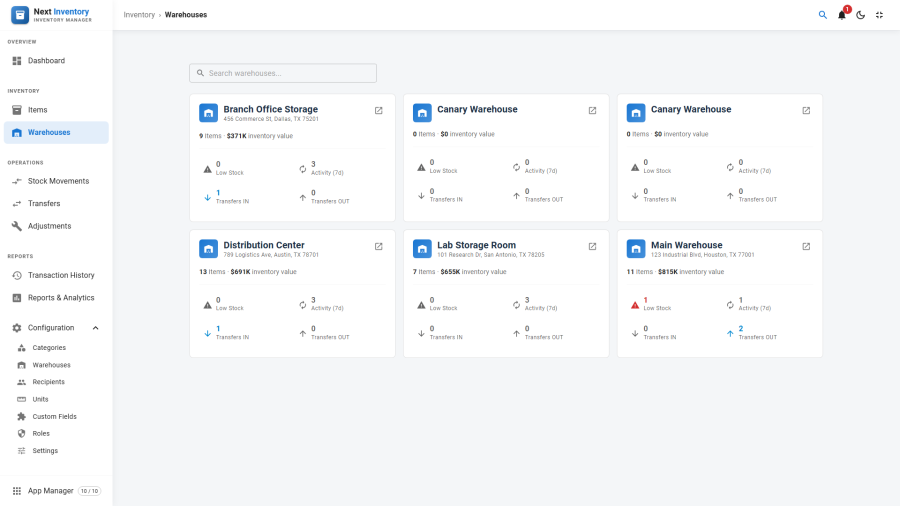
Landing on Warehouses gives you a card grid — one card per published warehouse. Each card is a snapshot:
- Title and address at the top so you can tell warehouses apart at a glance.
- Item count and total value on one line — the always-on summary.
- Four counters below: Low Stock, Activity (7d), Transfers In, Transfers Out. Each counter colours up when it has something to show (red for low stock, blue for pending transfers).
The whole card is clickable — it opens the warehouse's Overview tab. The individual counters are also clickable: tap Low Stock to jump straight to the Inventory tab filtered to that warehouse, tap Transfers In to jump to the Transfers tab, and so on. This is the fastest way to drill into the thing that needs your attention right now.
The search box at the top filters the grid by warehouse title or address.
The Detail Page
Clicking through to a warehouse opens its detail page. The top strip shows five KPIs:
- Items — count of items assigned to this warehouse.
- Inventory Value — stock quantity times unit price, summed
across those items, in compact notation (
$1.2M,$500K). - Low Stock — items at or below their threshold.
- Activity (7d) — stock movements involving this warehouse in the last seven days.
- Transfers IN / OUT — pending transfers in each direction.
Below the KPI strip is a row of tabs. The tab you are on is part of the page address, so bookmarks and shared links land on the right tab.
Overview Tab
Two side-by-side panels:
- Top Low Stock Items — the worst offenders at this warehouse, sorted by how badly they're below threshold. Each row is clickable to the item record.
- Recent Activity — the last handful of stock movements for this warehouse, with the user who made each one and a relative timestamp ("2 hours ago").
Inventory Tab
A paginated table of every item currently at this warehouse, with a search box for title/SKU. Columns include item title, SKU, type, stock quantity (highlighted red when at or below threshold), unit price, and category. Click any row to open the item.
The pagination, search, and sorting on this tab are scoped to this warehouse — they don't affect the filters you have set on the main Items list. You can drill in here and the main Items screen stays exactly as you left it.
Transfers Tab
Incoming and outgoing transfer history for this warehouse, with a direction selector (In / Out). Each row shows the other warehouse, the status, the date, and a link to the full transfer record.
Adjustments Tab
Stock adjustments (damage, loss, found) that affected this warehouse. The audit trail is read-only from here — to record a new adjustment go to Adjustments.
Activity Tab
The complete stock-movement log for this warehouse, in reverse chronological order. Useful when you want to scan "what happened today" or hunt down a specific movement.
For Admins
How it Relates to the Config Screen
There are now two warehouse-related screens in the admin:
| Screen | Purpose | Permission |
|---|---|---|
| Warehouses (operational) | Daily-use overview, drill-in, scoped lists | warehouses.view |
| Configuration > Warehouses | Create, edit, delete warehouse records | configuration.manage_warehouses |
Both screens show the same warehouse records.
The operational view never edits warehouse records — for that, the
Edit Warehouse button on the detail page deep-links into the
config edit form, but only for users who hold
configuration.manage_warehouses.
Why the Two Views are Separate
The operational view is a read-mostly drill-in tool designed for warehouse staff, supervisors, and anyone who just needs to see what's happening. The config screen is an admin CRUD for setting warehouse records up. Mixing the two would push CRUD complexity onto users who will never need it, and would make the day-to-day view feel like a form.
The two views also keep their list states separate: searching, sorting, or paging inside a warehouse never disturbs the filters you have set on the main Items, Transfers, or Adjustments screens — you can drill in here and come back to those lists exactly as you left them.
The split is also why permissions are separate: warehouse staff can
get warehouses.view without inheriting any ability to delete or
rename a warehouse record.
Permissions
| Action | Feature | Permission |
|---|---|---|
| See the Warehouses tab | warehouses |
view |
| Open a warehouse detail page | warehouses |
view |
| See the Inventory / Transfers / Adjustments / Activity tabs | warehouses |
view |
| Click into an item from the Inventory tab | inventory |
view |
| See the Edit Warehouse button | configuration |
manage_warehouses |
Super administrators bypass all of these. The warehouses.view
permission is intentionally independent of the inventory permissions —
a user can have warehouses.view without inventory.view, in which
case they see warehouse-level totals but cannot click through to
individual items.
Edge Cases
- Unpublished warehouses don't appear in the grid. Only published warehouses are shown. To bring an unpublished site back, republish it in Configuration > Warehouses.
- Stale counters after bulk imports. All counters are computed live on each request, but the app keeps them briefly cached in your browser. A manual refresh (Ctrl+R) reloads everything.
- Items without a warehouse don't show up here. If an item has no warehouse set, it's invisible to every per-warehouse counter and tab — set a warehouse on every item if you want it represented in this view.
- Per-warehouse stock is derived, not stored. An item's stock quantity is a single number; per-warehouse balances are computed from the transfer history when the tabs render. For precise real-time multi-warehouse balances, see Reports.
- Tab deep-links survive page reloads. The address of a warehouse's Inventory tab opens that tab directly — useful for bookmarks and links shared in chat.