Terminals
The configuration reference for staff terminals. For what the screens do and why terminals exist, see Staff Terminals.
Terminals are managed under Terminals.
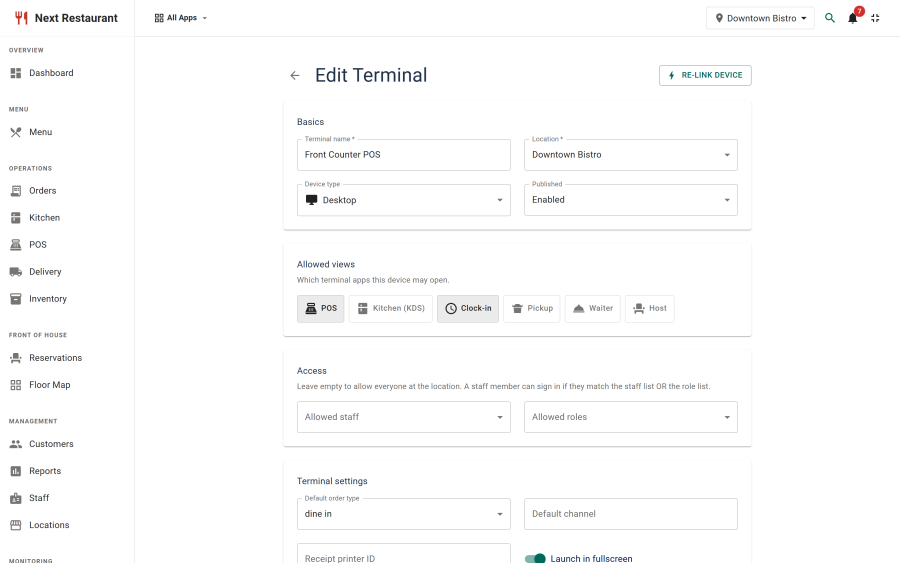
The terminal record
| Field | Purpose |
|---|---|
| Name | How you identify the physical device — "Kitchen screen", "Bar POS 2" |
| Screens | Which of the six views it runs — POS, KDS, pickup, waiter, host or clock-in. One or several; the device may do what those screens need and nothing else |
| Location | The venue it is bound to |
| Staff restriction | Optional list of staff who may sign in at this device |
| Role restriction | Optional list of roles whose holders may sign in |
| Status | A disabled terminal refuses authentication |
| Link state | Whether a device is currently linked, and when it last connected |
Linking a device
- Create and save the terminal record.
- Open the terminal URL on the device.
- Enter the link code shown on the terminal record.
- The device stores a device token; the record shows as linked.
The link code is one-time. After linking, the device authenticates with its token — the code is not reusable and is not a password.
Unlinking
Unlink from the terminal record for a device that was lost, replaced or repurposed. The old device's token stops working immediately. Linking a replacement uses a fresh code.
This is the recovery path for a lost tablet: unlink it, and it is worth nothing to whoever has it.
Authentication layers
| Layer | Answers | Failure mode |
|---|---|---|
| Device token | Is this a device we provisioned? | An unprovisioned device gets nothing |
| Staff PIN | Who is standing at it? | Wrong PIN is refused and throttled |
| Restrictions | Is this person allowed here? | Refused even with a valid PIN |
| Screens | Does this device's screen need this action? | The action is refused |
| Role permissions | May they do this action? | The action is refused |
All five apply. A valid PIN at a terminal the staff member isn't permitted on is still refused, and a permitted staff member still only gets the actions their role grants — and only the ones the device's screens use. A screen setting never adds anything to a role; it can only take away.
Restrictions in practice
The three restriction types compose:
- Location binding — the terminal is refused if it tries to act on another venue. A device carried between branches does not silently start ringing up the wrong location's sales.
- Staff restriction — only listed staff may sign in. Useful for a manager's terminal.
- Role restriction — only holders of listed roles may sign in. Useful for a kitchen screen that should never take a payment.
A kitchen screen restricted to the kitchen role and bound to one location cannot be used to ring up a check at the other branch, whoever is holding it.
The screens you choose are a limit in their own right, whatever the signed-in role allows:
| Screen | What the device may do |
|---|---|
| POS | Ring up, fire, take payments, refund, run the cash drawer |
| Waiter | Ring up, fire and take payment at the table — but no cash drawer and no refunds, so cash and refunds stay at a POS |
| KDS | Work tickets: bump, recall, acknowledge |
| Host | The floor: table status and reservations |
| Clock-in | Clock punches |
| Pickup | Nothing — it only shows what is ready |
So a pickup board or a kitchen screen can never take a payment, even if a manager signs in on it. A device given several screens can do what any of them needs. Changing a device's screens takes effect on its next action; nobody has to sign in again. Opening a screen the device isn't set up for shows "This terminal is not configured for that screen".
PIN policy
PIN behaviour is configured under Settings → Terminals:
- PIN length and format requirements.
- Session length before a staff member must re-identify.
- Throttling on failed attempts.
Set the session length to match how the device is used. A shared POS on a busy counter wants a short session so actions stay attributable; a wall-mounted kitchen screen that nobody else can reach wants a long one.
Staff PINs
PINs are set on the staff record under Staff. A staff member with no PIN cannot sign in at any terminal.
Treat PIN assignment as part of onboarding and offboarding. Clearing a leaver's PIN removes their access to every terminal at once, which is quicker and more reliable than remembering which devices they used.
Demo mode and terminals
Terminals have a carefully limited exemption from demo mode, so a demonstration can show a terminal actually working rather than a frozen screen. The exemption is narrow and specific to the terminal lane — it is not a general bypass, and it must not be widened. See Demo Mode.
Troubleshooting
| Symptom | Likely cause |
|---|---|
| PIN refused for a valid staff member | Staff or role restriction on this terminal, or the terminal is bound to another location |
| "This terminal is not set up for that action" | The device's screens don't include one that needs it — e.g. a refund on a waiter handheld. Use a POS, or add the screen to the terminal |
| "This terminal is not configured for that screen" | The URL opens a screen the device isn't set up for — add it under the terminal's screens |
| Device shows as unlinked | The terminal was unlinked, or the token was cleared with site data |
| "Too many attempts" | PIN throttle — wait for it to clear |
| Terminal shows nothing at all | The terminals module is off under Apps |
| Terminal can't reach the site | HTTPS is required; check the device's connection and certificate |
See also
- Staff Terminals — the six screens
- Roles & Permissions — what a role may do once signed in
- Settings — PIN and session policy