QR Ordering
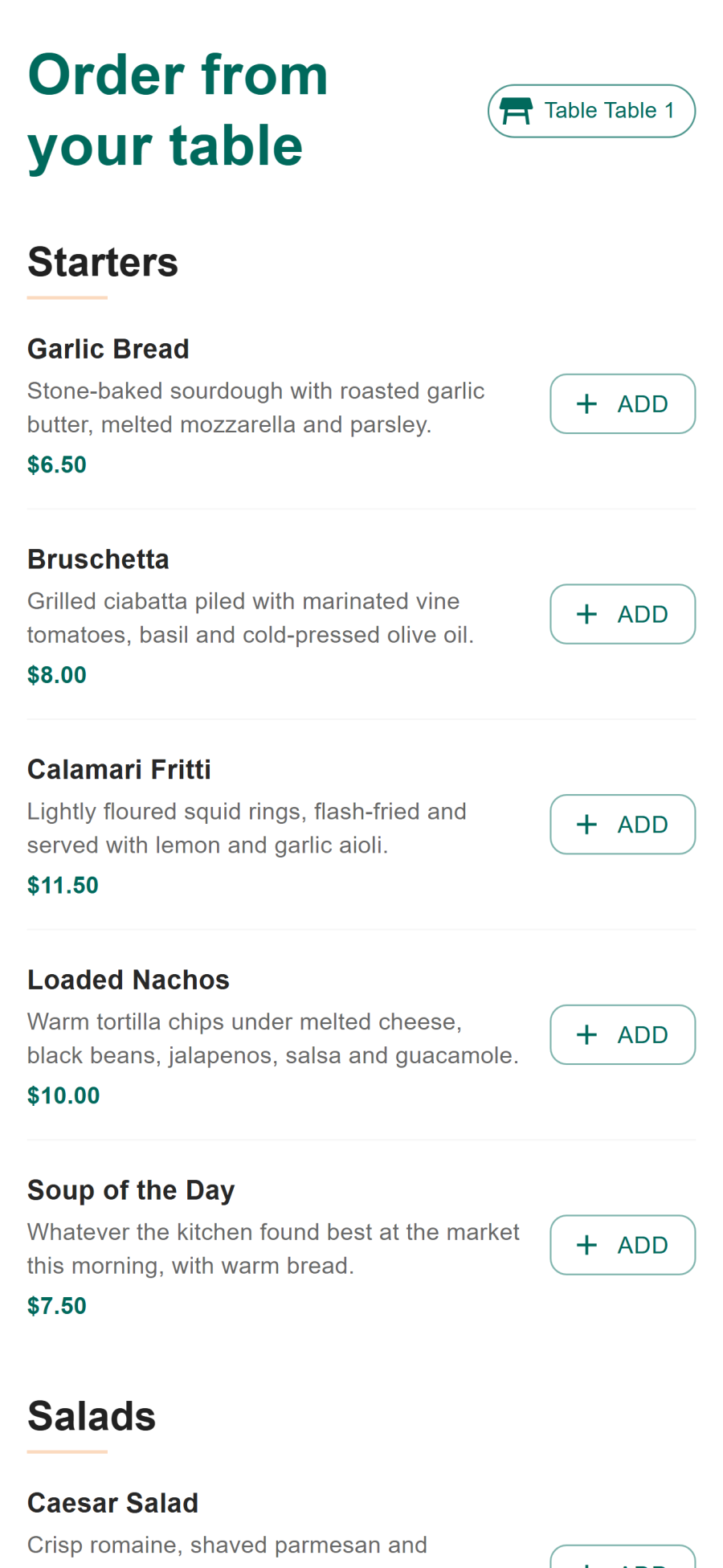
Scan-to-order at the table. Each dining table carries a QR code that opens an ordering page bound to that table — the guest browses the live menu, orders and, if you enable it, pays, with no app to install and no account to create.
How a session works
- The guest scans the code printed for their table.
- The page opens a guest session tied to that table and location.
- The guest orders. The order arrives on the kitchen display like any other, tagged with the table.
- The guest can follow the order's status, add another round to the same session, and pay at the table where pay-at-table is enabled.
- The session expires after its configured time-to-live.
The expiry matters: a phone left on a table, or a code scanned from a photo hours later, cannot keep ordering against your restaurant. When a session lapses the guest simply scans again.
What a guest can and cannot do
Guest sessions are deliberately narrow. A QR guest is not a logged-in user and is not trusted with anything beyond their own table's order.
| A guest can | A guest cannot |
|---|---|
| Browse the live menu for their location | See or modify another table's order |
| Place and add to their own order | Change prices, discounts or totals |
| See their order's status | Reach any admin or staff endpoint |
| Pay at the table (if enabled) | Alter the order once the kitchen has started it |
| Cancel within the correction window (if enabled) | Persist beyond the session's time-to-live |
Every guest write is validated server-side against the session's own table and location. Prices, modifiers and totals are recomputed from your menu records rather than trusted from the request, so a tampered request buys nothing at the wrong price.
Setting it up
1. Define your tables
QR ordering rides on the reservations module's dining tables. Under Reservations → Tables, make sure every table you want to serve exists with its seat count and area. If you have drawn a floor plan, the tables are already there.
2. Print the codes
Each table record carries its own code. Print them at whatever size suits — a table tent, a sticker on the underside of the table, a card in the menu. Reprint if you ever recreate a table record, since a new record means a new code.
3. Choose whether guests may pay
Pay-at-table is optional. With it on, the guest settles their own check through your configured payment providers and the payment lands in the same ledger as everything else. With it off, ordering is self-service but payment goes through a server as usual.
4. Choose whether guests may cancel
If the corrections module is on, guests can cancel their own order within a configurable window and only while the kitchen has not started it. Everything past that point goes through staff behind a manager PIN. See Order Corrections.
Why guests like it, and why kitchens do
For the guest, there is no download, no sign-up and no waiting to catch someone's eye for a second round. For the kitchen, a QR order is indistinguishable from any other: it hits the same stations by the same routing rules, depletes the same stock, and settles into the same ledger. The table number travels with it, so the runner knows where it goes without asking.
Requirements and limits
- HTTPS is required. Guest sessions and payment redirects both depend on it.
- The reservations module must be enabled — dining tables and QR sessions live under it.
- Sessions are time-limited. This is a security property, not a limitation to work around.
- One session, one table. A session cannot be moved between tables; the guest rescans.
See also
- Online Ordering — the same flow from the website
- Floor Map — where tables are drawn and named
- Order Corrections — guest self-cancel rules
- Payments — pay-at-table settlement