Online Ordering
The storefront ordering page lets guests order from your own site — pickup, delivery or dine-in — without a marketplace taking a commission or owning the customer.
The page is a Joomla menu item of type Next Restaurant → Order. It is server-rendered and enhanced with a React island, so the menu is in the HTML for search engines while the cart and checkout behave like an application.
The ordering flow
1. Browse
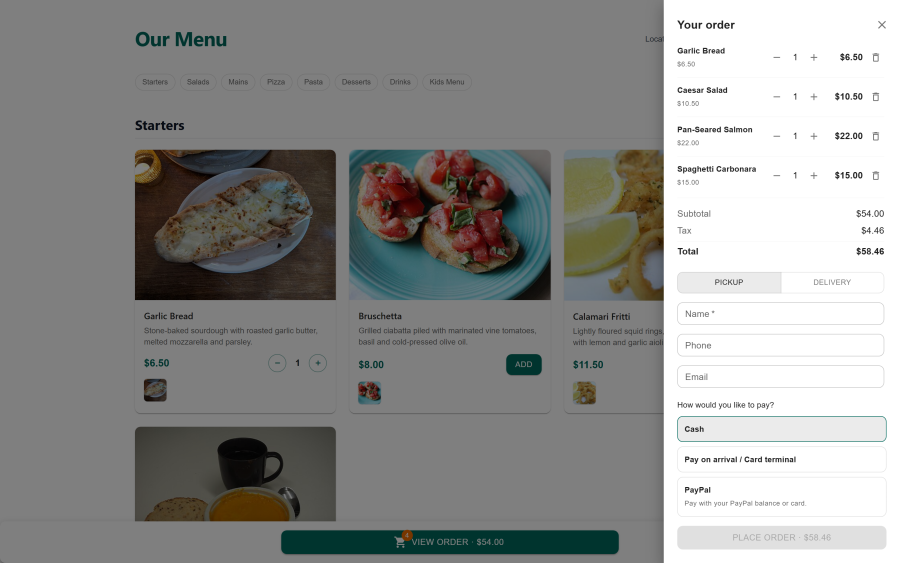
The guest sees your live menu, grouped by category, with images, descriptions, prices and allergen tags. Items that are unpublished, outside their availability window, or 86'd do not appear — availability is resolved server-side, so nothing that cannot be made is ever offered.
2. Configure
Selecting an item opens its options. Modifier groups render according to their rules: a required single-choice group must be answered before the item can be added; a multi-select group stops at its maximum. Price deltas update the running line total as choices are made.
3. Cart
The cart holds lines with their chosen modifiers and quantities. Totals break down into subtotal, delivery fee where applicable, service charge and tax, using the location's configured rates.
4. Order type
| Type | What it needs |
|---|---|
| Pickup | A collection time |
| Delivery | An address that falls inside a configured delivery zone — the zone sets the fee, the minimum order value and the available windows |
| Dine-in | A table, where you are taking dine-in orders through the storefront rather than QR codes |
An address outside every zone is refused at this step with an explanation, rather than accepted and cancelled later.
5. Checkout and payment
The guest supplies contact details, then pays with whichever providers you have enabled. Card providers hand off to their own hosted checkout and return the guest to a confirmation page; the settlement is confirmed by webhook so it completes even if the guest never comes back. See Payments.
What happens after the order is placed
The order becomes the same record every other channel produces. In sequence:
- It appears in Orders in the admin, tagged with the online channel.
- Its lines are routed to kitchen stations by your routing rules and appear on the KDS board.
- If the items have recipes, their ingredients are depleted from stock at the ordering location.
- The payment lands in the transactions ledger.
- It counts towards the sales summary, top items, payment breakdown and channel mix reports.
There is no separate "online orders" silo to reconcile at the end of the day.
Order confirmation and status
Guests receive an order confirmation, and can follow the order's status from the confirmation page — accepted, in the kitchen, ready, out for delivery, completed. Where a guest has an account, past orders are available in the customer account area (the App menu item type).
Configuring the ordering page
Most of the behaviour comes from settings you have already made elsewhere:
| Behaviour | Where it's configured |
|---|---|
| Which items are offered | Menu — publish state, availability windows, 86 |
| Prices, tax and service charge | Locations and Settings → Currency |
| Delivery fees, minimums and zones | Delivery |
| Payment options at checkout | Payment Gateways |
| Look and layout of the page | Storefront |
| Whether guests may cancel | Order Corrections |
Turning it off
Online ordering belongs to the orders module. Switching orders off under Apps
disables it — along with KDS, POS, delivery and corrections, which all depend on it. If you want the
menu published but no online ordering at all, leave the module on and simply don't create the
Order menu item; the menu showcase works on its own.
See also
- QR Ordering — the same flow, bound to a table
- Menu — what the ordering page renders
- Delivery — zones, fees and dispatch
- Payments — how checkout settles