Staff Terminals
Lean, chromeless screens for the people working the floor and the kitchen. A terminal runs on a tablet or a wall-mounted screen, shows exactly one job, and needs no Joomla login — staff identify themselves with a PIN.
The six screens
| Screen | Who uses it | What it shows |
|---|---|---|
| POS | Servers, counter staff | The full point of sale — checks, payments, receipts |
| KDS | Kitchen | The order board for one station |
| Pickup | Pass, counter | What is ready for collection |
| Waiter | Floor staff | Take orders and payments at the table — no cash drawer, no refunds |
| Host | Front of house | Arrivals, seating and table status |
| Clock-in | Everyone | Clock in, clock out, breaks |
Each is the same underlying application as its admin counterpart with the admin shell stripped, so behaviour matches what a manager sees in the back office.
How authentication works
Two layers, and they do different jobs.
1. Device token — "is this a terminal we provisioned?"
A terminal is registered once in the admin and linked to the physical device by a one-time code. The device then holds a device token. An unprovisioned device gets nothing, whatever it claims to be.
2. Staff PIN — "who is standing at it?"
Staff identify themselves at the terminal with a PIN. The PIN is validated on the server and attributes actions to that person — which check they opened, which correction they authorised, when they clocked in.
PIN attempts are throttled, so a device left unattended is not a brute-force target.
Provisioning a terminal
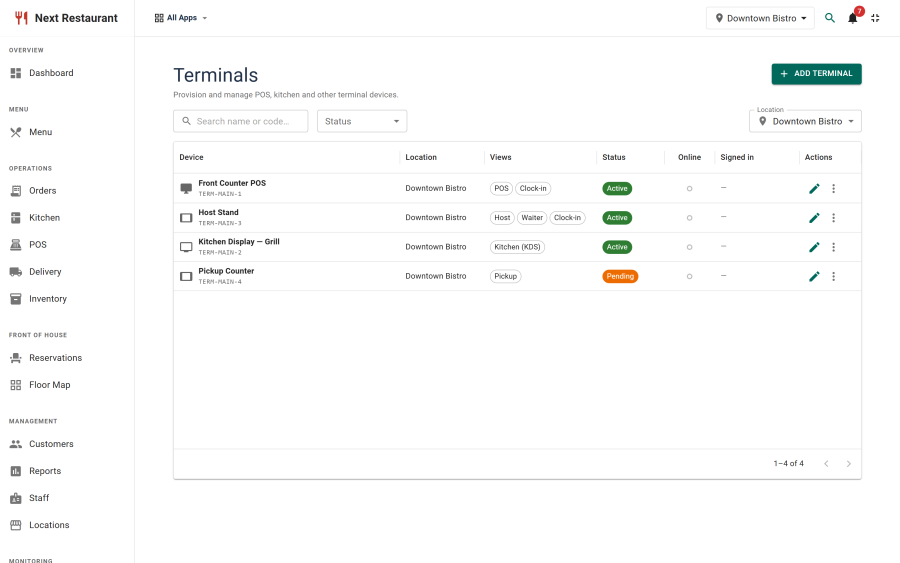
- Go to Terminals → New.
- Give it a name you'll recognise on a shelf ("Kitchen screen", "Bar POS 2").
- Choose the screens it runs — POS, KDS, pickup, waiter, host or clock-in (one or several).
- Bind it to a location.
- Optionally restrict it to specific staff or roles.
- Save, then open the terminal URL on the device and enter the link code shown on the record.
Unlinking
A terminal can be unlinked from the admin — for a device that was lost, replaced or repurposed. The old device's token stops working immediately, and the terminal can be linked to a new device with a fresh code.
Scoping and restriction
Four independent limits, which compose:
| Limit | Effect |
|---|---|
| Location binding | The terminal is refused if it tries to act on another venue |
| Screens | The device may only do what its screens need — a pickup board or KDS can never take a payment |
| Staff restriction | Only listed staff may sign in at this terminal |
| Role restriction | Only staff holding a listed role may sign in |
A kitchen screen restricted to the kitchen role, bound to the city-centre location, cannot be used to ring up a check at the other branch even if someone carries it there.
The time clock
The clock-in terminal is the simplest of the six and the one most staff touch daily: clock in, take a break, come back, clock out.
Those events feed:
- Staff → Time Clock, the timesheet view in the admin,
- the staff hours report, which totals hours and labour cost for a date range.
Why terminals instead of Joomla logins
Giving every server a Joomla account means managing Joomla accounts for every server — password resets, group membership, and a login screen designed for a desktop browser rather than a tablet mid-service. Terminals sidestep that: the device is trusted once by an administrator, and the humans using it are identified by a four-digit PIN they can enter without stopping.
It also narrows what a lost tablet is worth. It can be unlinked from the admin in seconds, and until someone enters a valid PIN it shows nothing.
Requirements
- HTTPS. Device tokens and PINs transit it.
- The terminals module enabled under Apps.
- Staff records with PINs set, under Staff.
- A device with a current browser. The terminals are progressive web apps, so they can be installed to the home screen and run full-screen.
Limits
- No offline operation. Terminals show an offline banner when the connection drops so staff know the screen is stale, but orders are not queued locally.
- A waiter handheld is not a till. It takes payments at the table, but has no cash drawer and cannot refund; cash and refunds go through a POS.
See also
- Terminals — the configuration reference
- Point of Sale — what the POS terminal runs
- Kitchen Display — what the KDS terminal runs
- Roles & Permissions — role restriction