Storefront
The public side of Next Restaurant — the pages your guests actually see. They are ordinary Joomla menu items, so they sit in your site's navigation and inherit your template.
How the storefront is built
Pages are server-rendered HTML first, enhanced with React islands where interaction is needed.
That split is deliberate. The menu is in the HTML, so search engines index your dishes and the page renders before any JavaScript runs. The cart, the slot picker and the QR ordering flow are islands — React components mounted into that HTML — so they behave like an application without turning the whole page into one.
The storefront ships its own stylesheet, scoped so it doesn't fight your template.
The page types
Create these under Menus → (your menu) → Add New Menu Item, choosing Next Restaurant as the type:
| Menu item type | Page | Notes |
|---|---|---|
| Menu | The public menu showcase | The one page almost every install wants |
| Order | Online ordering and checkout | Needs the orders module |
| Booking | Reservation page with the slot picker | Needs the reservations module |
| Gallery | The venue gallery | Photography of the restaurant itself |
| Gift Card Balance | Gift-card balance lookup | Needs the loyalty module |
| Reviews | Published customer reviews | Needs the customers module |
| App | The customer account area | Order history and details |
Create at least Menu and Order — several storefront links resolve against them, and the QR ordering page expects the menu to be published.
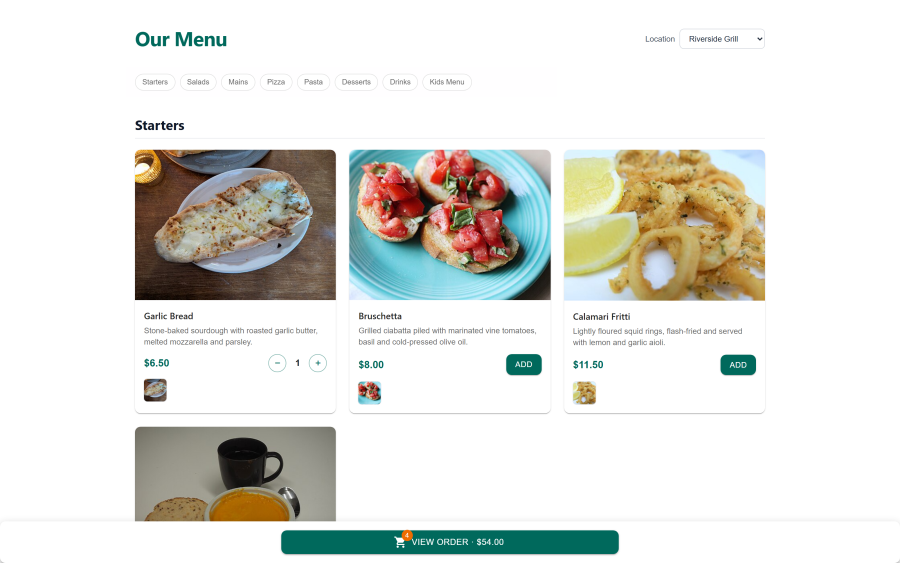
The menu showcase
The showcase is the storefront's centrepiece. It renders your categories as sections and your items with their photography, descriptions, prices and allergen tags.
Several layouts are available, chosen under Settings → Storefront. Which one suits depends on your menu: a short, image-led menu reads best in a magazine-style layout; a long list of eighty items reads better in rows.
Two things do more for how it looks than any setting:
- Consistent image crops. Mismatched aspect ratios are the most common reason a menu page looks untidy. The item editor crops in place — use it.
- Category ordering and descriptions. The showcase follows your category order exactly, so ordering them the way a guest would read a menu matters.
Ordering as an island
Where the ordering module is enabled, the showcase can carry the ordering island directly — so a guest reading the menu can add to a cart without navigating to a separate page. The Order menu item remains the full checkout flow.
The venue gallery
Separate from menu photography: images of the room, the bar, the terrace, the kitchen. Managed under Menu → Gallery and published through the Gallery menu item type.
Theming
The storefront's own styling is designed to sit alongside your Joomla template rather than replace it. Its components use a small set of tokens (cards, buttons, chips) that are visually consistent with the admin's interface, so a guest moving from the public menu to the QR ordering island doesn't cross a visual seam.
If your template heavily customises typography or colour, expect to spend a little time making the storefront agree with it — most of the adjustment is in the template's own CSS rather than in Next Restaurant.
Practical notes
- Menu items are how pages exist. Deleting or unpublishing a Joomla menu item removes the page. Links to it then 404 — including after uninstalling the component, since Joomla leaves the menu items behind.
- Module toggles and pages are independent. Disabling the
ordersmodule does not unpublish the Order menu item; unpublish it yourself. - Clear caches after a version upgrade. A page cache or CDN in front of the site can serve an old stylesheet against a new bundle.
- HTTPS is required for ordering, QR and payments.
See also
- Menu — what the showcase renders
- Online Ordering — the checkout flow
- QR Ordering — the table-bound guest page
- Settings — storefront layout options