Delivery
Run your own delivery instead of renting a marketplace's. Zones decide where you deliver and what it costs, drivers are managed as a roster, and the dispatch board shows what is cooking, what is ready and what is on the road.
Delivery zones
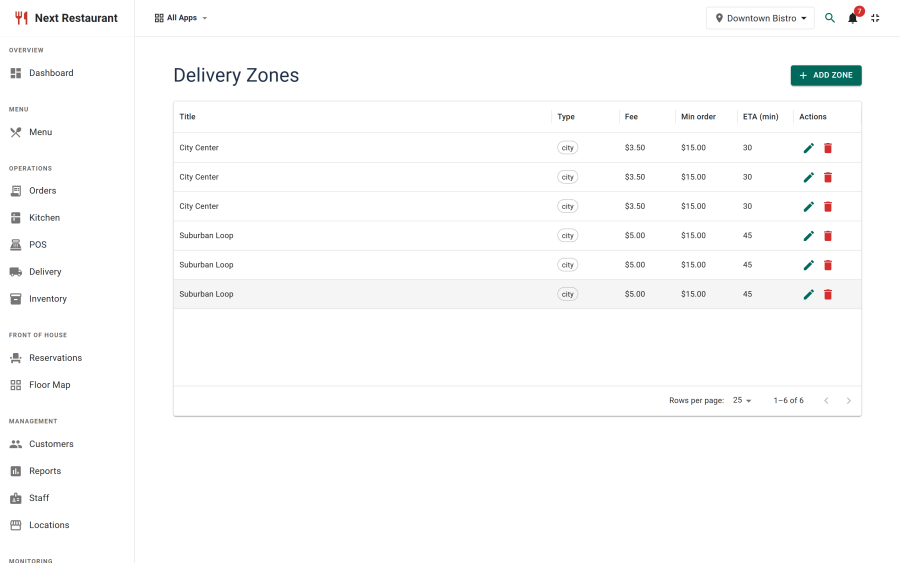
A zone is an area you deliver to, with its own commercial terms. Create them under Delivery → Delivery Zones.
| Setting | Effect |
|---|---|
| Name | Shown to staff; used to identify the zone in reports |
| Delivery fee | Added to the order total for addresses in this zone |
| Minimum order value | Orders below it are refused for this zone at checkout |
| Delivery windows | When this zone is served — a far zone can be dinner-only |
| Status | An unpublished zone stops accepting orders without being deleted |
At checkout the guest's address is matched to a zone. An address that falls outside every zone is refused at the point of ordering, with an explanation — rather than accepted, paid for, and cancelled by a phone call an hour later.
Different terms for different distances is the normal case: a £2 fee with a £15 minimum close in, a £5 fee with a £30 minimum further out, and evenings only beyond that.
Drivers
Maintain the roster under Delivery → Drivers. A driver record holds their name, contact details, status and the location they work from.
Orders are assigned to a driver from the dispatch board, and the assignment travels with the order — so "who took the 47" has an answer.
The dispatch board
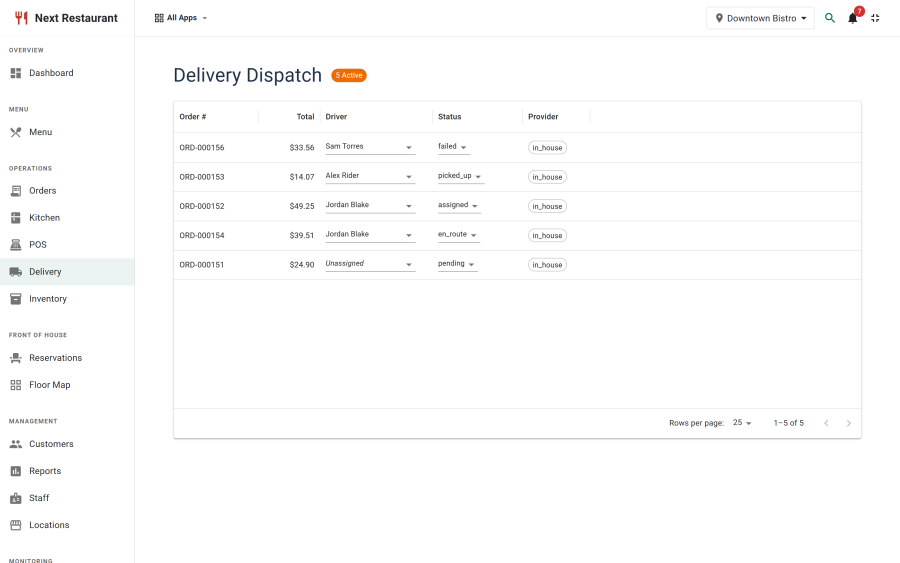
Delivery is the working screen. It shows delivery orders grouped by where they are in the pipeline:
| State | Meaning |
|---|---|
| In the kitchen | Being made; not yet dispatchable |
| Ready | Made and waiting for a driver |
| Out for delivery | Assigned to a driver and on the road |
| Delivered | Completed |
The board is where a dispatcher spends service: watch the ready column fill, assign to whoever is back, mark them out.
How a delivery order flows
- The guest orders on the storefront and selects delivery.
- Their address is matched to a zone; the fee and minimum are applied, or the order is refused.
- On checkout the order is created with the delivery order type.
- Its lines route to kitchen stations. Routing rules can match on order type, so delivery can have its own board if the kitchen wants one.
- Stock is depleted for any items with recipes.
- When the kitchen bumps it, the order becomes ready on the dispatch board.
- A dispatcher assigns a driver and marks it out.
- On delivery it completes, and appears in the channel-mix report as delivery revenue.
Setting it up
- Enable the module. Delivery is the
deliverymodule and depends onorders. Check Apps. - Create at least one zone. Until a zone exists, no address matches and delivery cannot be selected at checkout.
- Add your drivers.
- Optionally add a routing rule sending delivery lines to their own station.
Limits worth knowing
- Zones are matched at checkout, not tracked live. There is no live driver GPS tracking or route optimisation; the board is a dispatch view, not a fleet-management system.
- Fees and minimums are per zone, not per distance within a zone. Model finer gradations by adding more zones.
See also
- Online Ordering — where delivery orders come from
- Kitchen Display — routing delivery to its own station
- Reports — channel mix and delivery revenue