Access and permissions
Who can see a board, and what they can do on it, is decided by two separate layers:
- Membership and visibility decide which boards a person sees and their role on each. This is what board and workspace admins manage day to day.
- Site permissions grant a few capabilities across the whole site, such as creating boards or administering everything. This is what the site administrator manages.
The two layers do not mix. A site permission never makes someone a member of a board, and a board role never grants a site permission.
The same summary is in the app under How access works, on the Site permissions page, on a workspace's Members tab and in the Share dialog.
Layer 1: membership and visibility
Board roles
| Role | Can do |
|---|---|
| Admin | Everything on the board: settings, stages, labels, custom fields, automation, members, archive and delete. |
| Member | Work on cards: create, edit, move, comment, attach, complete. Be assigned and mentioned. |
| Observer | Read everything. Change nothing. |
The person who creates a board is its Owner, an admin who cannot be removed. Ownership can be handed over under Board settings → Members → Transfer ownership; the previous owner stays on as an admin.
Workspace roles
| Role | Can do |
|---|---|
| Admin | Manage the workspace and act as an admin on every board in it, private boards included. |
| Member | See the boards shared with the workspace, and join them. |
How a person's role on a board is worked out
The first line that applies wins:
| Situation | Role on the board |
|---|---|
| Super User, or holds Administer all boards and workspaces | Admin |
| Owner of the board | Admin |
| Admin of the board's workspace | Admin |
| Added to the board | The role they were given |
| Member of the workspace, and the board's visibility is Workspace or Public | Observer, until they join |
| Signed in, and the board's visibility is Public | Observer |
| Holds See all boards (auditor) | Observer |
| None of the above | No access; the board does not exist for them |
On an archived board, members are observers until it is restored.
An observer who only sees a board through its visibility is not a member. They are not offered for assignment or mentions, they get no notifications, and member names are not shown to them. A workspace member becomes a member with Join board.
Sharing a board
Click the member avatars in the board bar, or Share in the board menu.
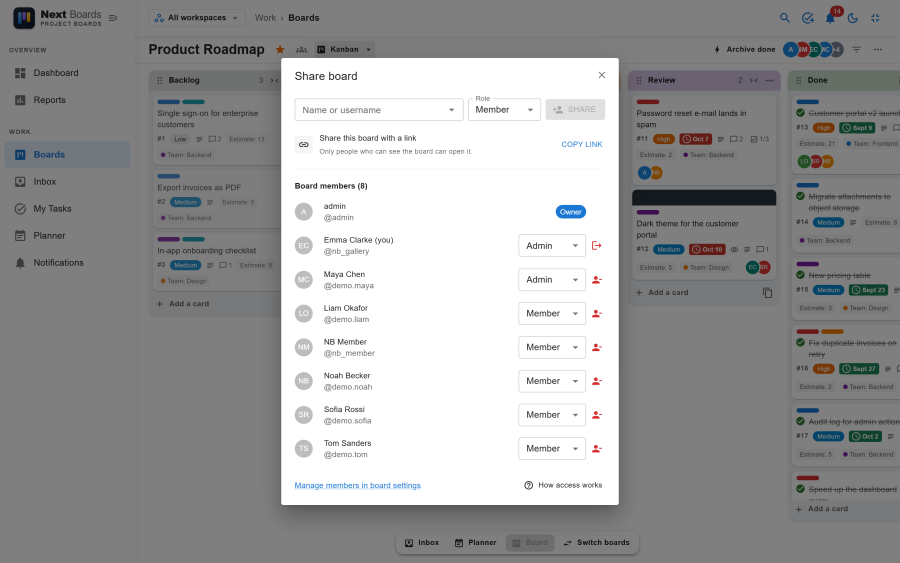
- Type a name or username (at least two letters), pick the person, choose a role and add them.
- Change a role or remove someone in the list.
- Copy link copies the board's address. A link does not grant access: only people who can already see the board can open it.
On a board in a named workspace, only that workspace's members can be added, unless you are a workspace admin. See Workspaces.
Layer 2: site permissions
Open Configuration → Site permissions. You need to be a Super User or hold Manage site permissions.
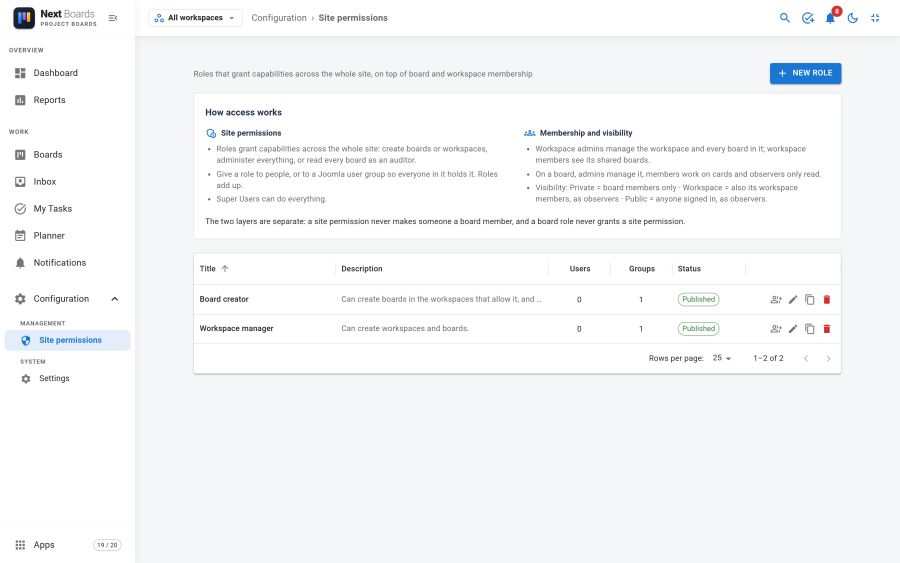
A role is a named set of capabilities. You give a role to people, or to a Joomla user group so that everyone in the group holds it.
The capabilities
| Capability | Lets the holder |
|---|---|
| Create boards | Start boards in the Default workspace, and in workspaces that let their members create boards. |
| Delete any board | Delete archived boards they do not own. |
| Administer all boards and workspaces | Act as an admin on every board and workspace, without being a member. |
| See all boards (auditor) | Read every board and workspace, private ones included, without changing anything. |
| Create workspaces | Start a workspace; its creator becomes its admin. |
| Manage site permissions | Create roles and choose who holds them. |
| Manage settings and apps | Change the component settings and switch apps on or off. |
The roles an install starts with
| Role | Capabilities | Given to |
|---|---|---|
| Board creator | Create boards | The Registered group |
| Workspace manager | Create boards, Create workspaces | The Manager group |
So on a fresh install every registered user can create boards in the Default workspace. If you want only some people to create boards, remove the Registered group from "Board creator" and assign the role to the people or group you choose.
Creating or editing a role
- Click New role, or open an existing one.
- Give it a title and tick its capabilities.
- Leave Published on. An unpublished role grants nothing but keeps its assignments, which is a way to suspend a role.
- Click Save.
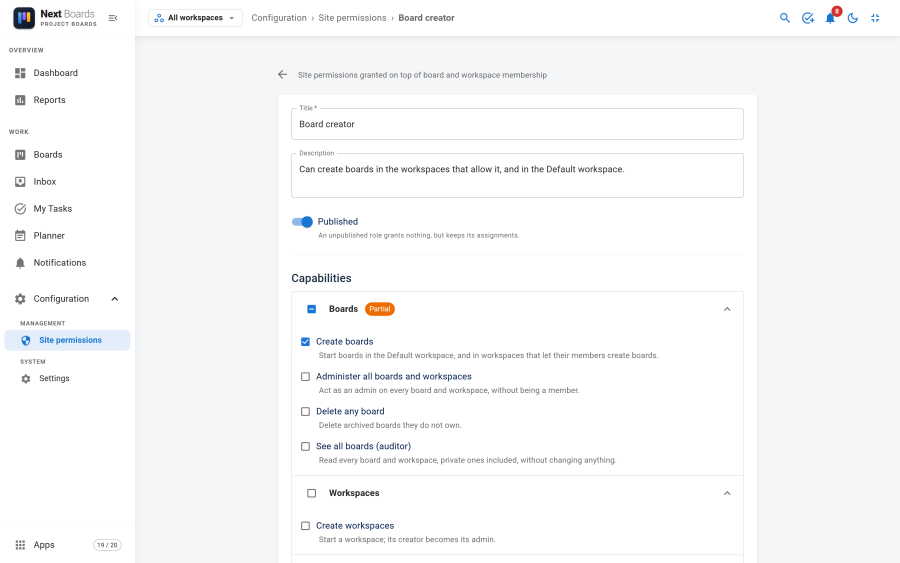
Duplicate copies a role without its assignments; the copy starts unpublished. Deleting a role removes its assignments with it.
Choosing who holds a role
Open a role's Who holds it page.
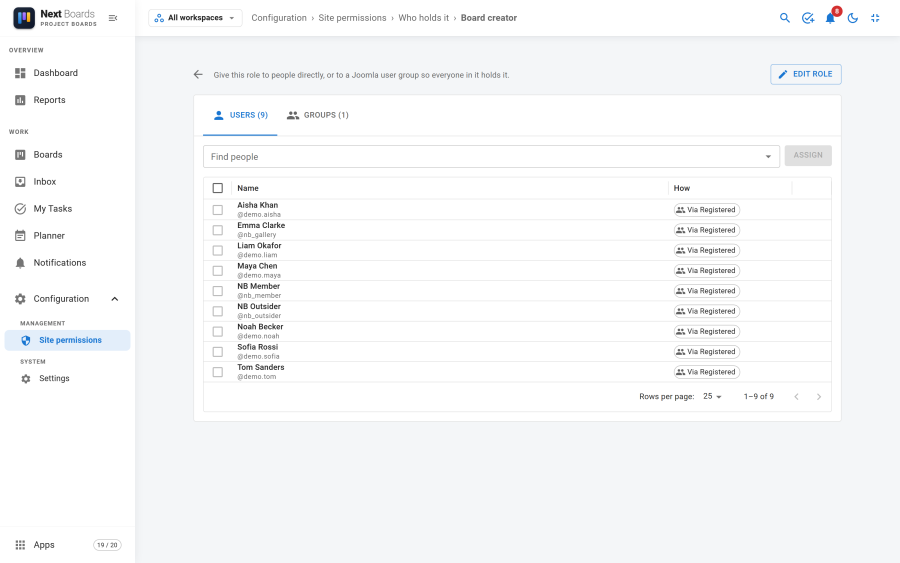
- Assign people and groups adds several users or Joomla user groups in one step.
- Each person in the list is marked Direct or Via the group that gives them the role.
- Select rows and use Remove selected to take the role away from several at once. Someone who holds the role through a group keeps it until the group is removed or they leave the group.
How roles add up
A person's capabilities are those of every published role they hold directly, plus those of every role held by a Joomla group they belong to. Roles only add; no role takes a capability away.
Super Users can do everything and do not need any role. "Super User" here means Joomla's own Super Users group. The component's "Configure" permission in Joomla's own permission screen does not make someone an administrator of Next Boards.
Common set-ups
| Goal | How |
|---|---|
| Everyone can create boards | The default. Nothing to do. |
| Only team leads create boards | Remove Registered from "Board creator"; assign the role to a Team leads group. |
| A manager who can open and fix any board | A role with Administer all boards and workspaces. |
| An auditor who can read everything | A role with See all boards (auditor) only. |
| Someone who manages the apps and settings but not people's access | A role with Manage settings and apps only. |
| A client who sees one board | Add them to that board as an observer and keep the board Private. No role needed. |