Settings
The site-wide settings of Next Boards are under Configuration → Settings. They are defaults and limits for everyone; each board and each user then makes their own choices inside them.
Super Users and people who hold Manage settings and apps can change the settings. Others who reach the page can read them.
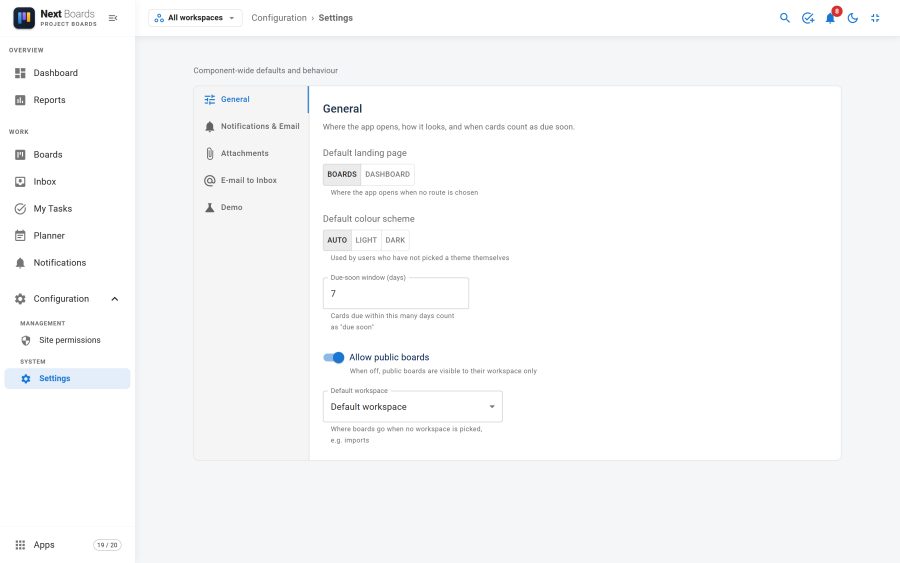
Changes are saved with the Save bar that appears at the bottom when something was changed.
General
| Setting | Default | Effect |
|---|---|---|
| Default landing page | Boards | The page Next Boards opens on: Boards or Dashboard. |
| Default colour scheme | Auto | Auto follows Joomla's light or dark mode (Joomla 5 and newer; light on Joomla 4, which has no dark mode); Light and Dark fix it. Used by people who have not picked a theme themselves with the toggle in the header. |
| Due-soon window (days) | 7 | Cards due within this many days count as "due soon": on card badges, in filters, on the dashboard and in reports. |
| Allow public boards | On | When off, boards set to Public are visible to their workspace only, and Public can no longer be chosen. |
| Default workspace | Default workspace | Where boards go when no workspace is picked, for example on an import. Anyone with Create boards can create boards in it. |
Notifications & Email
| Setting | Default | Effect |
|---|---|---|
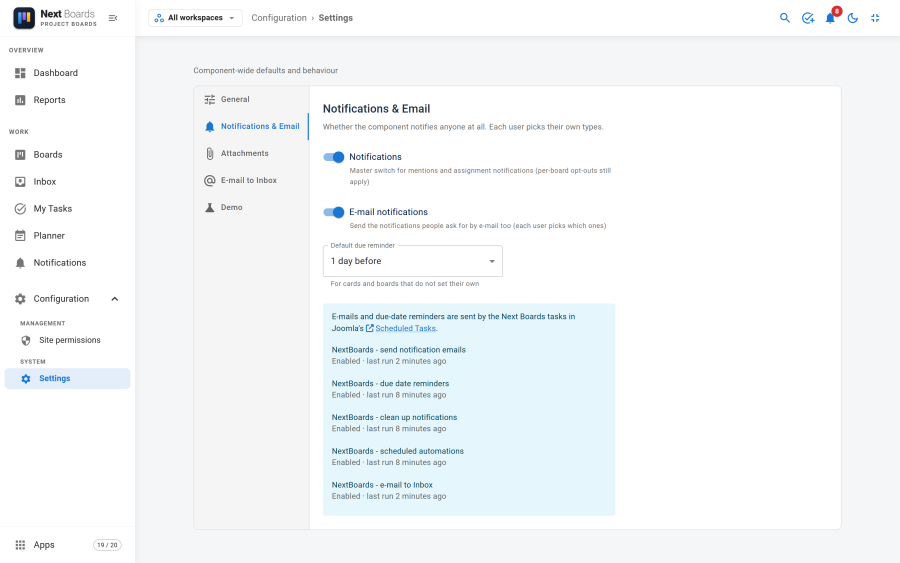
| Notifications | On | The master switch. Off: nobody is notified of anything. Boards can still opt out one by one when it is on. |
| E-mail notifications | On | Sends the notifications people ask for by e-mail too. Each user picks which ones. |
| Default due reminder | 1 day before | Used by cards and boards that do not set their own. |
Below the switches, the tab lists the Next Boards tasks of Joomla's Scheduled Tasks with their state and their last run. E-mails and reminders are only sent when these tasks run. If the list says that no task exists, see Scheduled tasks.
Attachments
| Setting | Default | Effect |
|---|---|---|
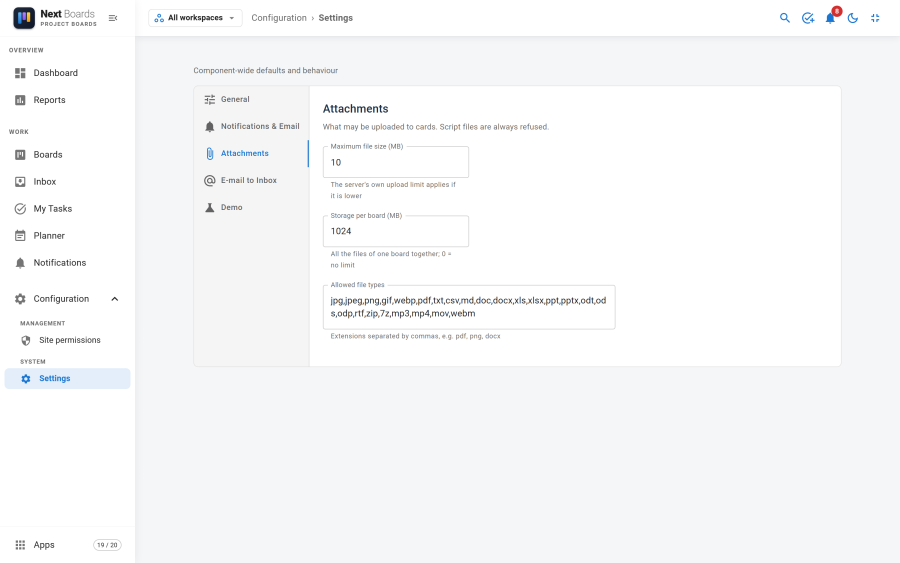
| Maximum file size (MB) | 10 | The largest single file. The server's own upload limit (PHP upload_max_filesize and post_max_size) applies if it is lower. |
| Storage per board (MB) | 1024 | All the files of one board together. 0 means no limit. |
| Allowed file types | See below | Extensions separated by commas. |
The default list of allowed types is: jpg, jpeg, png, gif, webp, pdf, txt, csv, md, doc, docx, xls, xlsx, ppt, pptx, odt, ods, odp, rtf, zip, 7z, mp3, mp4, mov, webm.
Two checks always apply, whatever the list says:
- The content of a file must match its extension. A program renamed to
.pngis refused. - Script files are refused.
Uploaded files are stored under media/com_nextboards/attachments/ with random names and cannot be opened by address. They are only served through Next Boards, to people who can see the board.
E-mail to Inbox
The mailbox that turns e-mails into Inbox cards. This tab is only shown to Super Users. See E-mail to Inbox setup.
Demo
Sample data for trying Next Boards out. This tab is only shown to Super Users, and only while the Demo app is switched on. See Demo data.
Settings that live elsewhere
| What | Where |
|---|---|
| Which apps are on | App Manager |
| Who can create boards and administer | Access and permissions |
| One board's view, reminders, card numbers, aging | Board settings |
| One person's notifications and shortcuts | Notifications → Preferences |
| Session length, time zone, mail server | Joomla's Global Configuration |