Demo data
Next Boards can fill itself with a realistic sample organisation in one click: two teams, a dozen boards, cards with history. Use it to try the features on a test site, to train colleagues, or to show the product to someone before your own boards exist.
Demo data is for Super Users only, and the feature is switched off on a new install.
Switching the feature on
- Open Configuration → Apps and activate Demo under Tools. Click Save & apply.
- Open Configuration → Settings → Demo.
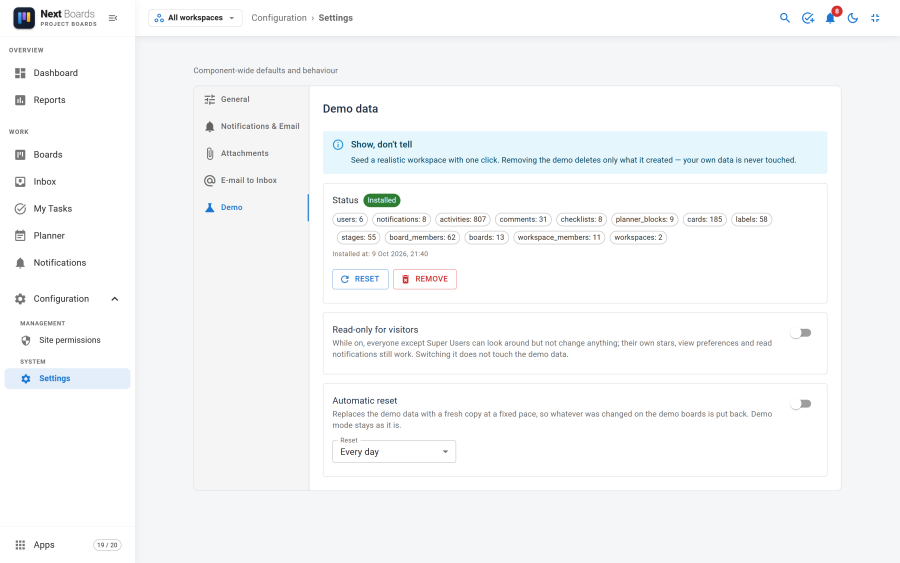
Installing the demo
Click Install demo data and confirm.
What is added, next to your own data and without changing any of it:
| Item | Details |
|---|---|
| Two workspaces | Product Team and Marketing |
| Thirteen boards | Six open boards in each workspace, such as Product Roadmap, Bug Tracker, Marketing Launch and Content Calendar, plus one archived board. About 185 cards in all. |
| Six teammates | Sample user accounts with different roles on the boards, so assignments, comments and avatars look real. The accounts are blocked and cannot be used to sign in. |
| Card content | Labels, due dates around today, checklists, comments, custom fields, a mirror, automations and an activity history. |
| For you | A few Inbox cards, a planned week in the Planner and some notifications. |
Dates are counted from the day of the install, so the demo always has something overdue, something due today and something coming up.
Installing also switches Read-only for visitors on (see below).
Read-only for visitors
While this switch is on, everyone except Super Users can look around but not change anything. A banner at the top says You are viewing a demo. Changes are not saved. Their own stars, view preferences and read notifications still work.
This is the mode for a public demo site. On a private test site where colleagues should be able to try things, switch it off after installing; the demo data stays.
While it is on, users who are not Super Users are added as members of the demo workspaces and boards when they open Next Boards, so that they have something to look at.
Reset and remove
| Button | Effect |
|---|---|
| Reset | Removes the demo data and installs a fresh copy. Whatever was changed on the demo boards is put back. |
| Remove | Deletes everything the demo created: its workspaces, boards, cards and sample accounts. Read-only mode is switched off. |
Removing deletes only what the demo created. Your own boards, cards and users are never touched. Demo boards are removed whole, so cards that people added to a demo board go with it.
The Demo app cannot be switched off in the App Manager while demo data is installed or read-only mode is on. Remove the data first.
Automatic reset
For a demo that many people try, switch Automatic reset on and choose how often: Every 12 hours, Every day, Every 3 days or Every week. The demo data is then replaced with a fresh copy at that pace, and the banner tells visitors when the next refresh is due.
The reset is carried out by the scheduled task NextBoards - reset demo data, which is created when you switch the option on and runs hourly. The page warns you when the task or its plugin is disabled. See Scheduled tasks.
A note for live sites
Demo data is meant for trying things out. On a site with real users, remember that installing it switches read-only mode on for everyone who is not a Super User, until you switch it off or remove the demo. Install it on a copy of the site when you can.