Notifications and e-mail
Next Boards tells you when something needs your attention: you were assigned, mentioned or added to a board, or a card you follow moved, was finished or is nearly due. Each person decides which of these they want, in the app, by e-mail, or both.
The bell and the notification centre
The bell in the header shows a dot when you have unread notifications. Click it for the latest ones, or open Work → Notifications for the full list.
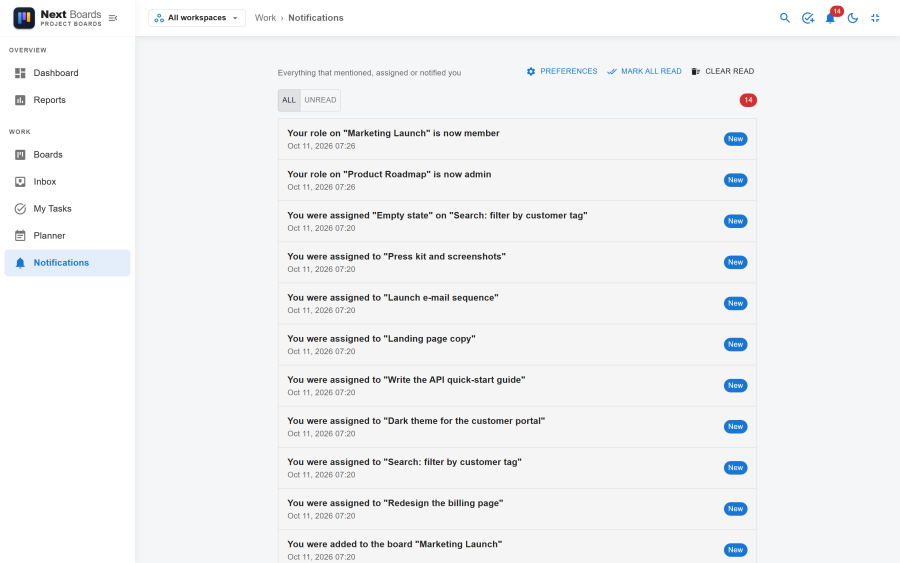
- Click a notification to open the card, board or workspace it is about. That also marks it read.
- Switch between All and Unread.
- Mark all read clears the dot.
- Clear read deletes the notifications you have read. Unread ones stay.
What you can be notified about
| Event | Who is told |
|---|---|
| Assigned to a card | The person assigned. Also sent when a checklist item is assigned to you. |
| @mentioned | The person mentioned in a comment. |
| Comments on cards you watch | Assignees and watchers of the card. |
| Cards you watch are moved | Assignees and watchers. |
| Cards you watch are completed | Assignees and watchers. |
| Due soon | Assignees and watchers, at the time of the card's reminder. |
| Overdue | Assignees and watchers, once the due date has passed. |
| Added to a board | The person added. |
| Your board role changes | The person whose role changed. |
| Added to a workspace | The person added. |
You are never notified about your own actions, and only board members get notifications about a board's cards. People who merely see a board through its visibility do not.
Your preferences
Open Notifications → Preferences.
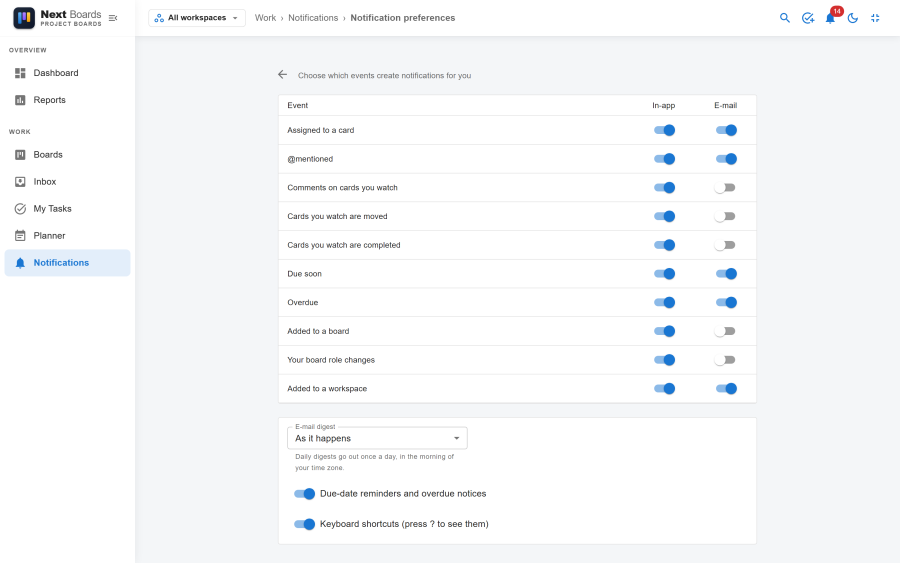
- Each event has two switches: In-app and E-mail.
- E-mail digest chooses how e-mails arrive: As it happens, or Once a day as one summary sent in the morning of your time zone (after 08:00).
- Keyboard shortcuts on the same page turns the single-key shortcuts on or off for you.
If the E-mail column is greyed out, e-mail notifications are switched off for the whole site.
Due reminders
A card with a due date can remind its assignees and watchers before it is due. Choose the reminder in the card's Dates: At the due time, 15 minutes before, 1 hour before, 1 day before, 2 days before, or None.
When a card does not set its own reminder, the board's default applies (Board settings → Preferences → Default due reminder), and after that the site's default (Configuration → Settings → Notifications & Email), which is 1 day before on a new install.
Reminders are sent in each person's own time zone. A card that is still open after its due date produces one Overdue notice.
Switching notifications off for one board
Board settings → Preferences → Notify members controls whether the board creates notifications at all. Switch it off for a board that is busy but not urgent, such as an archive of ideas.
What the site administrator controls
| Setting | Where | Effect |
|---|---|---|
| Notifications | Configuration → Settings → Notifications & Email | The master switch. Off: nobody is notified of anything. |
| E-mail notifications | Same tab | Off: notifications stay in the app only. |
| Default due reminder | Same tab | The reminder used when neither the card nor the board sets one. |
| Notifications app, Due reminders app | Configuration → Apps | Switching Notifications off removes the bell and the centre and pauses Due reminders too. |
How e-mails are sent
E-mails are not sent while you work; they are queued and sent by Joomla's Scheduled Tasks, every five minutes on a standard install. Due reminders are checked every 15 minutes. If e-mails do not arrive, the scheduler is the first thing to check: see Scheduled tasks.
The link in an e-mail opens the card in the administrator for people who can sign in there, and on the site's Boards page for everyone else.