Import and export
A board can leave Next Boards as a JSON file or a CSV file, and come back in from either. Use JSON to move or back up a whole board, and CSV to work with the cards in a spreadsheet.
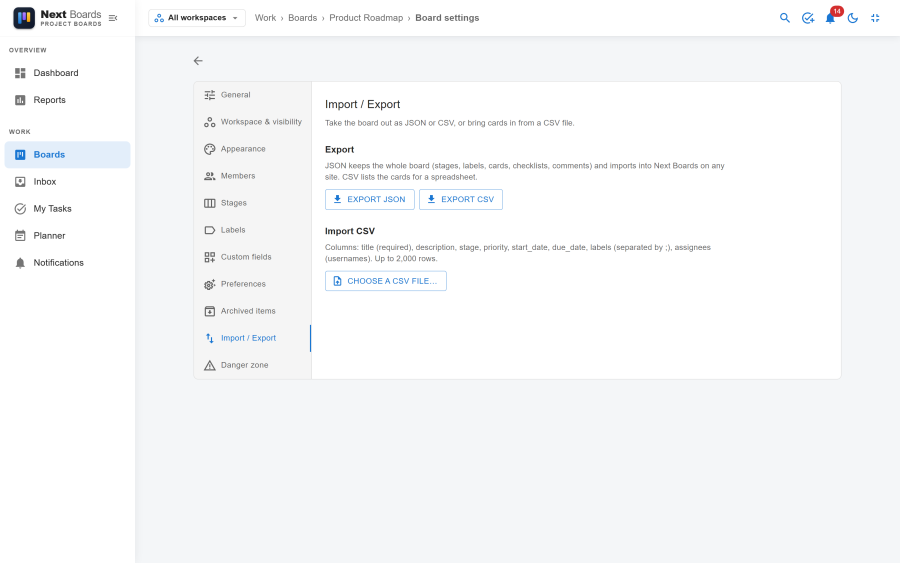
Everything is under Board settings → Import / Export. Export JSON and Export CSV are also in the board menu.
JSON or CSV?
| JSON | CSV | |
|---|---|---|
| Contains | The whole board: stages, labels, custom fields, cards, checklists, comments | The cards, one per row |
| Opens in | Next Boards, on this site or another one | Excel, LibreOffice, Google Sheets |
| Import creates | A new board | Cards on an existing board |
| Size limit on import | 5 MB | 2 MB and 2,000 rows |
Neither format carries attachments, automations, mirrors or the activity history.
Exporting
Click Export JSON or Export CSV. The file downloads at once.
In a CSV file, a cell that starts with =, +, - or @ is written so that a spreadsheet shows it as text and does not run it as a formula. A card title typed by someone else can therefore never execute anything on your computer.
Importing a board from JSON
- On the boards page, open More ways to create a board next to New board and choose Import from JSON….
- Choose the file. Change the title, or leave it as exported.
- Pick the workspace and the visibility of the new board.
- Optionally tick Add the people assigned in the file as members. People are matched by username; names that do not exist on this site are skipped.
- Click Import.
You become the owner of the imported board, and the imported comments are recorded as yours. The workspace and visibility always come from what you choose in the form, never from the file.
Importing cards from CSV
- Open Board settings → Import / Export on the board the cards go to.
- Under Import CSV, choose the file. A preview shows the first rows.
- Click Import.
The first line of the file names the columns. Only title is required.
| Column | Value |
|---|---|
title |
The card title (required) |
description |
Text, Markdown allowed |
stage |
The name of a stage. Empty: the first stage of the board. A name the board does not have: a board admin's import creates that stage, anyone else's puts the card in the first stage. |
priority |
low, medium, high or urgent |
start_date, due_date |
YYYY-MM-DD |
labels |
Label names separated by ; |
assignees |
Usernames separated by ;. Only people who are members of the board are assigned. |
field:<name> |
A value for the custom field of that name. Dropdowns by option label. |
Columns can be in any order, and the file can use commas or semicolons between the cells. New cards go to the bottom of their stage.
After the import a summary says how many cards were created and lists each row that was skipped (no title, or a value that cannot be read) with its row number and the reason. Fix those rows and import them again on their own.
The easiest way to get a file in the right shape is to export the board as CSV first and use that file as the template.
Moving a board to another site
- On the old site, Export JSON.
- On the new site, Import from JSON… and tick the option to add members if the same usernames exist there.
- Add attachments and automations again by hand; they are not in the file.
Switching CSV off
CSV import and export is an app. With it switched off under Configuration → Apps, the CSV buttons disappear. JSON export and import stay.
See also
- Boards: duplicating a board on the same site
- Custom fields
- Board settings