App Manager
Next Boards is made of apps: Inbox, Planner, Automation, Reports and so on. The App Manager is where a site administrator switches off the ones the organisation does not use, so people only see what they need.
Open it with Configuration → Apps, or with the Apps entry at the foot of the sidebar in fullscreen mode. You need to be a Super User or hold Manage settings and apps.
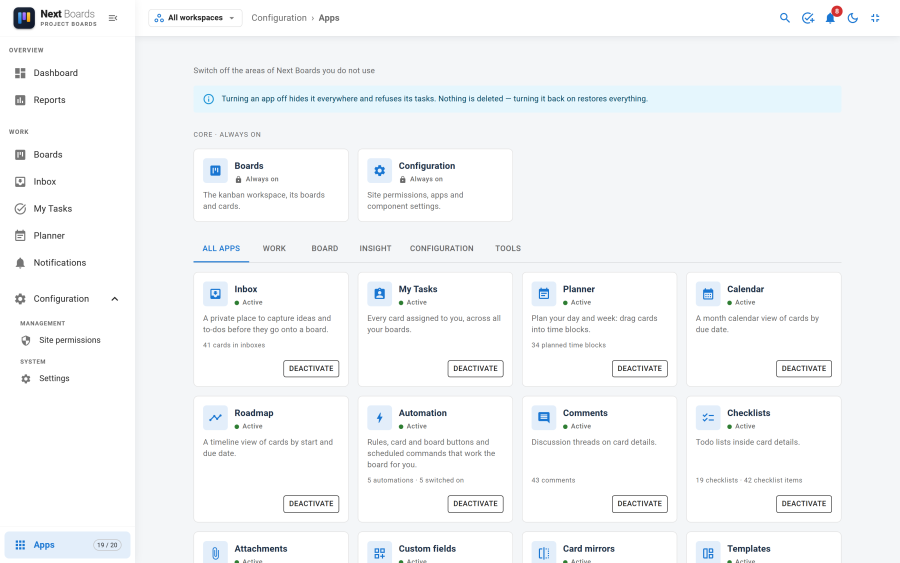
What switching an app off does
- The app disappears everywhere: from the navigation, from boards, from cards.
- Its requests are refused by the server, so it cannot be reached through an old link either.
- Nothing is deleted. Switch the app back on and everything it held is there again.
Before an app is switched off, a confirmation shows how much it is in use right now (for example "24 checklists, 131 checklist items") and which other apps it would pause.
Changes are saved together with Save & apply.
The apps
Always on
| App | What it is |
|---|---|
| Boards | The boards, stages and cards. |
| Configuration | Site permissions, apps and settings. |
Work
| App | When it is off |
|---|---|
| Inbox | The Inbox page, its dock panel, quick capture and "Send to Inbox" disappear. Cards already in inboxes are kept. |
| My Tasks | The My Tasks page and the calendar feed disappear. Assignments stay on the cards. |
| Planner | The Planner page and dock panel disappear. Planned time blocks are kept. |
Board
| App | When it is off |
|---|---|
| Calendar | Boards that open in the Calendar view open as Kanban. |
| Roadmap | Boards that open in the Roadmap view open as Kanban. |
| Automation | No rule, button or scheduled command runs. Their definitions and log are kept. |
| Comments | The comments section is hidden from every card. |
| Checklists | The checklists section is hidden from every card. |
| Attachments | The attachments section is hidden from every card. Board background images keep working. |
| Custom fields | Fields disappear from cards, the List view and filters. Stored values are kept. |
| Card mirrors | Mirrors are hidden from every board; the cards they show stay where they are. |
| Templates | New boards start blank, and card templates are hidden. |
Insight
| App | When it is off |
|---|---|
| Dashboard | The Dashboard page disappears. |
| Reports | The Reports page disappears. |
Configuration
| App | When it is off |
|---|---|
| Notifications | The bell, the notification centre and every notification e-mail stop. Due reminders pause too. |
| Due reminders | No due-date reminder is sent, and automations triggered by "due soon" stop firing. |
Tools
| App | When it is off |
|---|---|
| Quick Search | The Ctrl+K search disappears. |
| CSV import & export | The CSV buttons disappear. JSON export and import stay. |
| PWA | The app cannot be installed and offline use stops. This one is off on a new install. |
| Demo | The demo data panel is hidden. Off on a new install; see Demo data. |
Active, Inactive and Paused
| State | Meaning |
|---|---|
| Active | The app is on and running. |
| Inactive | The app is switched off. |
| Paused | The app is switched on, but an app it needs is off, so it does not run. Its card says which one: "Requires Notifications to be on". |
Due reminders need Notifications. Switch Notifications off and Due reminders is paused; switch it back on and reminders resume without you touching their switch.
The Demo app cannot be switched off while demo data is installed or its read-only mode is on. Remove the demo data first.
The counter in the sidebar
In fullscreen mode the Apps entry at the foot of the sidebar shows how many apps are enabled out of the total.