Keyboard shortcuts and quick search
Next Boards can be driven from the keyboard with single keys, in the style of Trello. Press ? on any page to see the list in the app.
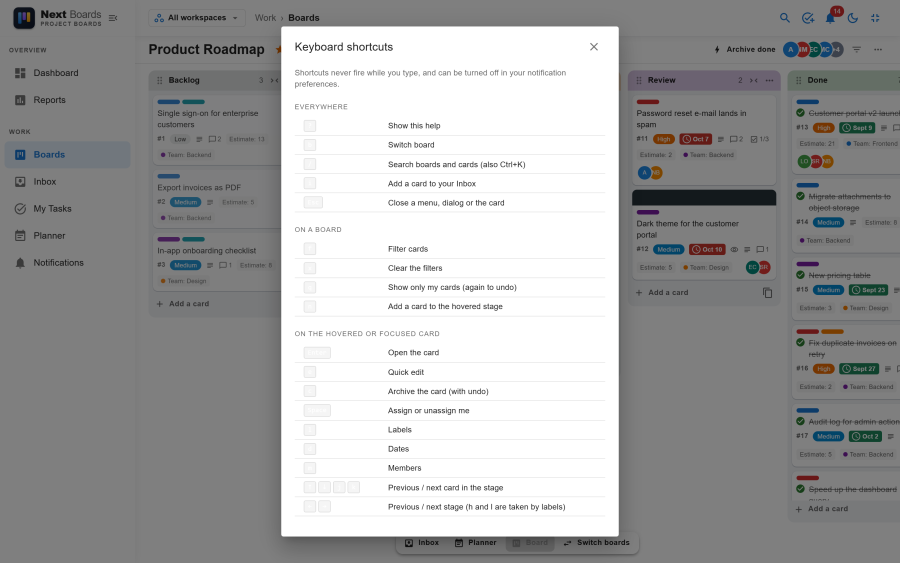
Shortcuts never fire while you are typing in a field.
Everywhere
| Key | Action |
|---|---|
? |
Show the shortcut list |
b |
Switch board |
/ or Ctrl+K |
Search boards and cards |
i |
Add a card to your Inbox |
Esc |
Close a menu, a dialog or the card |
On a board
| Key | Action |
|---|---|
f |
Open the filter |
x |
Clear the filters |
q |
Show only my cards; press again to undo |
n |
Add a card to the stage under the pointer |
On a card
These work on the card under the pointer, or the one that has the keyboard focus.
| Key | Action |
|---|---|
Enter |
Open the card |
e |
Quick edit |
c |
Archive the card, with an Undo |
Space |
Assign yourself, or take yourself off |
l |
Labels |
d |
Dates |
m |
Members |
↑ ↓ or j k |
Previous or next card in the stage |
← → |
Previous or next stage |
Quick search
Press / or Ctrl+K, or click the search field in the header, and type at least two characters. Results are grouped into workspaces, boards and cards, and only include what you are allowed to see.
To jump to a card by its number, type # and the number, for example #12.
Quick search is an app; a site administrator can switch it off under Configuration → Apps.
Turning the shortcuts off
Single-key shortcuts get in the way for some people, for example with speech input. Each user can turn them off under Notifications → Preferences → Keyboard shortcuts.