The Kanban board
The Kanban view is the board as columns: one column per stage, cards moving from left to right as the work advances. Every board opens in this view unless its default view was changed.
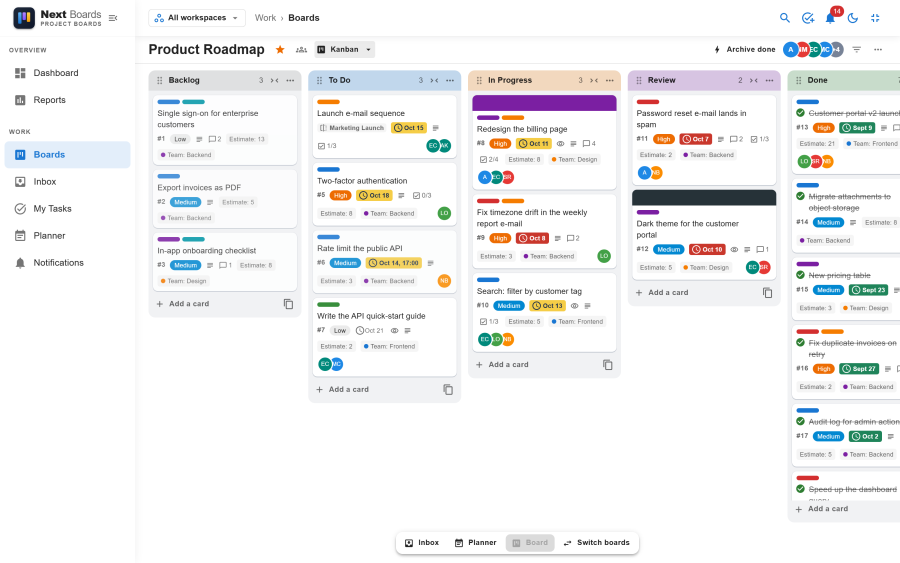
The board bar
The bar above the lists holds, from left to right:
| Element | What it does |
|---|---|
| Board title | Click to rename (board admins). |
| Star | Keeps the board under Starred. |
| Visibility chip | Shows Private, Workspace or Public. |
| View menu | Switches between Kanban, List, Calendar and Roadmap. See List, Calendar and Roadmap views. |
| Buttons | Board buttons made in Automation, when the board has any. |
| Join board | Shown to workspace members who see the board without being on it. |
| Member avatars | Open the Share dialog. |
| Filter | Opens the filter panel. |
| … (Board menu) | Open the workspace, Share, Board activity, Archived items, Automation, Board settings, Change background, Labels, Visibility, Copy board, Export JSON, Export CSV and Archive board. |
Stages
- Click Add stage at the right end of the board, type a title and press Enter.
- Drag a stage by its header to reorder it.
- Click a stage title to rename it.
- Collapse a stage to a narrow strip with the arrow on its header, and expand it the same way.
- The stage menu (… on the stage header) offers Add card at the top, Sort by (due date, newest first, title, priority, card number), Move all cards to, Archive all cards, Copy stage, Colour and WIP limit, Archive stage and Delete stage. Board buttons that work on one list also appear there.
Archiving a stage takes it and its cards off the board; both can be restored from Archived items. Deleting a stage deletes its cards with it, after a confirmation that says how many.
WIP limits
A WIP (work in progress) limit is the number of cards a stage should hold at most. Set it in the stage menu or under Board settings → Stages. The stage's counter turns amber when the stage reaches the limit and red when it goes over. The limit warns; it does not stop anyone from adding a card. Leave it empty or at 0 for no limit.
Cards on the board
Click Add a card at the bottom of a stage, type a title and press Enter. Enter again adds the next one.
Drag a card to another stage, or up and down inside its stage. The move shows at once and is saved in the background; if the server refuses it, the card goes back to where it was and you see a message. Observers cannot drag.
The front of a card shows what it holds:
| On the card | Meaning |
|---|---|
#12 |
The card number, when the board shows card numbers. |
| Cover | A colour or an image across the top. |
| Coloured chips | Labels. |
| Date badge | The due date. Its colour changes when the card is due soon, overdue or done. |
| Text, speech bubble, paperclip, checkbox icons | A description, the number of comments, the number of attachments, checklist items done out of total. |
| Eye | You are watching the card. |
| Custom field badges | Fields set to Show on card. See Custom fields. |
| Avatars | The people assigned. |
Tick the circle on a card to mark it done. Right-click a card, or use the Card actions button that appears on hover, for the quick actions: Open card, Edit labels, Change members, Edit dates, Move, Copy, Archive and Copy link. Archiving and moving show an Undo for a few seconds.
Filtering
Click Filter (or press f) to open the filter panel.
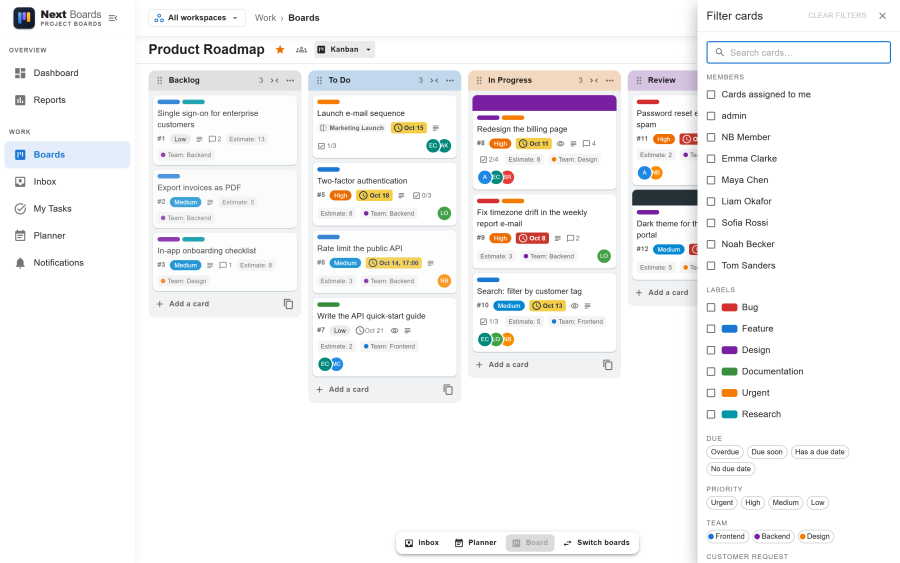
| Filter | Options |
|---|---|
| Search | Text in the card title. |
| Labels | One or more labels. |
| Members | One or more people, or Cards assigned to me (shortcut q). |
| Due date | Overdue, Due soon, Has a due date, No due date. |
| Custom fields | A value of a dropdown field, or a ticked checkbox field. |
| Non-matching cards | Hide them, or Highlight the matching ones and dim the rest. |
The board address keeps the filter and the view. Copy it from the browser to send someone the board exactly as you see it. Clear filters (or x) puts everything back.
The dock
A small dock floats at the bottom of every board with four buttons: Inbox, Planner, Board and Switch boards. Inbox and Planner open as panels to the left of the lists, so you can drag a card from your Inbox onto a list, or a card from the board onto a time slot of your Planner. Drag the edge of a panel to resize it. Board hides the lists to give the panels the whole window.
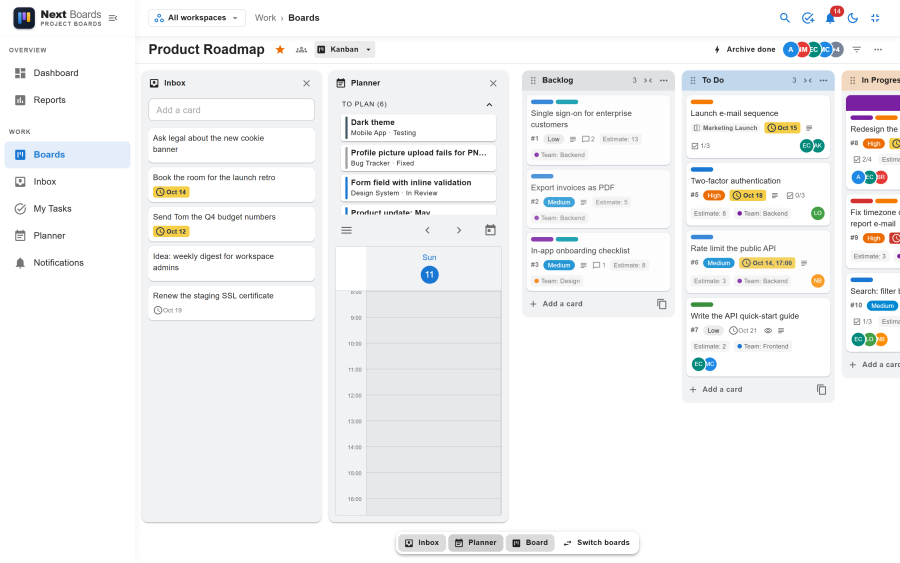
The dock is not shown on phones, where Inbox and Planner are tabs of their own.
Board activity
Board menu → Board activity opens the history of the whole board: who created, moved, completed, commented, attached or changed what, and when. Filter it by kind of action (cards, comments, checklists, attachments, labels, stages, board and members) and by person.
Card aging
With Card aging switched on under Board settings → Preferences, cards nobody has touched for a set number of days fade out on the board. It is a quick way to spot work that has stalled.
See also
- Cards: everything inside a card
- Keyboard shortcuts
- Board settings