Planner
The Planner is your own calendar of time blocks: when you intend to work on what. A due date says when something must be finished; a block in the Planner says when you will do it.
Blocks are personal. Nobody else sees them, and planning a card does not change the card.
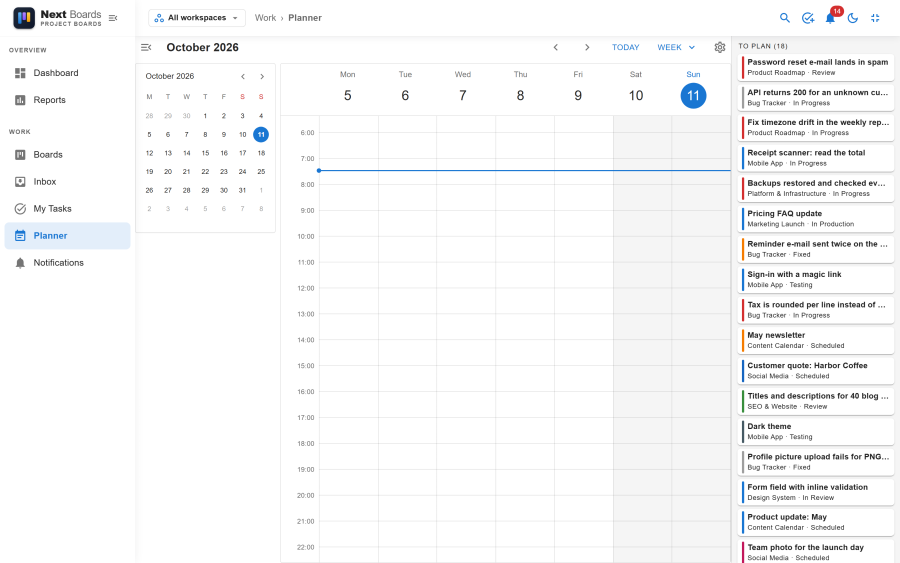
Opening the Planner
- Work → Planner opens it as a page that fills the window.
- On a board, click Planner in the dock at the bottom to open it as a panel beside the lists.
Switch between Day and Week at the top, and move through time with the arrows or the small calendar.
Planning a card
Drag a card onto a time slot from any of these places:
| From | How |
|---|---|
| The To plan list | It sits beside the calendar and holds the open cards assigned to you and the cards due this week, minus the ones you have already planned. |
| A board | With the Planner panel open beside the board, drag a card from a list. The card stays on the board. |
| Your Inbox | Open the Inbox and Planner panels together and drag from one to the other. |
The block starts where you drop it, to the nearest quarter of an hour. Then:
- Drag a block to move it to another time or day.
- Drag its lower edge to make it longer or shorter.
- Click a block to open its card.
- A card can have several blocks, for work spread over several days.
When a card is deleted, its blocks go with it. If you lose access to a card's board, its blocks are hidden, and they come back if you get access again.
Blocks without a card
Click an empty slot to add a block that is not tied to a card. A small field asks What are you doing?; type a title and press Enter. Use it for meetings, focus time or lunch, so the week shows how much room is really left.
The To plan list and the workspace switcher
The To plan list follows the workspace chosen in the header switcher. Choose one workspace to plan only that team's work, or All workspaces for everything. The blocks themselves are always all shown.
Time zone
The Planner uses the time zone of your Joomla user account, not the one of the device you happen to be on. See Time zones.
On a phone
The phone app has a Planner tab that shows one day at a time. See Phone app.
See also
- My Tasks: everything assigned to you, by due date
- Inbox
- List, Calendar and Roadmap views: the Calendar view of one board, by due date