Custom fields
Custom fields are your own fields on the cards of a board: an estimate, a customer name, a release, a sign-off tick. Each board has its own set.
Field types
| Type | Holds | Example |
|---|---|---|
| Text | One line of text | Customer |
| Number | A number, decimals allowed | Estimate (hours) |
| Date | A calendar day | Release date |
| Checkbox | Yes or no | Approved |
| Dropdown | One option out of a list you define, each with a colour | Team: Design, Backend, QA |
The type of a field is fixed once the field exists. To change it, add a new field and delete the old one.
Adding fields to a board
Board admins manage fields under Board settings → Custom fields.
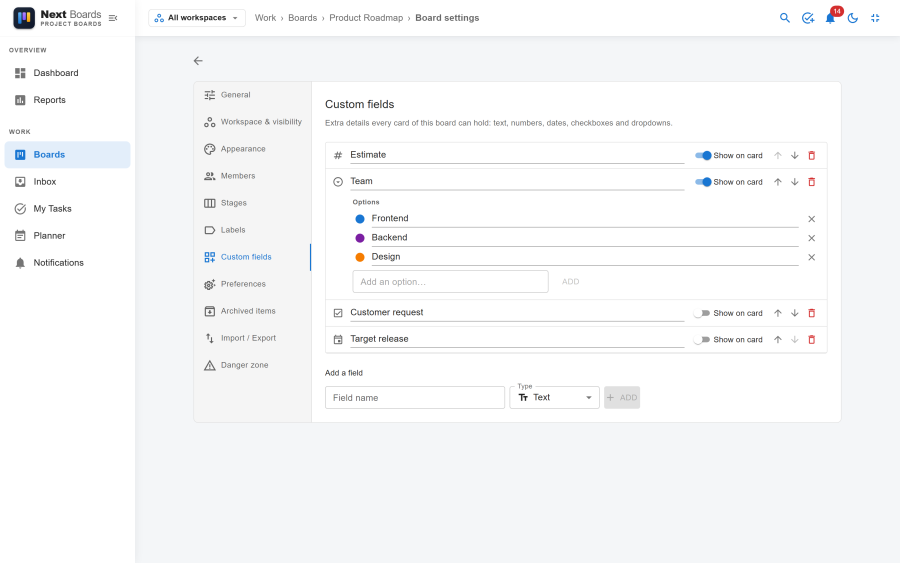
- Click Add a field, give it a name and pick a type.
- For a dropdown, add its options and give each a colour.
- Switch Show on card on for the fields you want to see on the card fronts.
- Drag the fields into the order they should have on the card.
Renaming a field or an option keeps the values cards already hold. Removing a dropdown option clears it from the cards that used it. Deleting a field deletes the value every card holds for it, after a confirmation.
Filling in a field
Open a card. The Custom fields section lists every field of the board. A value saves as soon as you pick it or leave the field. Any board member can fill in fields; observers see them.
Each change is recorded in the card's activity, for example set Estimate to "8".
Where field values show up
| Place | What you get |
|---|---|
| Card front | A badge for each field set to Show on card, when the card has a value. |
| List view | One column per field. |
| Filter panel | A chip per dropdown option and per checkbox field, so you can show only the cards of one team or only the approved ones. |
| CSV export and import | One field:<name> column per field. Dropdown values are written by their label. |
| JSON export | The fields and every card's values. |
Moving and copying cards
A copy of a card keeps its field values. When a card moves or is copied to another board, each value goes to the field with the same name and type on that board, and a dropdown value to the option with the same label. Values with no matching field are dropped.
Switching custom fields off
Custom fields is an app of its own. With it switched off under Configuration → Apps, fields disappear from cards, the List view and the filters. The stored values are kept and come back when the app is switched on again.