List, Calendar and Roadmap views
A board can be looked at in four ways. Kanban is the column board described in The Kanban board. This page covers the other three. Switch with the view menu in the board bar; the filter you set stays on when you switch.
Board admins choose the view a board opens in under Board settings → General → Default view.
List view
Every card of the board in one table, for when you need to sort, compare or change many cards at once.
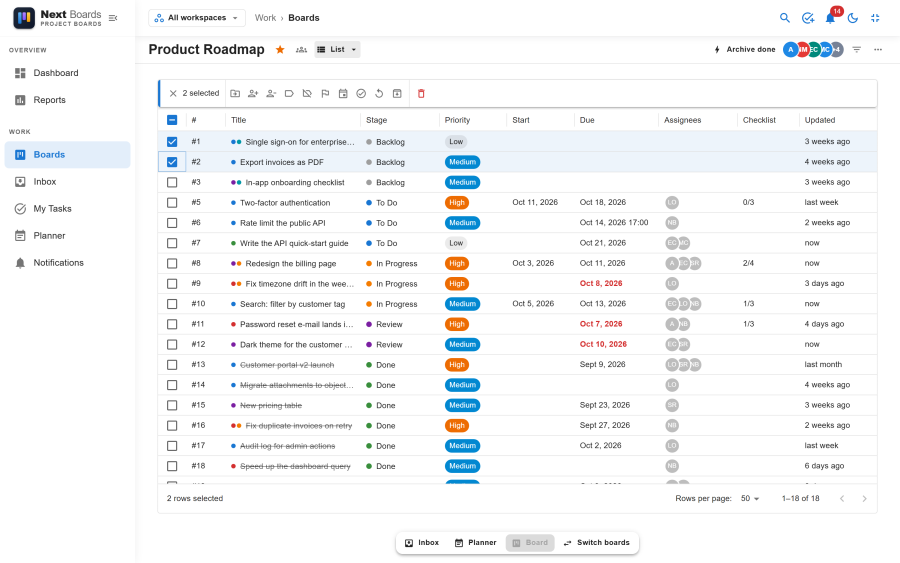
The columns are Title, Stage, Priority, Start, Due, Assignees, Labels, Checklist and Updated, plus one column for each custom field of the board. Click a column header to sort by it. Click a row to open the card.
Bulk actions
Tick the rows you want, then use the bar that appears:
| Action | Does |
|---|---|
| Move to stage | Moves the selected cards to one stage. |
| Assign / Unassign | Adds or removes one person on all of them. |
| Add a label / Remove label | Adds or removes one label. |
| Priority | Sets the same priority, or none. |
| Set due date | Sets or clears the due date. |
| Complete / Reopen | Marks them done or not done. |
| Archive | Takes them off the board; they can be restored. |
| Delete | Deletes them with their checklists, comments and attachments, after a confirmation. |
On a phone the bulk actions open as a sheet from the bottom of the screen.
Calendar view
The cards of the board on a calendar, by due date.
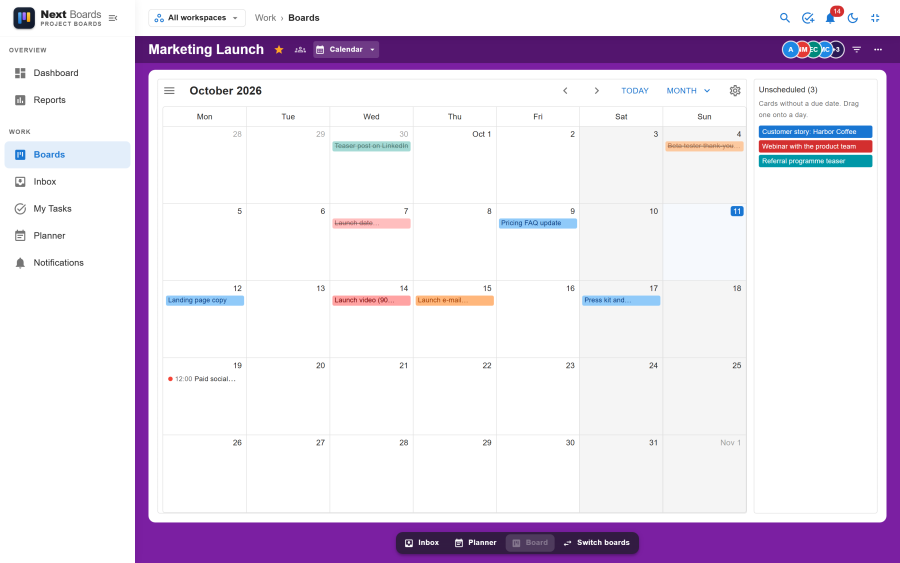
- Choose Month, Week or Agenda at the top, and move through time with the arrows or the small calendar.
- A card with a due date and no time is an all-day entry. A card due at a set time is a 30-minute entry at that time.
- Drag a card to another day to change its due date.
- The Unscheduled tray lists the cards without a due date. Drag one onto a day to give it one.
- Click an empty day to add a card due that day; you pick its stage in the small form.
- Click a card to open it.
Removing a card from the calendar only clears its due date. The card stays on the board.
Times are shown in your own time zone. See Time zones.
Roadmap view
A timeline with one bar per card, from its start date to its due date. Use it to see what overlaps and what comes next.
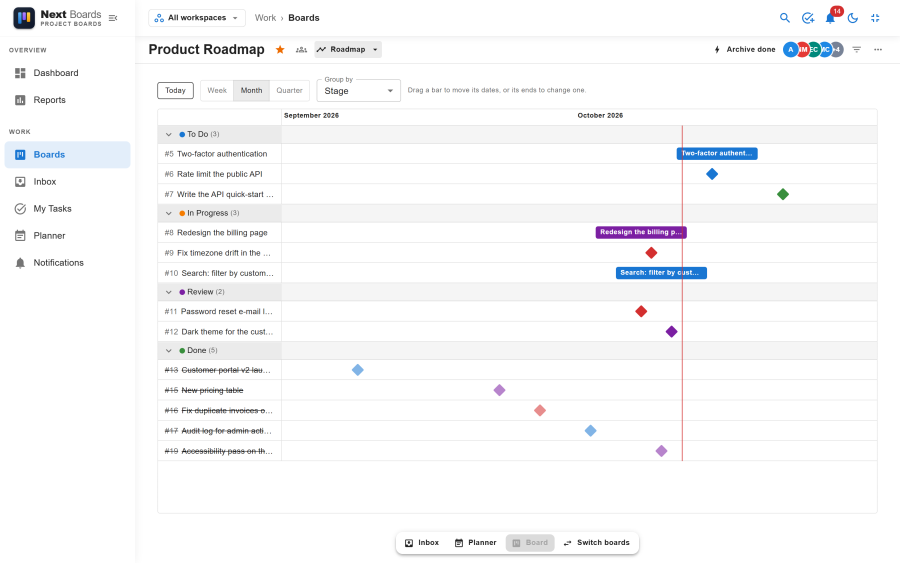
| Control | Options |
|---|---|
| Zoom | Week, Month or Quarter. |
| Group by | Stage or Assignee. Groups can be collapsed. |
| Today | Scrolls back to the current day, which has its own marker. |
Drag a bar to move both dates, or drag one of its ends to change the start or the due date alone. A card with only one of the two dates is shown on that day. Cards with no date at all are not on the roadmap.
Switching a view off
Calendar and Roadmap are apps. A site administrator can switch either off under Configuration → Apps; boards that open in that view then open as Kanban.
See also
- The Kanban board
- Planner: your own day and week, across all boards
- My Tasks